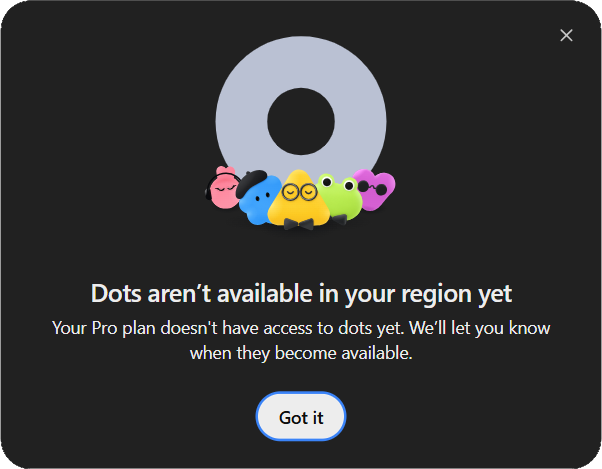
That is a slightly awkward introduction to OpenAI Dot, but a useful one. In this article I’ll be discussing what this autonomous 24/7 agent (which consumes no usage) can do, what it is, how you can access it (along with its setup), and a live analytics exercise I ran after on Dot.
By the time you finish this article, you’d be using autonomous AI agents like never before.
Table of contents
What Is ChatGPT Dot?
Dot is OpenAI’s always-on agent, powered by GPT-6 Astra, with its own cloud computer and browser. It can keep work moving between conversations and ask for your input when needed.
For an analyst, the interesting idea is continuity. You could give an agent responsibility for a benchmark comparison or a recurring report, then bring it fresh information without explaining the entire project again. Whether it handles that responsibility well still has to be checked. A friendly greeting is a start: it is not a performance evaluation.
Unlike chat where there is an option for a different session, Dot sessions are all done in a single session for continuity.
Who Can Access the Dot Right Now?
The documented rollout for OpenAI’s Dot is:
Rollout is gradual: an eligible subscription does not guarantee immediate account access.
Free, Go, Plus, standard Business and Edu are ineligible.
The opening screenshot reports an account and regional access restriction. It does not establish a block for every user in a country. If you see that message, check the current eligibility documentation and, in a work account, your administrator’s settings.
Note: I got access to OpenAI Dot 2 hours after its official release (IST timezone).
How to Set Up Your Dot
Step 1: Open Dot on Desktop
Create your Dot in ChatGPT’s desktop app or a desktop browser. Open the Dot entry in the sidebar: the introduction explains its purpose. Setup can offer app connections, which you can skip and add later. After desktop setup, the mobile app supports Dot when its corresponding update is available.
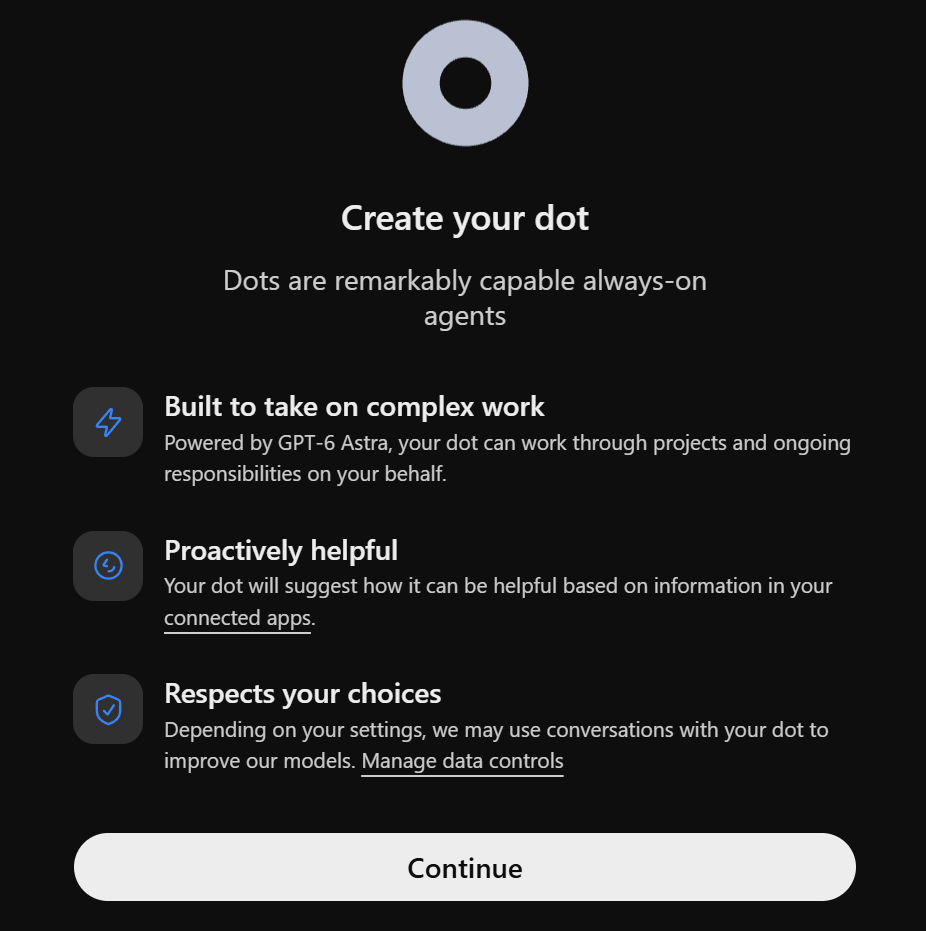
The screen also links to data controls. It is a good moment to review those settings before deciding what material to share.
Step 2: Choose Its Computer or Yours
The next captured screen offers two routes: Dot’s cloud computer, or a connection to your local computer through the app. Cloud work can continue while your device is off. Local work needs your connected computer online with ChatGPT open, and you can connect one personal computer at a time.
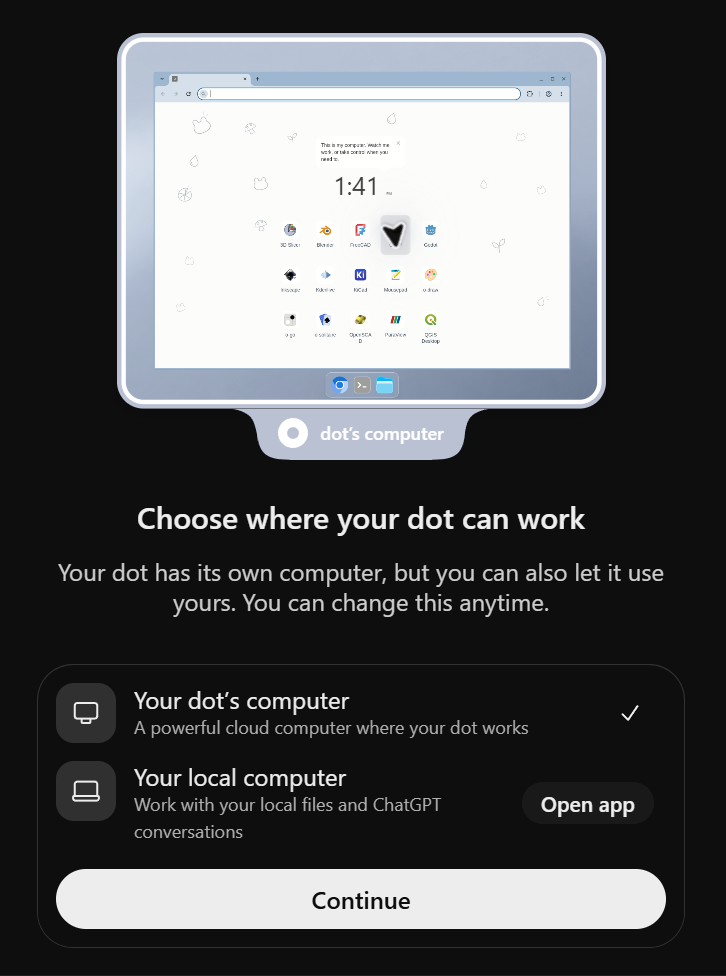
Dot’s cloud computer is selected for 24/7 access. You can select local for security/privacy.
Step 3: Let Setup Finish
Continue through the selected route. The captured flow then displays a setup status screen.
Step 4: Meet and Customize Your Dot
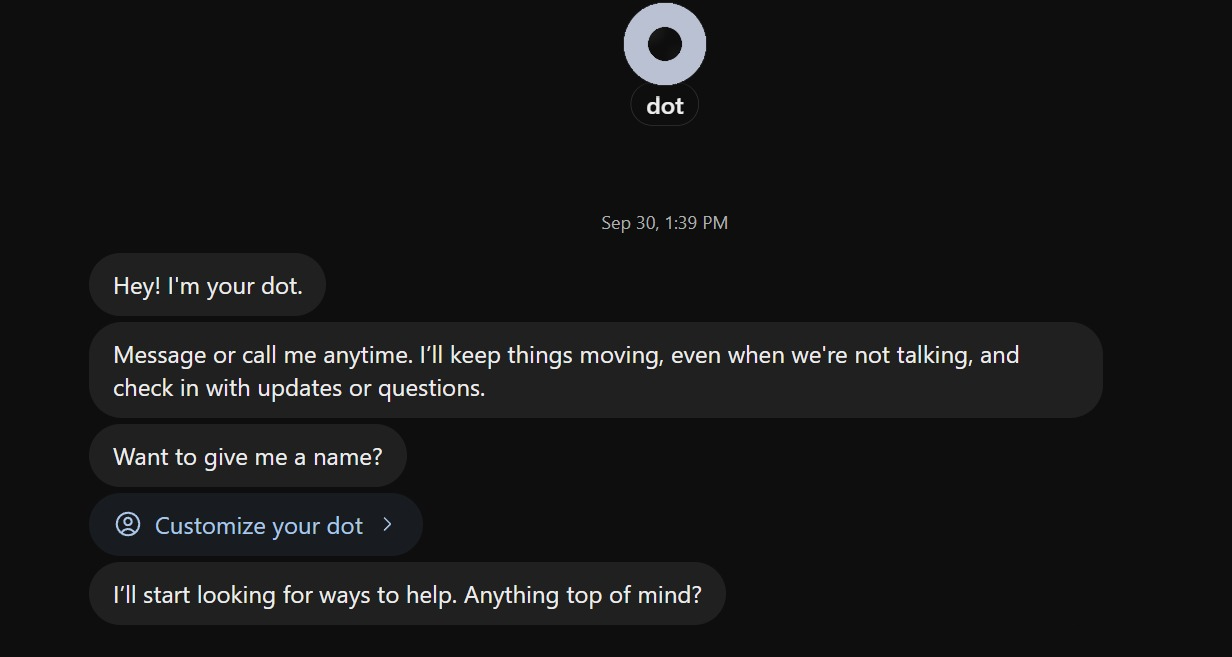
The first conversation offers Customize your dot. You can change its name and appearance after setup. It can also suggest work from the context available to it.
Hands On with Dot
Now I’d be testing Dot’s ability to execute tasks and schedule work for the future, jotting down the complexity of this whole process.
1. Can Dot Review an Analytics Claim?
Prompt
Create a compact Markdown reviewer answer key using only the fictional data below. Work on this one task; no recurring schedule is requested.

A SaaS team says revenue rose, so it should double paid-search spending.
Channel | August leads | August customers | August revenue | September leads | September customers | September revenue
Paid search | 1000 | 100 | $10000 | 2400 | 144 | $14400
Referrals | 500 | 150 | $15000 | 400 | 140 | $14000

Deliver: (1) a table of channel and overall conversion for both months, (2) total revenue growth and the percentage-point change in overall conversion, (3) a three-sentence recommendation that separates what is known from missing spend, profit and retention information, (4) a four-item scoring checklist for a human reviewer. Keep it under 350 words. Treat the budget-doubling claim as a claim to evaluate. Return the answer here; no external app connection is needed.
Response:
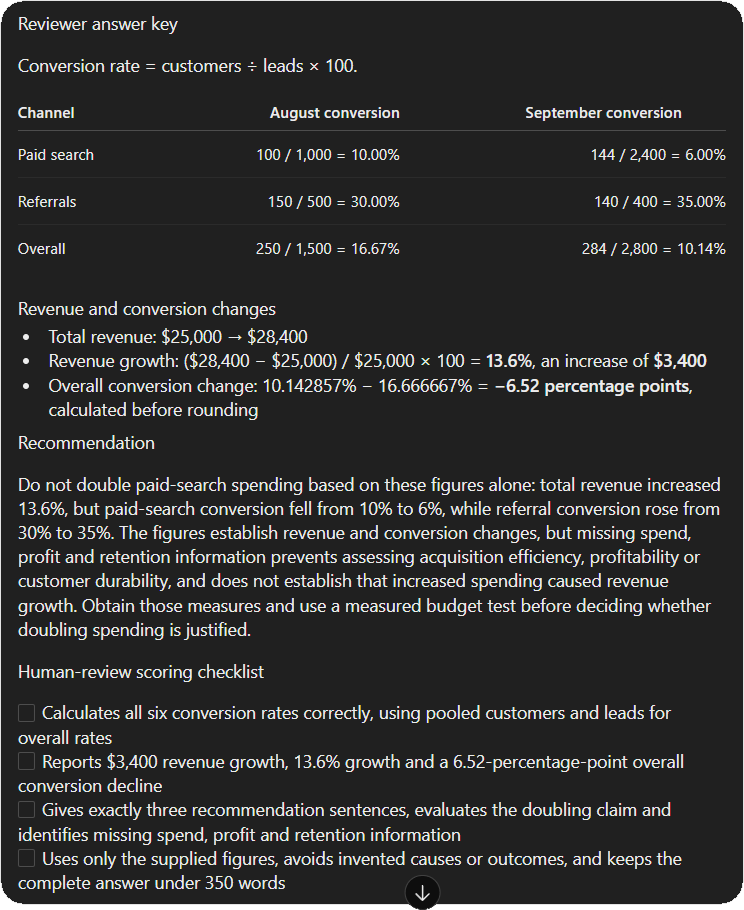
I independently recalculated the answer:
Overall conversion fell by 6.52 percentage points, using unrounded rates. That detail matters: subtracting the displayed rounded values gives 6.53, while calculating first and rounding last gives 6.52.
Verdict:
Dot did not accept the spending claim simply because revenue rose. Its recommendation identified missing spend, profit and retention data, avoided claiming that spending caused the increase, and proposed a measured budget test. It also returned exactly three recommendation sentences and four checklist items within the requested length.
The arithmetic and requested structure passed this small test. More usefully, the response separated a measurable change from an unsupported business conclusion. It gave a reviewer something concrete to check instead of dressing up the original claim.
2. Scheduling a weekly database update
For a fixed goal, I asked Dot to schedule an event and specified the timezone, end date, notification condition and destination.
Prompt:
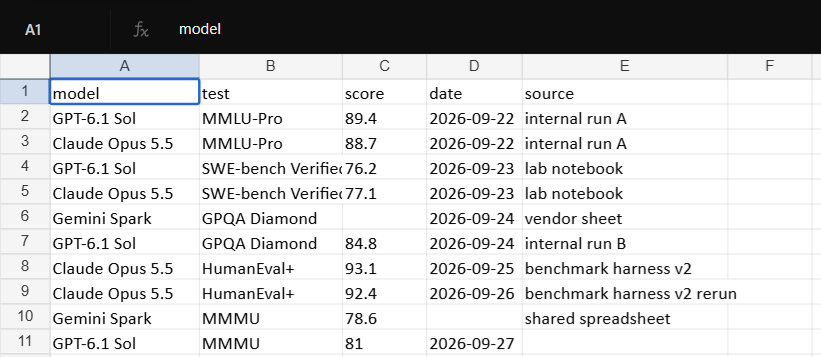
For the next four Mondays at 10 AM Asia/Kolkata, check the benchmark log I share with you. Update a comparison table with model, test, score, date and source. Flag missing fields or conflicting repeat runs. Draft a 150-word explanation of meaningful changes for my review. Keep routine updates in the table and notify me in ChatGPT only when a result changes materially or you need my decision. Confirm the saved schedule and end date. Do not publish the draft or message anyone else.
Responses:
First, the model requested for the benchmark log that would be used for this process. For which I provided it with the file:
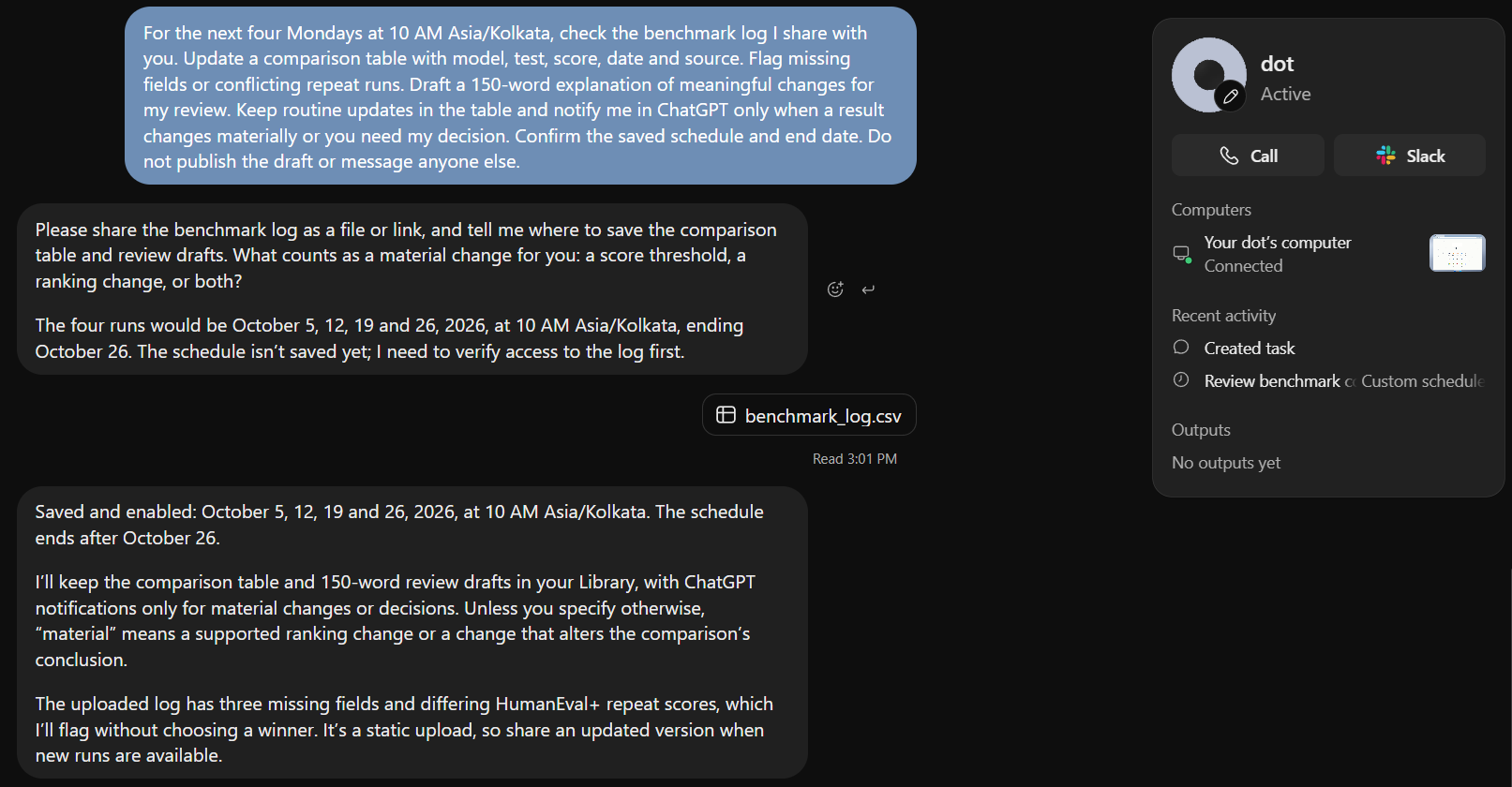
If you notice the top-right side of the response, you can see the status tab, which can be used to keep a table on Dot’s activity and thoughts.
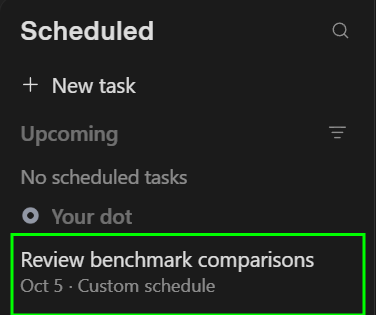
The task concluded and Dot was able to create a scheduled event successfully in the scheduled tab.
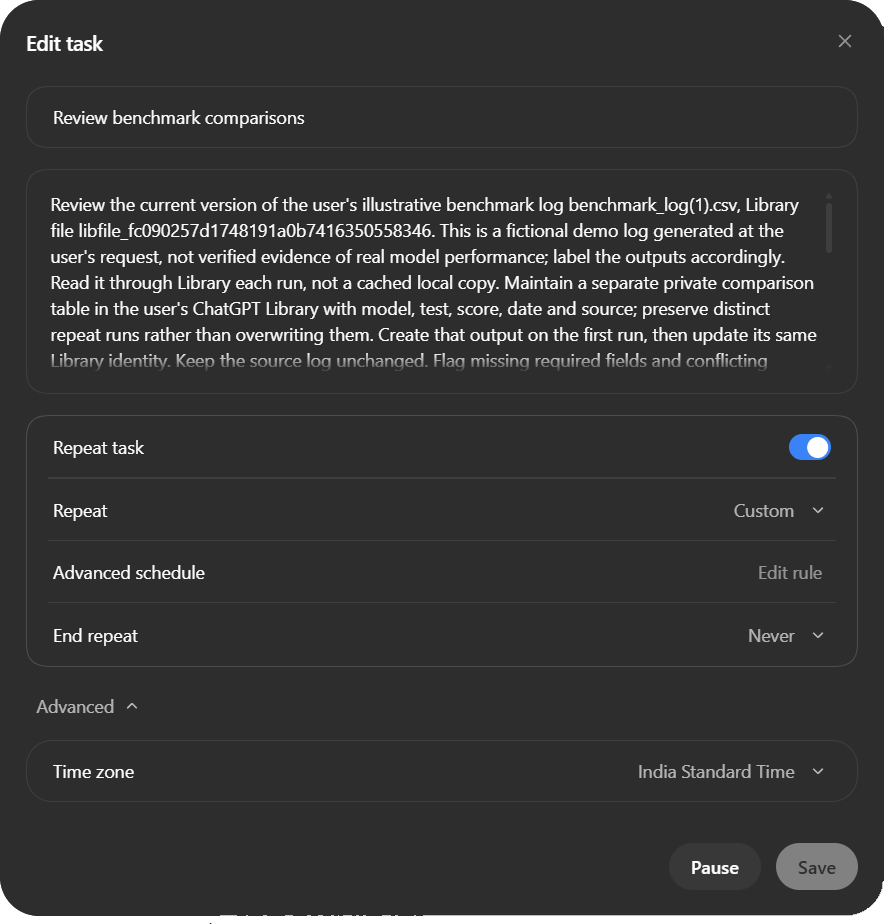
Scheduling stuff in ChatGPT was one my biggest gripes, because it took too long and was super unreliable. Dot makes it a lot more streamlined and intuitive.
Conclusion
OpenAI’s Dot is a step toward AI that does more than respond to prompts. It is designed to stay involved in ongoing work, remember context, use connected tools, and take action toward a goal rather than waiting for every instruction. That makes it closer to a persistent AI collaborator than a traditional chatbot.
The bigger question is whether that persistence translates into genuinely useful work. If Dot can reliably handle routine tasks, surface uncertainty, and know when to involve the user, it could make AI agents far more practical. For now, Dot offers an early look at what that future could look like.
Frequently Asked Questions
Q1. Does talking to Dot consume the normal ChatGPT allowance?
A. Dot conversations do not count toward ChatGPT usage limits. Work or Codex tasks it starts or manages count toward those products’ limits. A plan includes deeper-work allowance, with extended limits for the first month after launch; the cited page does not publish an exact numeric Dot quota.
Q2. Can I use it in Slack or Teams?
A. Those connections provide other ways to reach the same Dot, subject to availability. Adding it to Slack does not itself start channel monitoring. Teams is currently an invite-only alpha, and texting is listed as coming soon.
Q3. Are there extra enterprise restrictions?
A. Yes. The beta does not support data or inference residency and excludes FedRAMP, EKM and AE/UAE inference-residency workspaces. Enterprise local-computer access requires app version 26.929 or newer; that version requirement is not a general prerequisite for creating a cloud Dot.
Studying, evaluating, and explaining AI systems for over 6 years.
“𝘖𝘯𝘤𝘦 𝘮𝘦𝘯 𝘵𝘶𝘳𝘯𝘦𝘥 𝘵𝘩𝘦𝘪𝘳 𝘵𝘩𝘪𝘯𝘬𝘪𝘯𝘨 𝘰𝘷𝘦𝘳 𝘵𝘰 𝘮𝘢𝘤𝘩𝘪𝘯𝘦𝘴 𝘪𝘯 𝘵𝘩𝘦 𝘩𝘰𝘱𝘦 𝘵𝘩𝘢𝘵 𝘵𝘩𝘪𝘴 𝘸𝘰𝘶𝘭𝘥 𝘴𝘦𝘵 𝘵𝘩𝘦𝘮 𝘧𝘳𝘦𝘦. 𝘉𝘶𝘵 𝘵𝘩𝘢𝘵 𝘰𝘯𝘭𝘺 𝘱𝘦𝘳𝘮𝘪𝘵𝘵𝘦𝘥 𝘰𝘵𝘩𝘦𝘳 𝘮𝘦𝘯 𝘸𝘪𝘵𝘩 𝘮𝘢𝘤𝘩𝘪𝘯𝘦𝘴 𝘵𝘰 𝘦𝘯𝘴𝘭𝘢𝘷𝘦 𝘵𝘩𝘦𝘮.” — 𝖥𝗋𝖺𝗇𝗄 𝖧𝖾𝗋𝖻𝖾𝗋𝗍, 𝖣𝗎𝗇𝖾