Artificial intelligence tools are evolving rapidly, but the real productivity gains don’t come from using one The real power of these tools comes from using them together. Google NotebookLM specializes in structured knowledge synthesis, helping users analyze curated sources, generate summaries, and clarify complex material. LM Studio offers a private local workspace for running open-weight LLMs, enabling rapid experimentation and iterative content creation.
Combined, they form a practical workflow: LM Studio for exploration and generation, NotebookLM for organization and understanding. In this article, we show how this pairing supports real-world research and knowledge work through hands-on examples.
Table of contents
Understanding the Complementary Roles
Let’s first try to breakdown what role each tool plays to better understand what we can accomplish by their combination.
NotebookLM: Source-Grounded Knowledge Interaction
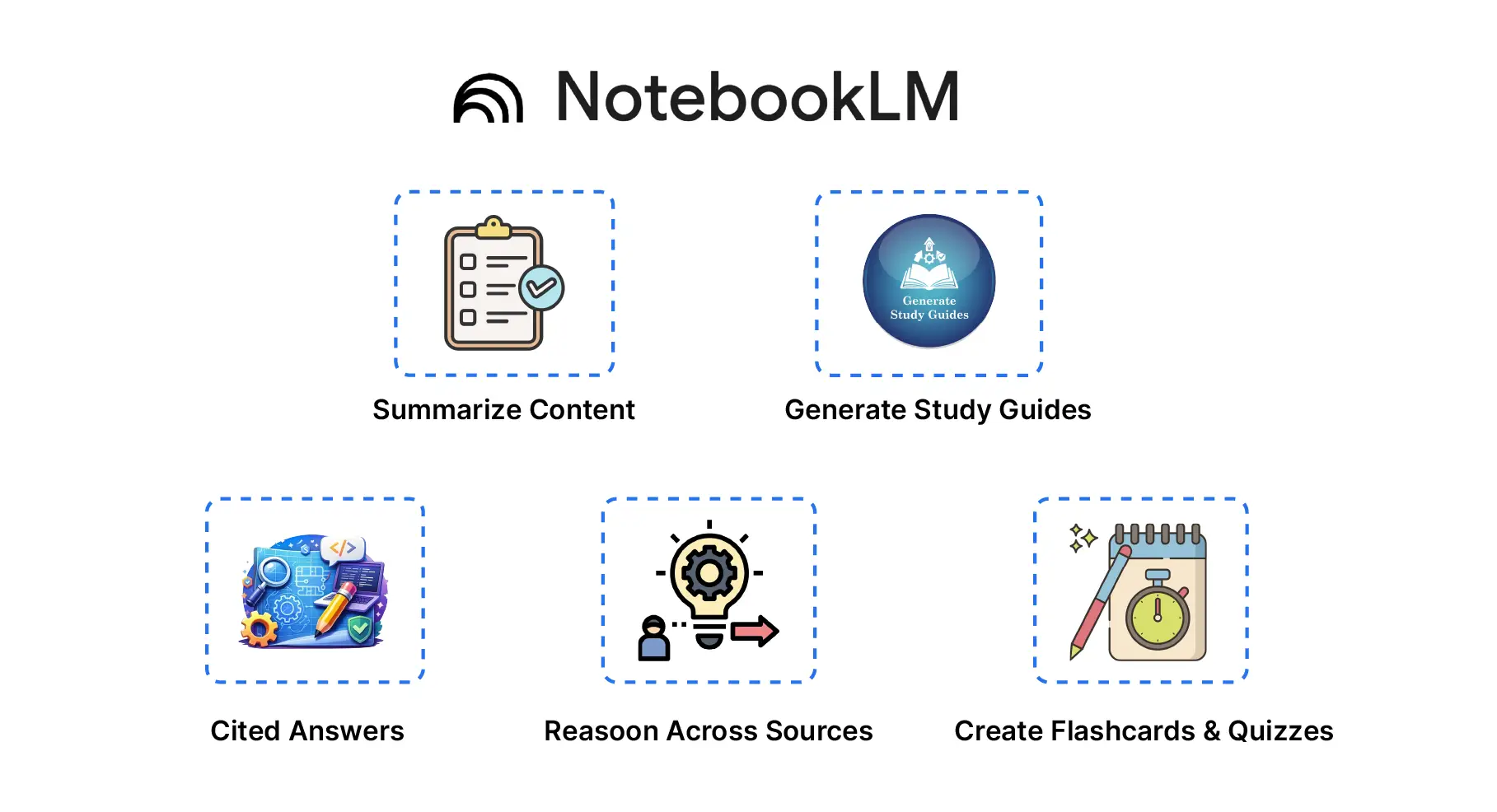
NotebookLM utilizes the use of contextual intelligence to produce answers. Unlike producing answers from generic trained data, it uses only materials that you provide including PDF files, Google Docs, links, or transcripts. Some of NotebookLM’s key features are:
- Able to provide summaries that use context
- Proof of citation for an answer
- Ability to generate flashcards and quizzes
- Able to produce a study guide
- The ability to reason across multiple sources
The best way to use NotebookLM is when you have material that has been curated by you prior to using the application.
LM Studio: Local AI Exploration Engine
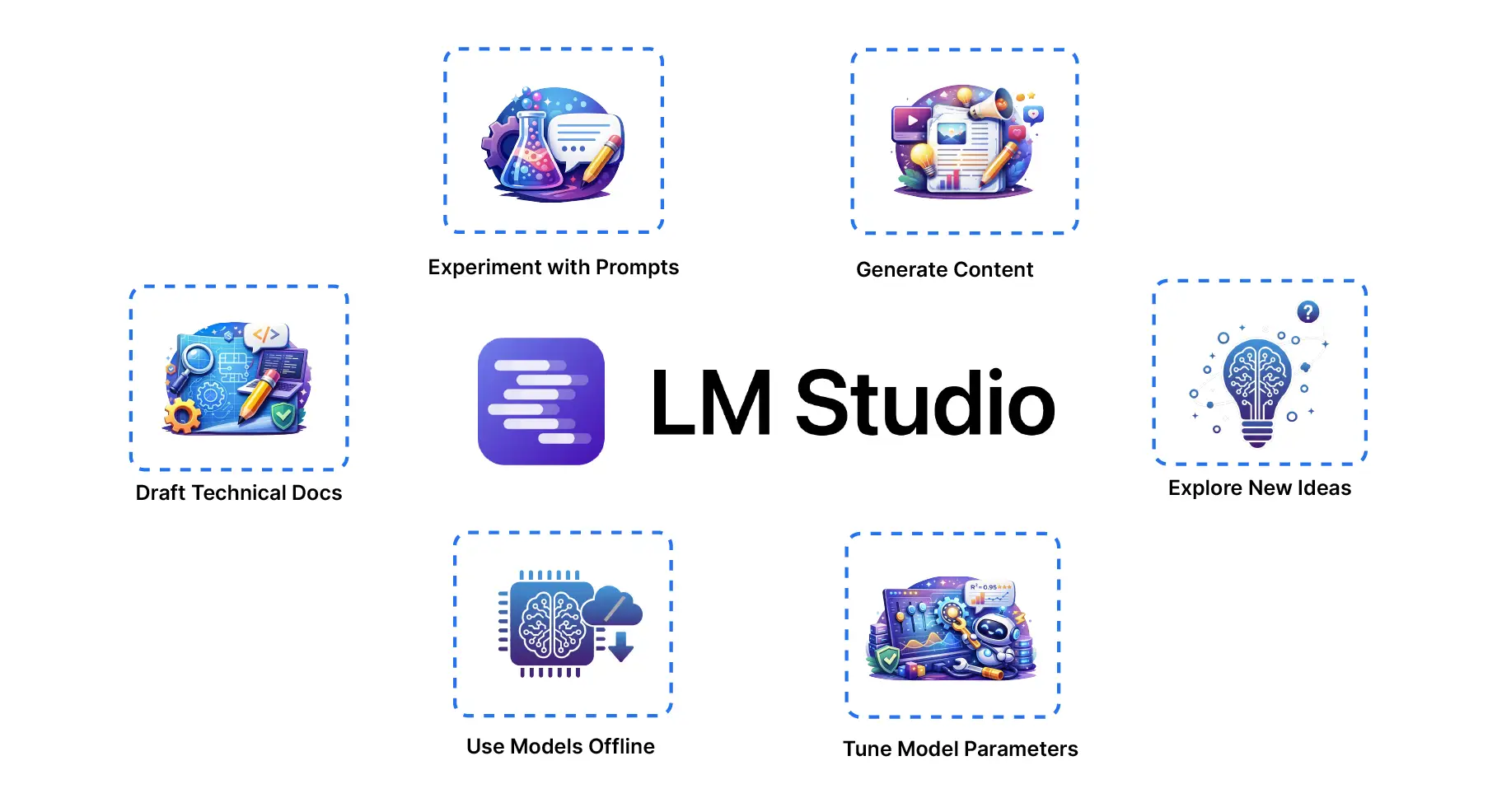
LM Studio allows users to use language models on their computer, rather than depending on cloud-based access, thus allowing for real-time interaction with private data. The key capabilities include:
- Experimenting with prompts
- Generating content
- Drafting technical documents
- Exploring new ideas
- Using models offline
- Tuning model parameters
It’s perfect for generating/refining knowledge before developing into a structured format.
Why Pair LM Studio with NotebookLM?
NotebookLM is great for structured learning. You can upload documents, and it provides answers with citations to your questions. It can summarize research, highlight important concepts, generate study guides, etc. However, NotebookLM’s AI, which is created using Google’s Gemini models, needs to access the internet/cloud. Also, there may be limitations on your usage or paywalls. In contrast, LM Studio allows you to use an AI model, such as GPT-OSS, directly from your computer. Benefits to this are:
- Speed and Availability: Local LLMs run without any network latency. Complex queries usually execute more quickly than they would otherwise, and you can also perform these operations offline or without relying on outside entities.
- Privacy and Control: When using LM Studio, once you enter a prompt, that data remains on your local machine unless you expressly choose to share it. Also, the LM Studio model will not learn from your conversations or provide usage statistics by default, meaning anything you do with LM Studio will stay private to you.
- Cost and Flexibility: All the open-source models provided within LM Studio (e.g., OpenAI’s GPT-OSS) are free to use and you can upgrade them as required. You have the freedom to experiment with multiple model sizes (20B vs. 120B) and trade speed vs. Accuracy.
- Iteration & Deep Dives: With LM Studio, your token limit is not an issue when it comes to generating long descriptions or iterating multiple times from inputted text. You can take that distilled material over to NotebookLM for a structured review of your content.
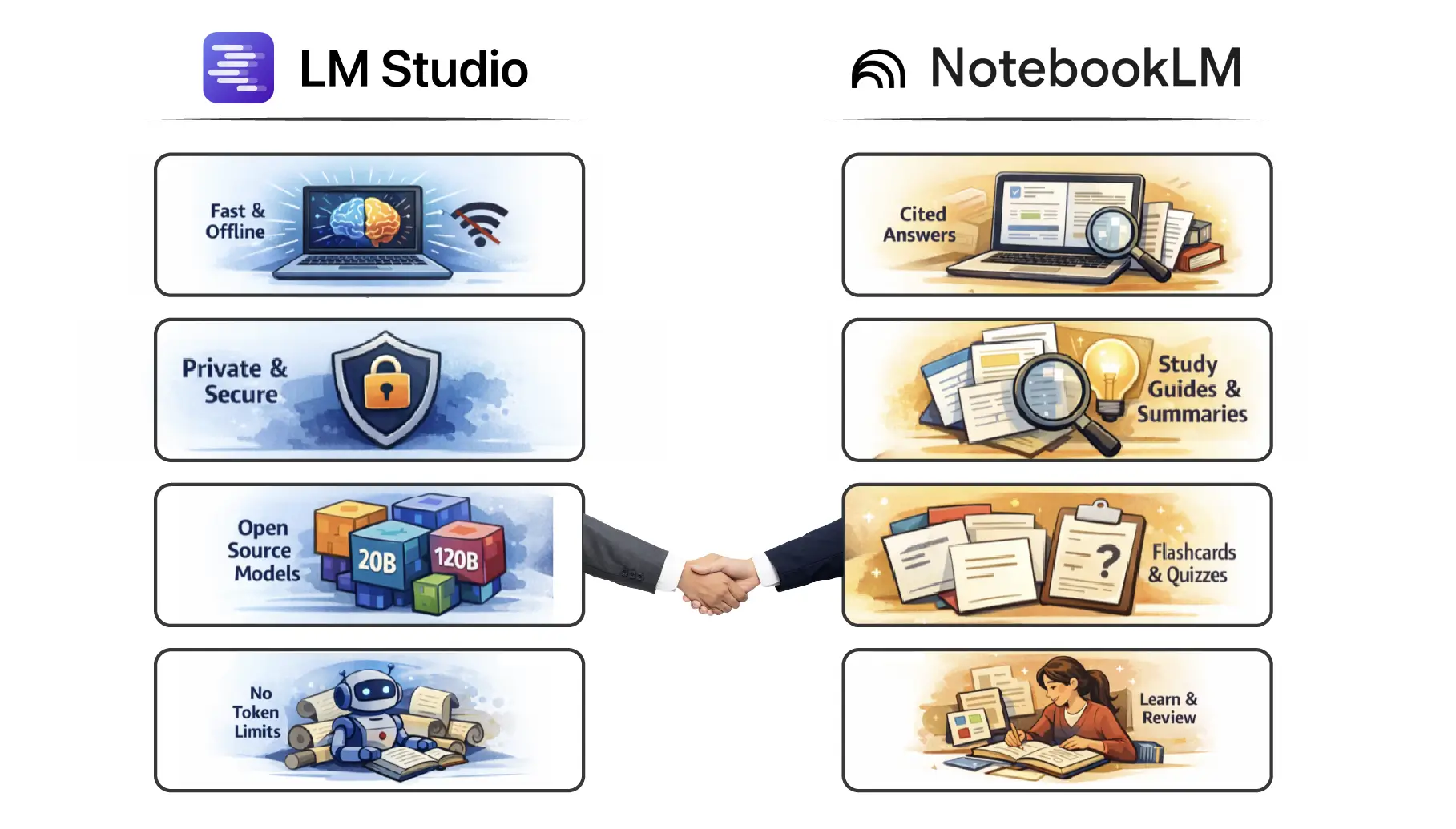
The use of LM studio is an easy way to explore new ideas quickly, while NotebookLM will serve as your study partner. Because of its “source-grounded” approach, all of the answers in NotebookLM point back to the notes you’ve uploaded, making it a valuable resource when looking for credible information to study from. Many of the new features added to NotebookLM, such as flashcards and quizzes, will allow you to turn your information into a fun and engaging way to study.
Getting Started with NotebookLM & LM Studio
- Download LM Studio: You need to access LM Studio’s website to download the installation file which suits your operating system requirements either Windows or macOS or Linux. You need to run the installer to start LM Studio. The application requires your approval of security prompts before you can operate the desktop application which enables model management.
- Install a Model (e.g. GPT-OSS-20B): Go to the Discover or Models panel inside LM Studio. You can search for openai/gpt-oss-20b (OpenAI’s open-source 20B model) and click to download or “get” it. You can retrieve the model through LM Studio CLI after installing lms tool by executing:
lms get openai/gpt-oss-20b This command retrieves the model. The model can be loaded through:
lms load openai/gpt-oss-20b - The model becomes accessible through either the LM Studio chat interface or the CLI chat command after its loading process completes. The command structure requires you to input the following command:
lms chat openai/gpt-oss-20b - Users should initiate a new chat session through the UI by selecting the GPT-OSS-20B model. The user should enter the command “Explain the key trends in renewable energy research” to start the model. The 20B model will respond to the user within a few seconds. The openai/gpt-oss-120b model provides better performance when users have access to a powerful GPU.
- Tweak Settings (Optional): Users can change temperature and sampling settings through the chat interface or CLI of LM Studio. The model provides more accurate results at lower temperature settings which range from 0.2 to 0.5. The model generates creative output through higher temperature settings which start from 0.7. The details which you provide are not necessary for your current requirements.
After you complete these five steps, you can successfully run LM Studio with its operational local LLM system. The system allows you to test different functionalities through document summaries and question answering and idea creation activities. Your system will store all chat sessions that you conduct.
Hands-on Task 1: Building a Technical Research Brief
You need to learn about a new subject which is multimodal retrieval systems so that you can create organized notes which you can use later. The goal of the project is to use LM Studio for research purposes while using NotebookLM to create organized material.
Step-by-Step Workflow
Step 1: Topic Exploration in LM Studio
Prompt your local model:
Explain multimodal retrieval systems including:

• architecture
• challenges
• evaluation metrics
• real world applications

Keep the response technical
Follow up with the refined prompts:
Provide implementation considerations for production systems

Compare vector-based vs hybrid retrieval approaches
Step 2: Structure the Agent Response
Create structured markdown notes from this discussion

Include headings and bullet points
Step 3: Import to NotebookLM
Use the response provided by LMStudio, copy the output or export the document to NotebookLM.
Step 4: Reinforcement learning
Use NotebookLM features:
- Generate flashcards
- Create quiz
- Produce study guide
Hands-on Task 2: Dataset Understanding and Interview Preparation
In this task, we’ll prepare for discussions and interviews regarding Technical and Domain knowledge by gaining thorough understanding of Dataset/Domain.
Step 1: Use LM Studio to create Domain Questions
Act as a senior ML interviewer, create difficult level conceptual questions, with the understanding in the following areas:

• Feature engineering
• Model bias
• Evaluation metrics
Step 2: Import Questions into NotebookLM
Incorporate generated question set into:
- Lecture notes
- Research PDF’s
- Documentation
Step 3: Use NotebookLM to practice giving contextual responses to your questions using materials above.
This will allow you to give accurate responses based on materials used instead of generic AI generated responses.
Step 4: Evaluate your performance using NotebookLM’s quiz generation to emulate testing conditions.
Step 5: Create a slide deck to make it easier to understand.
Conclusion
The combination of Google NotebookLM and LM Studio creates a robust research process that researchers can implement on their own systems. Users start content creation through LM Studio before they move their work to NotebookLM which provides citation-based summaries and educational question and answer sessions.
The approach uses the two tools through their different capabilities, which include the flexible and private features of LM Studio and the educational framework of NotebookLM. Your work efficiency and control over your tasks will benefit from the combination of cloud and local AI systems. Happy researching!
Frequently Asked Questions
Q1. How do NotebookLM and LM Studio complement each other?
A. LM Studio handles local idea generation and experimentation, while NotebookLM organizes curated sources into structured summaries, quizzes, and study materials.
Q2. Why would someone choose LM Studio over cloud AI tools?
A. LM Studio runs models locally, giving faster responses, offline access, stronger privacy for sensitive data, and flexibility to experiment with open-weight models.
Q3. What practical tasks can this combined workflow support?
A. It supports building research, preparing for interviews, structuring technical notes, and creating study guides through a generation-to-organization pipeline.
Data Science Trainee at Analytics Vidhya
I am currently working as a Data Science Trainee at Analytics Vidhya, where I focus on building data-driven solutions and applying AI/ML techniques to solve real-world business problems. My work allows me to explore advanced analytics, machine learning, and AI applications that empower organizations to make smarter, evidence-based decisions.
With a strong foundation in computer science, software development, and data analytics, I am passionate about leveraging AI to create impactful, scalable solutions that bridge the gap between technology and business.
📩 You can also reach out to me at [email protected]