A few weeks ago, my friend Vasu asked me a simple but tricky question: “Is there a way I can run private LLMs locally on my laptop?” I immediately went hunting blog posts, YouTube tutorials, anything and came up empty-handed. Nothing I could find really explained it for non-engineers, for someone who just wanted to use these models safely and privately.
That got me thinking. If a smart friend like Vasu struggles to find a clear resource, how many others out there are stuck too? People who aren’t developers, who don’t want to wrestle with Docker, Python, or GPU drivers but who still want the magic of AI on their own machine.
So here we are. Thank you, Vasu, for pointing out that need and nudging me to write this guide. This blog is for anyone who wants to run state-of-the-art LLMs locally, safely, and privately without losing your mind in setup hell.
We’ll walk through the tools I’ve tried: Ollama, LM Studio, and AnythingLLM (plus a few honorable mentions). By the end, you’ll know not just what works, but why it works, and how to get your own local AI running in 2025.
Table of contents
Why Run LLMs Locally Anyway?
Before we dive in, let’s step back. Why would anyone go through the trouble of running multi-gigabyte models on their personal machine when OpenAI or Anthropic are just a click away?
Three reasons:
- Privacy & control: No API calls. No logs. No “your data may be used to improve our models.” You can literally run Llama 3 or Mistral without leaking anything outside your machine.
- Offline capability: You can run it on a plane. In a basement. During a blackout (okay, maybe not). The point is that it’s local, it’s yours.
- Cost and freedom: Once you download the model, it’s free to use. No subscription tiers, no per-token billing. You can load any open model you like, fine-tune it, or swap it out tomorrow.
Of course, the trade-off is hardware.
Running a 70B parameter model on a MacBook Air is like trying to launch a rocket using a bicycle. But smaller models like 7B, 13B, even some efficient 30B variants run surprisingly well these days thanks to quantization and smarter runtimes like GGUF, llama.cpp, etc.
5 Tools for Running LLMs Locally with Enhanced Privacy and Security
1. Ollama: The Minimalist Workhorse
The first tool we will see is Ollama. If you’ve been on Reddit or Hacker News lately, you’ve probably seen it pop up in every “local LLM” discussion thread.
Installing Ollama is ridiculously easy, you can directly download it from its website, and you’re up. No Docker. No Python hell. No CUDA driver nightmare.
This is the official website for downloading the tool:

It’s available for MacOS, Linux and Windows. Once installed, you can choose your model from the list of available ones and just download them too.
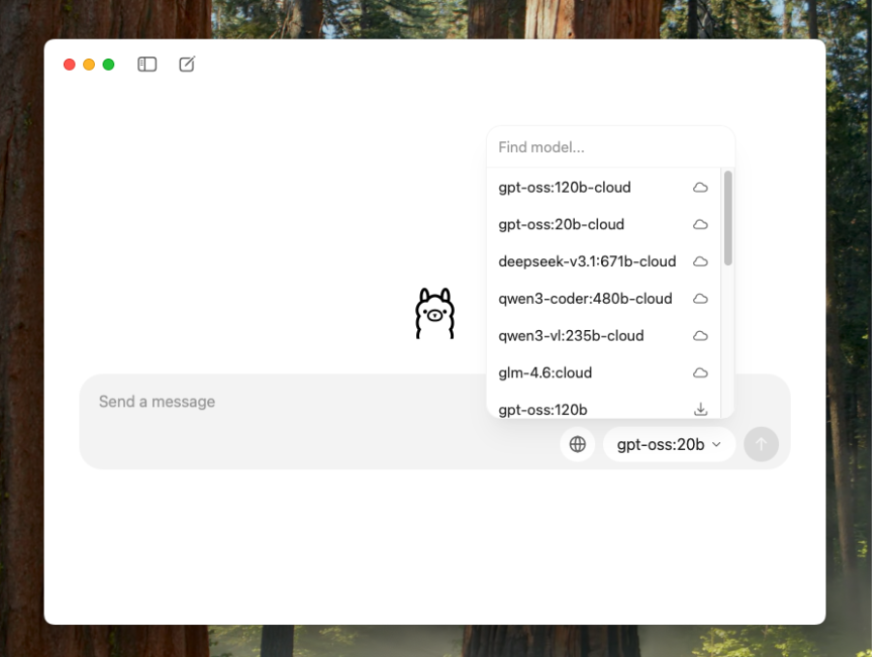
I downloaded Qwen3 4B and you can start chatting right away. Now, here are the useful privacy settings you could do:
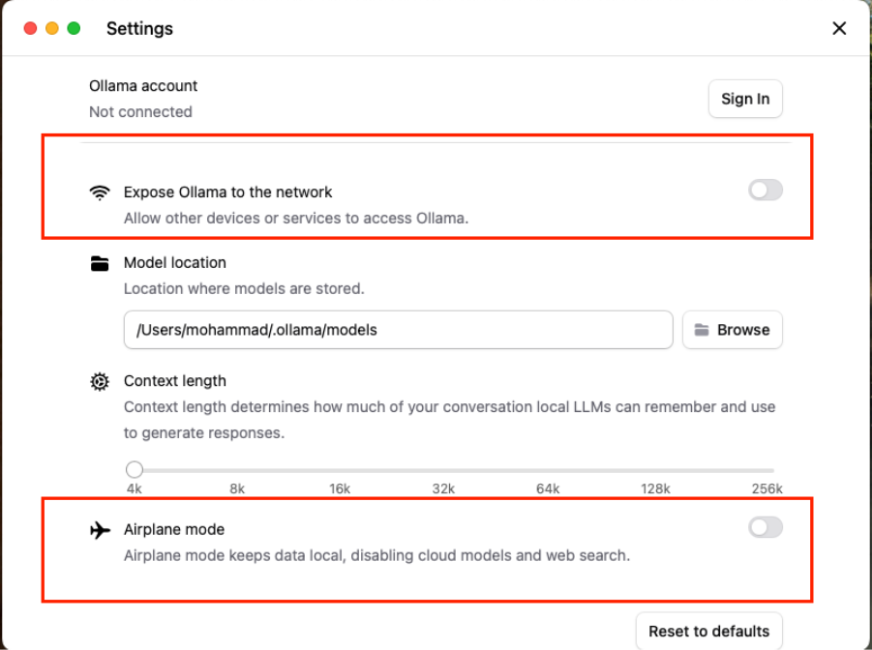
You can control whether Ollama talks to other devices on your network or not. Also, there’s this neat “Airplane mode” toggle that basically locks everything down: your chats, your models, all of it stays completely local.
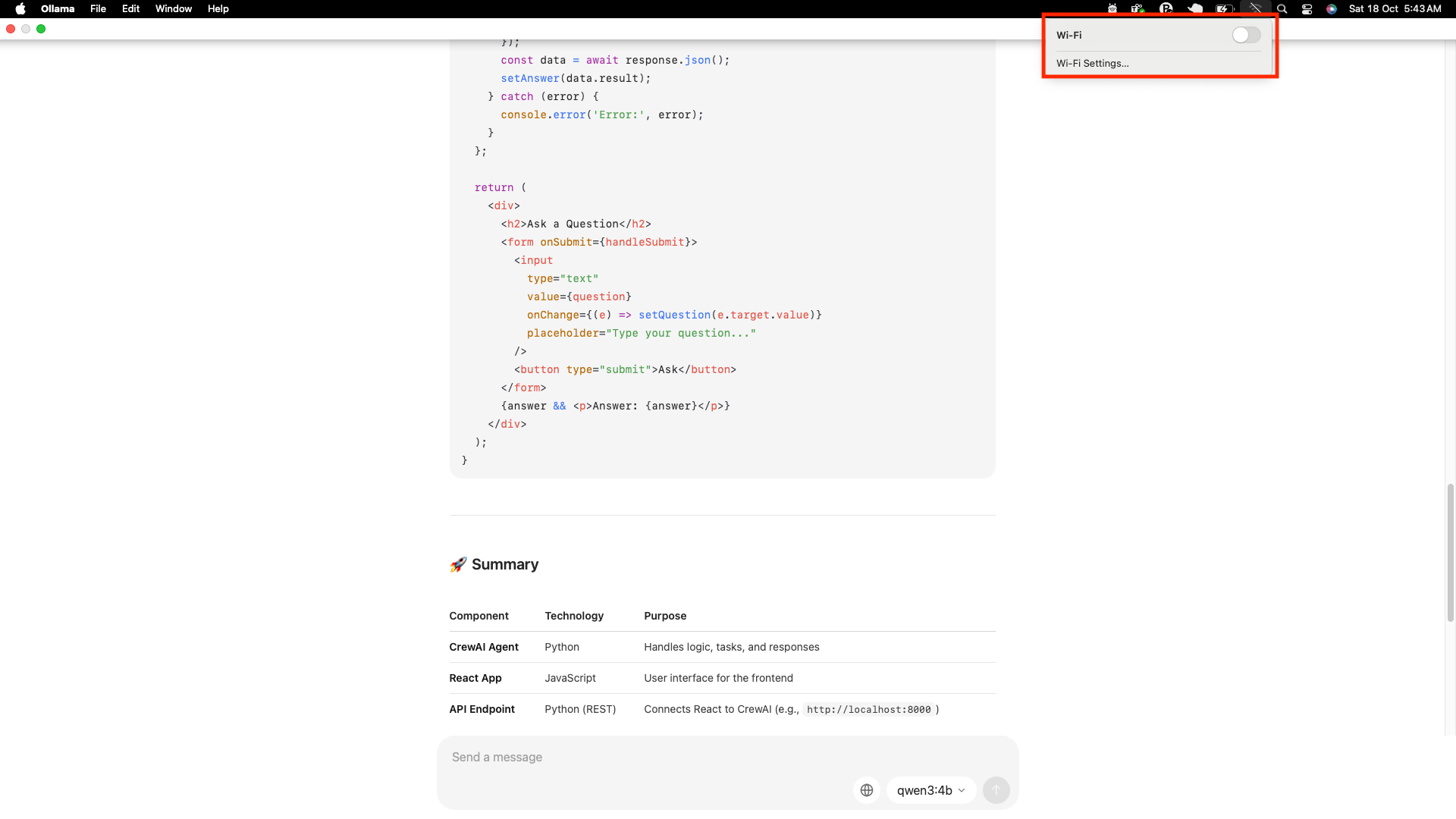
And of course, I had to test it the old-school way. I literally turned off my WiFi mid-chat just to see if it still worked (spoiler: it did, haha).
What I liked?
- Super clean UX: It feels familiar to ChatGPT/Claude/Gemini in terms of UI, and you can easily download models.
- Efficient resource management: Ollama uses llama.cpp under the hood, and supports quantized models (Q4, Q5, Q6, etc.), meaning you can actually run them on a decent MacBook without killing it.
- API compatible: It gives you a local HTTP endpoint that mimics OpenAI’s API. So, if you have existing code using openai.ChatCompletion.create, you can just redirect it to http://localhost:11434.
- Integrations: Many apps like AnythingLLM, Chatbox, and even LM Studio can use Ollama as a backend. It’s like the local model engine everyone wants to plug into.
Ollama feels like a gift. It’s stable, beautiful, and makes local AI accessible to non-engineers. If you just want to use models and not wrestle with setup, Ollama is perfect.
Full Guide: How to Run LLM Models Locally with Ollama?
2. LM Studio: Local AI with Style
LM Studio gives you a slick desktop interface (Mac/Windows/Linux) where you can chat with models, browse open models from Hugging Face, and even tweak system prompts or sampling settings; all without touching the terminal.
When I first opened it, I felt “okay, this is what ChatGPT would look like if it lived on my desktop and didn’t talk to a server.”
You can simply download LM Studio from its official website:
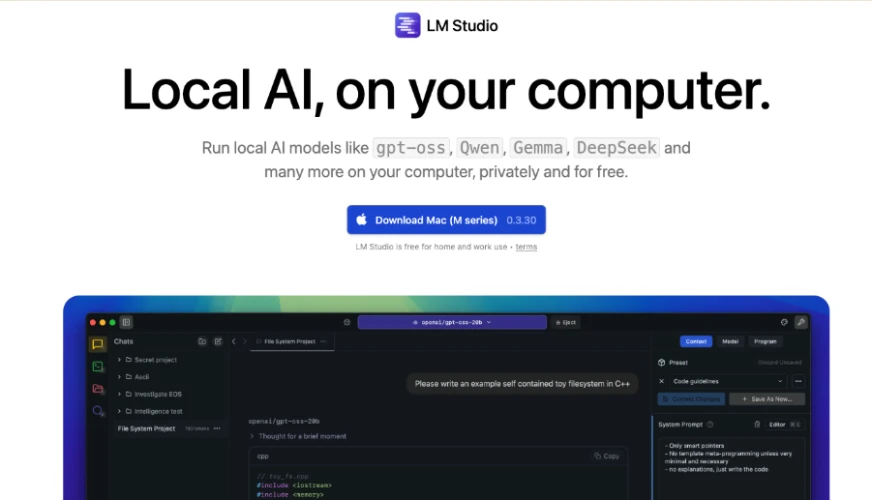
Notice how it lists models such as GPT-OSS, Qwen, Gemma, DeepSeek and more as compatible models that are free and can be used privately (downloaded to your machine). Once you download it, it lets you choose your mode:
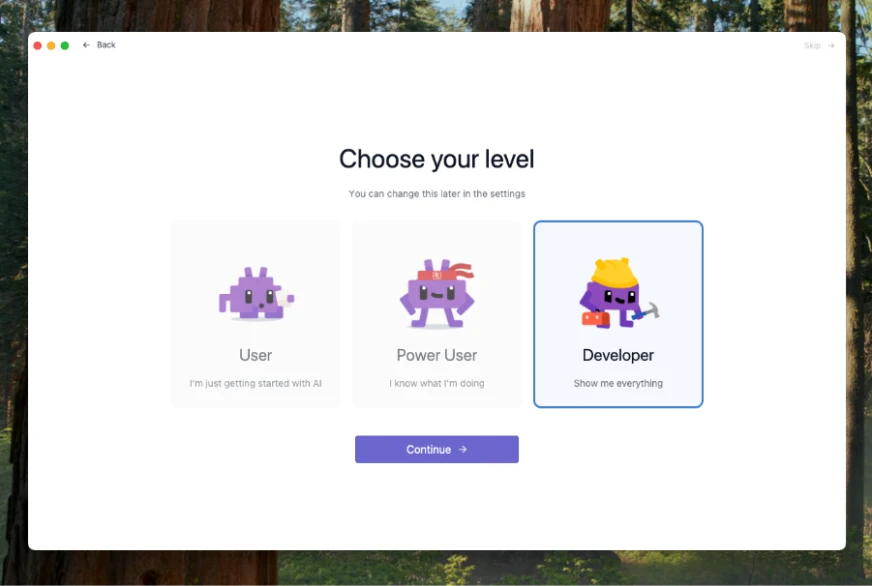
I chose developer mode because I wanted to see all the options/info it shows during the chat. However, you can just choose user and start operating. You have to choose which model to download next:
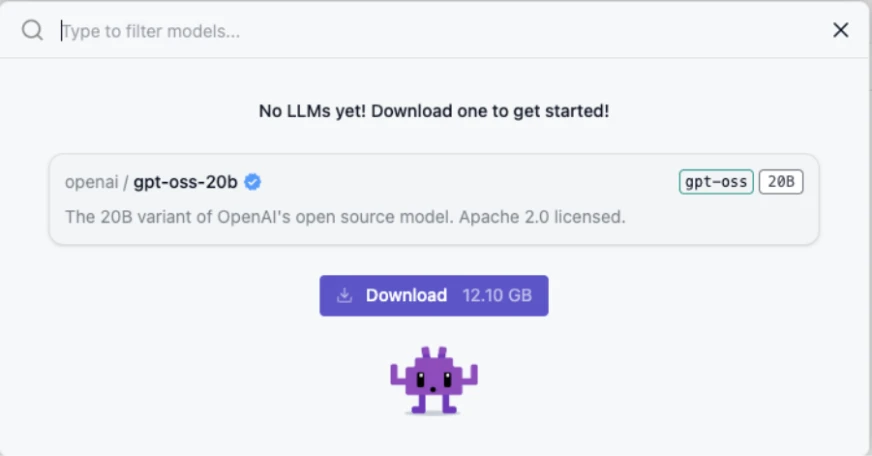
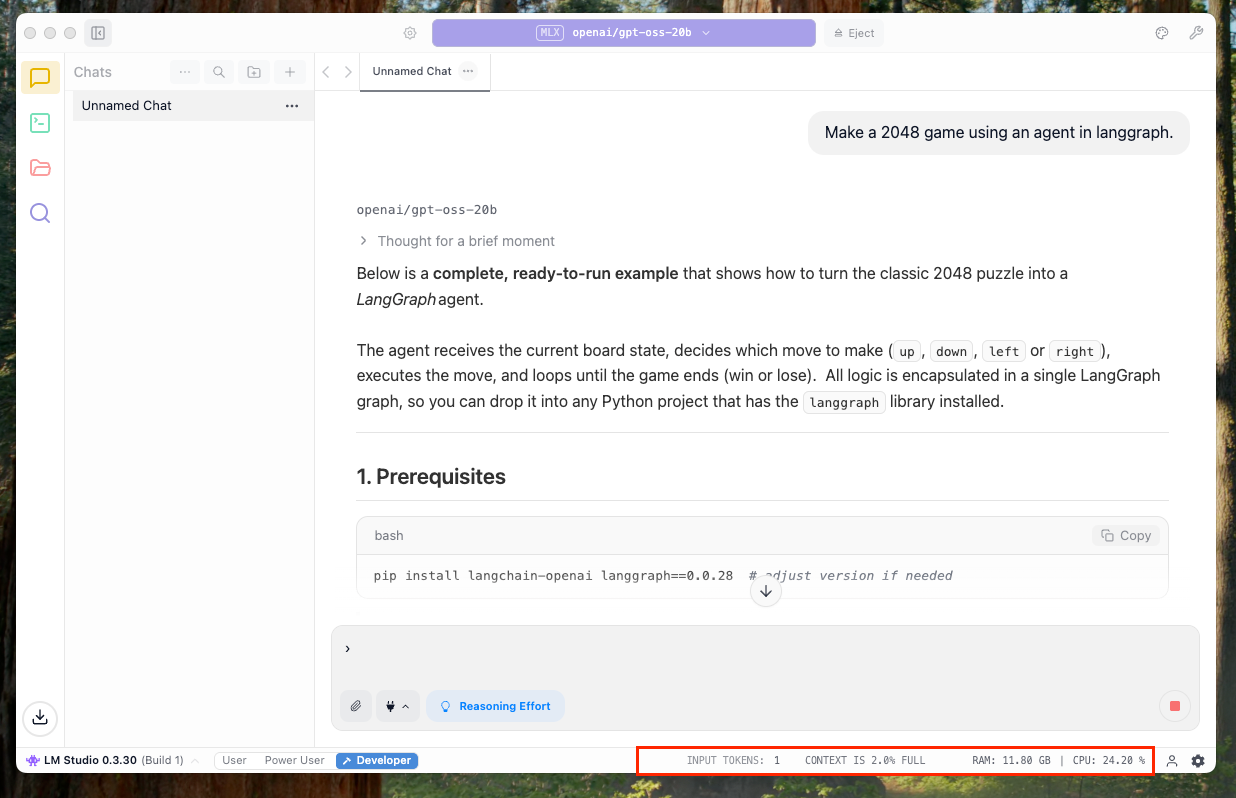
Once you are done, you can simply start chatting with the model. Additionally, since this is the developer mode, I was able to see extra metrics about the chat such as CPU usage and token usage right below:
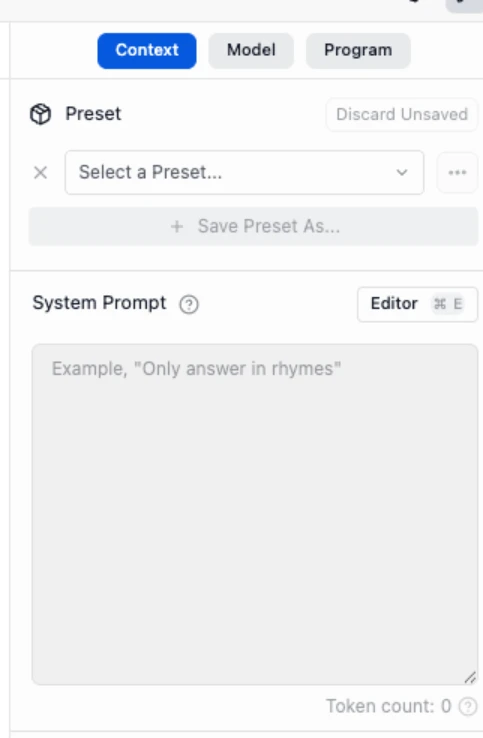
And, you have additional features such as ability to set a “System Prompt” which is useful in setting up the persona of the model or theme of the chat:
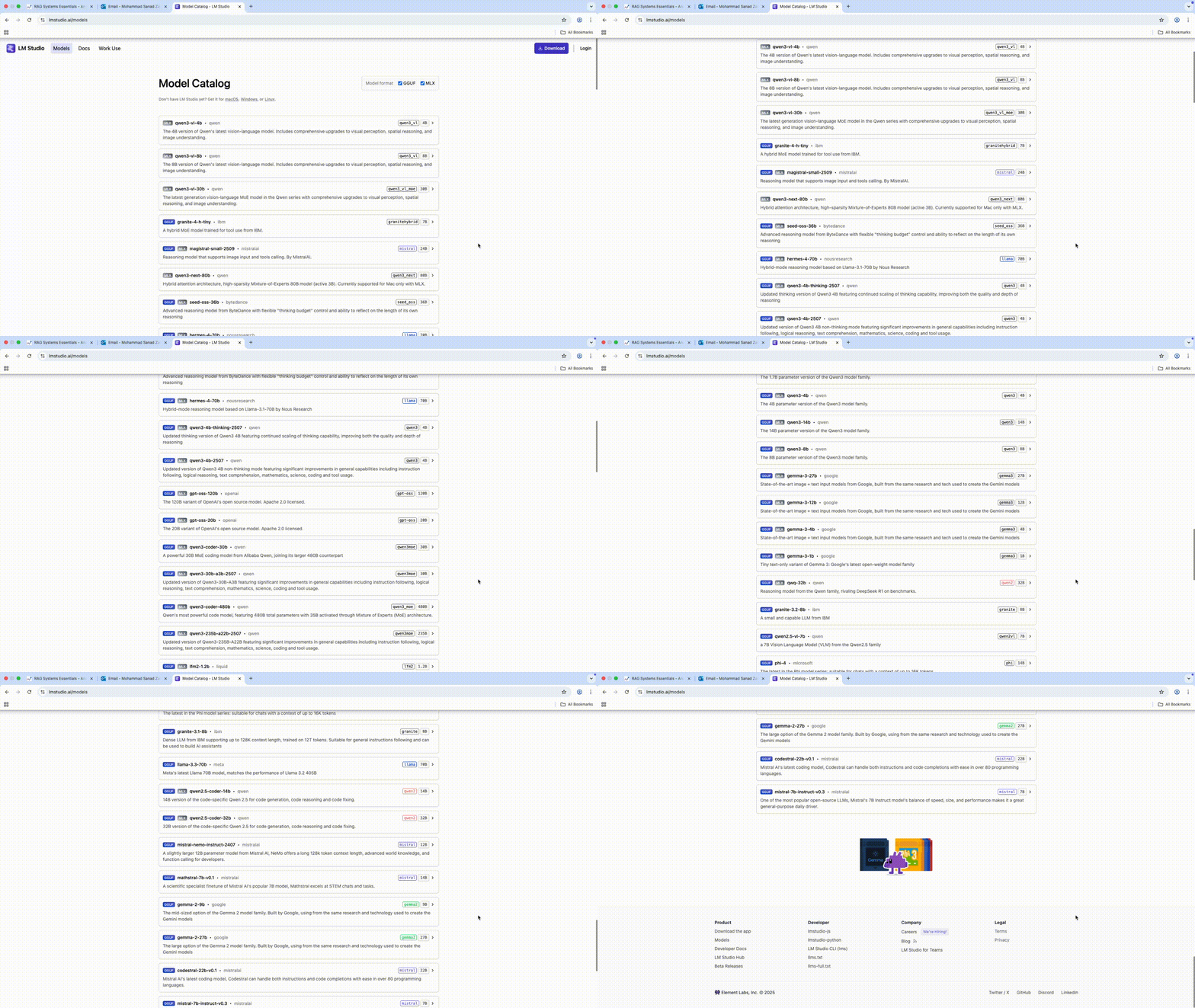
Finally, here’s the list of models it has available to use:
What I liked?
- Beautiful UI: Honestly, LM Studio looks professional. Multi-tab chat sessions, memory, prompt history, all cleanly designed.
- Ollama backend support: LM Studio can use Ollama behind the scenes, meaning you can load models via Ollama’s runtime while still chatting in LM Studio’s UI.
- Model marketplace: You can search and download models directly inside the app: Llama 3, Mistral, Falcon, Phi-3, all are there.
- Parameter controls: You can tweak temperature, top-p, context length, etc. Great for prompt experiments.
- Offline and local embeddings: It also supports embeddings locally which helpful if you want to build retrieval-augmented setups (RAG) without internet.
Full Guide: How to Run LLM Locally Using LM Studio?
3. AnythingLLM: Making Local Models Actually Useful
I tried AnythingLLM mainly because I wanted my local model to do more than just chat. It connects your LLM (like Ollama) to real stuff: PDFs, notes, docs and lets it answer questions using your own data.
Setup was simple, and the best part? Everything stays local. Embeddings, retrieval, context and it all happens on your machine.
And yeah, I did my usual WiFi test, turned it off mid-query just to be sure. Still worked, no secret calls, no drama.
It’s not perfect, but it’s the first time my local model actually felt useful instead of just talkative.
Let’s set it up from its official website:

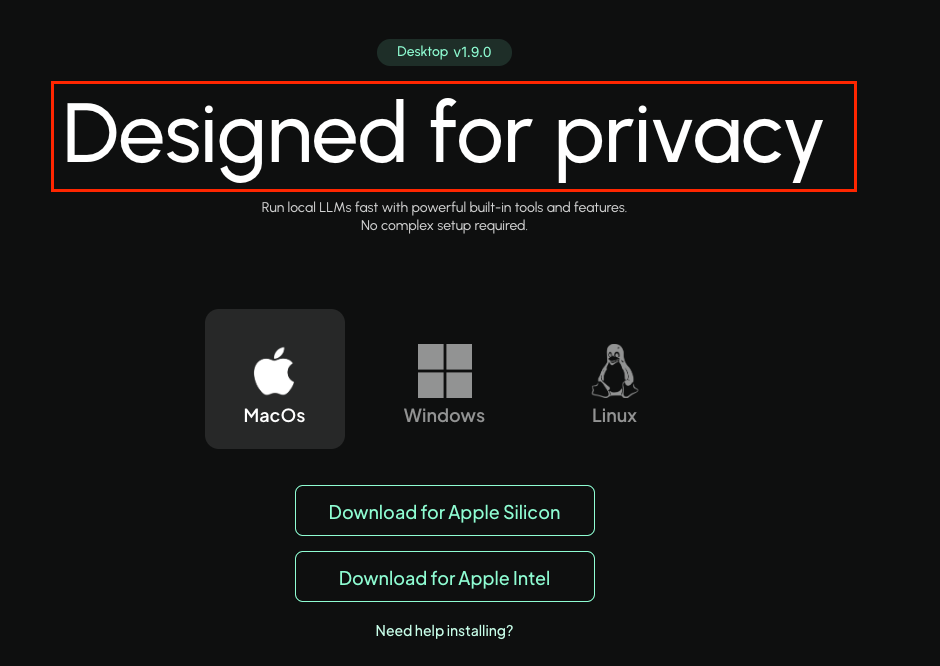
Let’s go to the download page, it is available for Linux/Windows/Mac. Notice how explicit and clear they are about their promise to maintain privacy right off the bat:
Once set up, you can choose your model provider and your model.
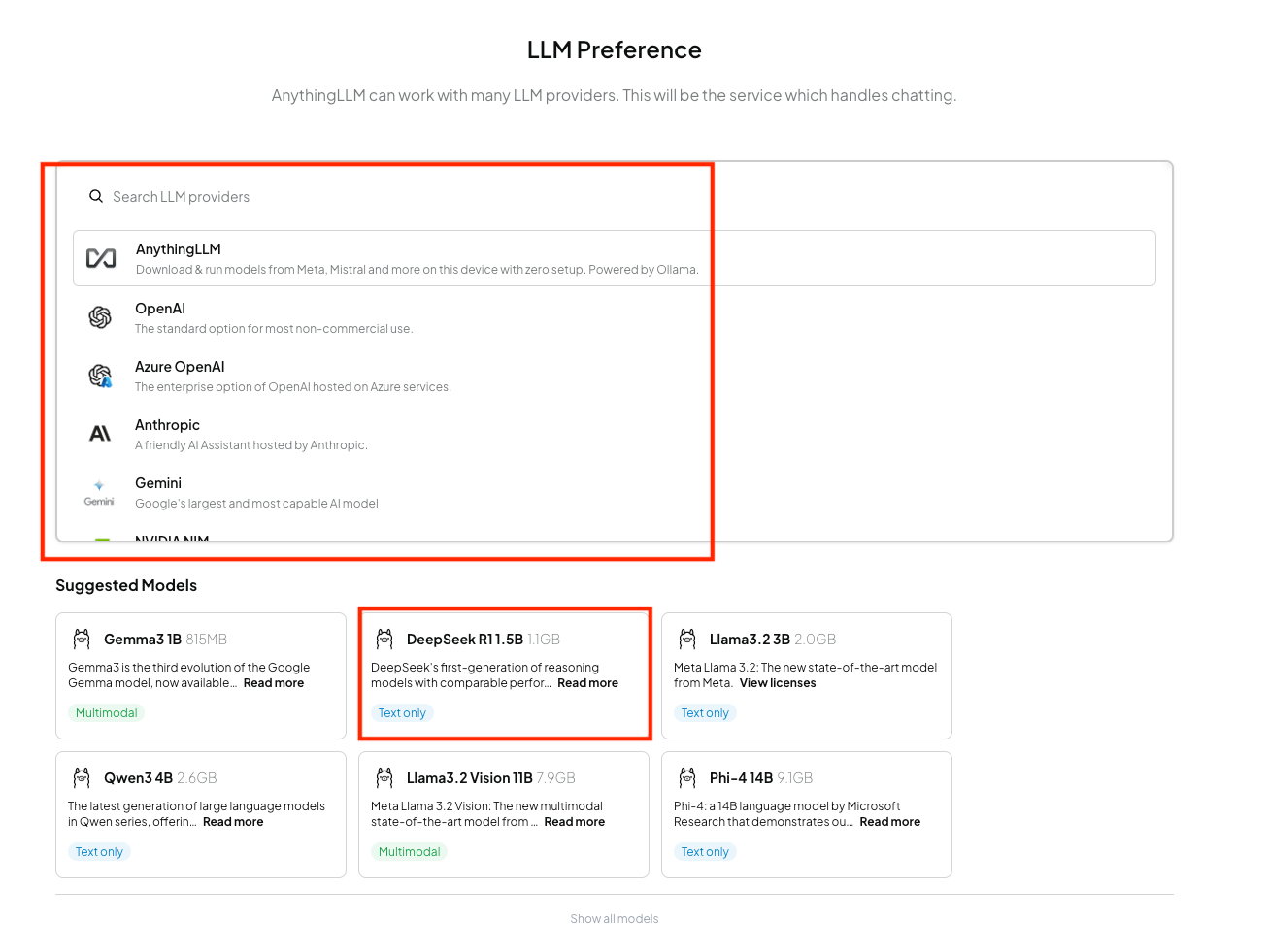
There are all kinds of models available, from Google’s Gemma to Qwen, Phi, DeepSeek and what not. And for providers, you have options such as AnythingLLM, OpenAI, Anthropic, Gemini, Nvidia and the list goes on!
Here are the privacy settings:
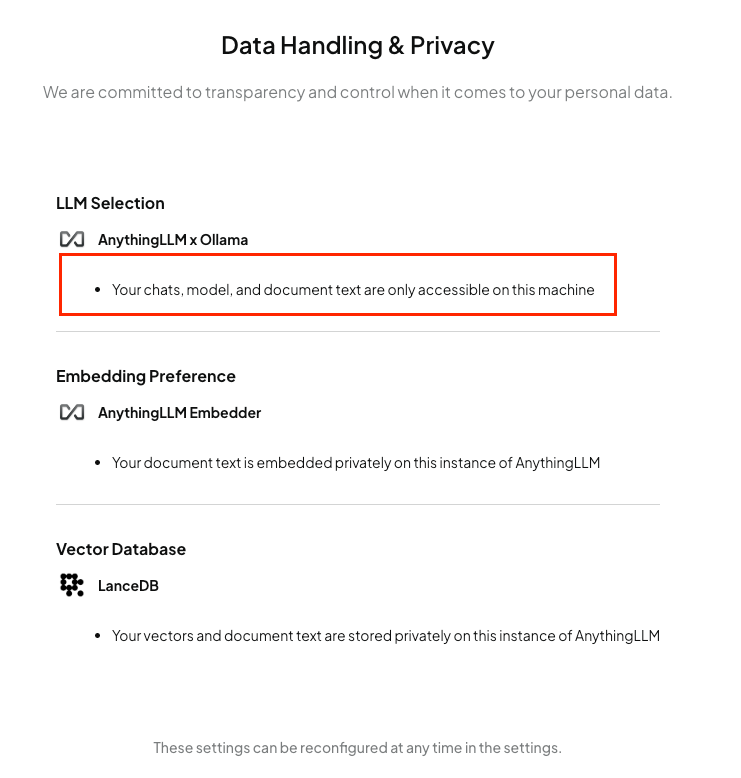
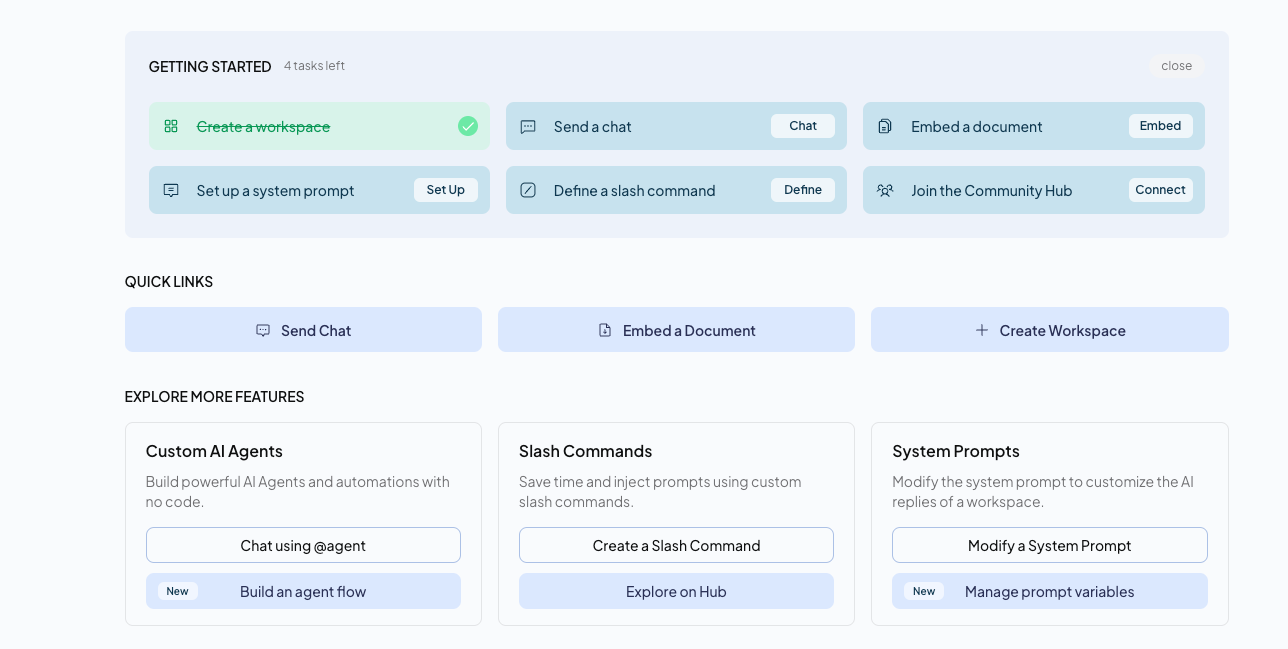
One great thing is this tool is not only limited to only chat, but you can do other useful stuff such as make Agents, RAG, and what not.
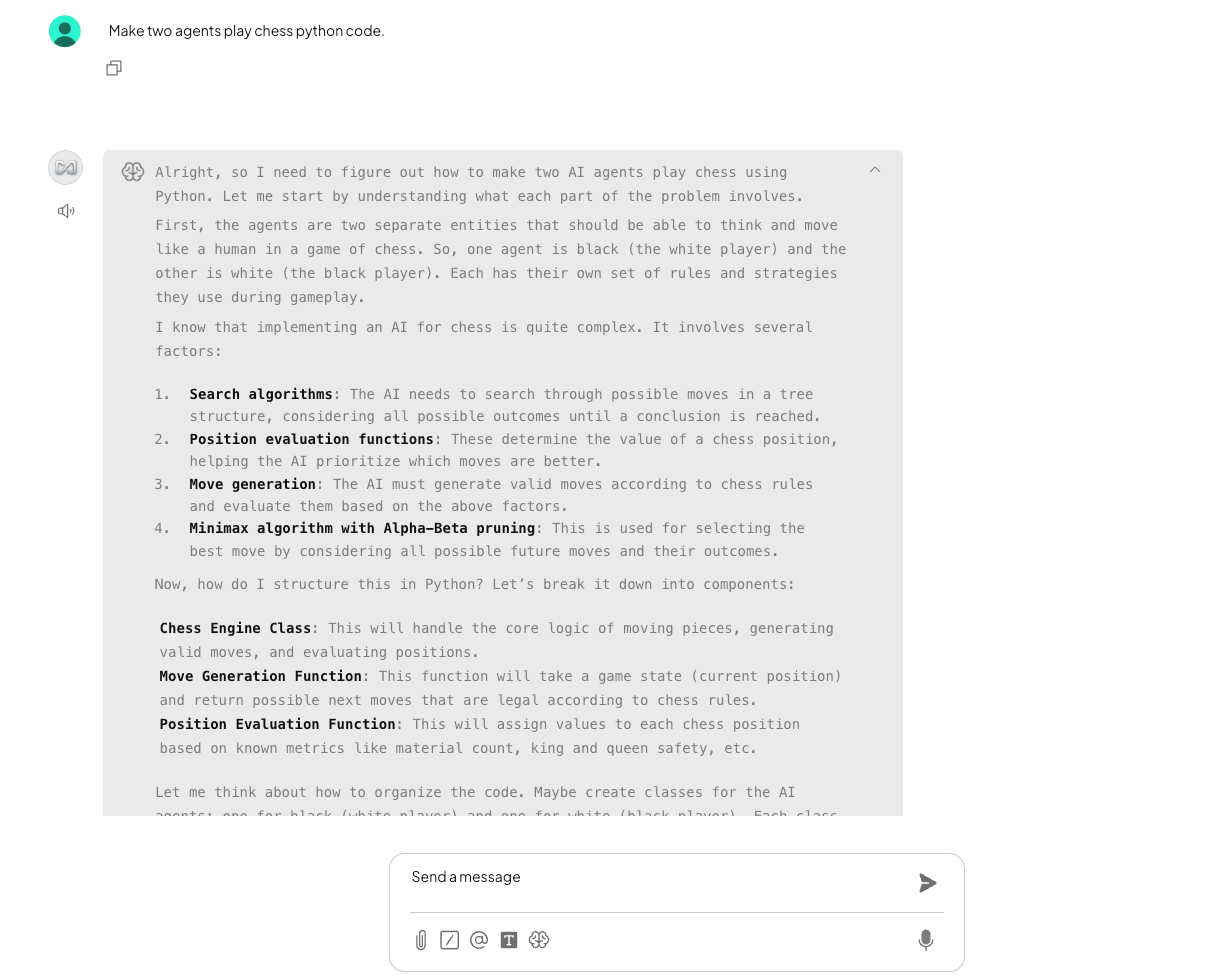
And here is how the chat interface looks like:
What I liked?
- Works perfectly with Ollama: full local setup, no cloud stuff hiding anywhere.
- Let’s you connect real data (PDFs, notes, etc.) so the model actually knows something useful.
- Simple to use, clean interface, and doesn’t need a PhD in devops to run.
- Passed my WiFi-off test with flying colours by being totally offline and totally private.
Full Guide: What is AnythingLLM and How to Use it?
Honorable Mentions: llama.cpp, OpenWeb UI
A quick shoutout to a couple of other tools that deserve some love:
- llama.cpp: the real OG behind most of these local setups. It’s not flashy, but it’s ridiculously efficient. If Ollama is the polished wrapper, llama.cpp is the raw muscle doing the heavy lifting underneath. You can run it straight from the terminal, tweak every parameter, and even compile it for your specific hardware. Pure control.
- Open WebUI: think of it as a beautiful, browser-based layer for your local models. It works with Ollama and others, gives you a clean chat interface, memory, and multi-user support. Kind of like hosting your own private ChatGPT, but without any of your data leaving the machine.
Both aren’t exactly beginner-friendly, but if you like tinkering, they’re absolutely worth exploring.
Also Read: 5 Ways to Run LLMs Locally on a Computer
Privacy, Security, and the Bigger Picture
Now, the whole point of running these locally is privacy.
When you use cloud LLMs, your data is processed elsewhere. Even if the company promises not to store it, you’re still trusting them.
With local models, that equation flips. Everything stays on your device. You can audit logs, sandbox it, even block network access entirely.
That’s huge for people in regulated industries, or just for anyone who values personal privacy.
And it’s not just paranoia, it’s about sovereignty. Owning your model weights, your data, your compute; that’s powerful.
Final Thoughts
I tried a few tools for running LLMs locally, and honestly, each one has its own vibe. Some feel like engines, some like dashboards, and some like personal assistants.
Here’s a quick snapshot of what I noticed:
| Tool | Best For | Privacy / Offline | Ease of Use | Special Edge |
| Ollama | Quick setup, prototyping | Very strong, fully local if you toggle Airplane mode | Super easy, CLI + optional GUI | Lightweight, efficient, API-ready |
| LM Studio | Exploring, experimenting, multi-model UI | Strong, mostly offline | Moderate, GUI-heavy | Beautiful interface, sliders, multi-tab chat |
| AnythingLLM | Using your own documents, context-aware chat | Strong, offline embeddings | Medium, needs backend setup | Connects LLM to PDFs, notes, knowledge bases |
Running LLMs locally is no longer a nerdy experiment, it’s practical, private, and surprisingly fun.
Ollama feels like a workhorse, LM Studio is a playground, and AnythingLLM actually makes the AI useful with your own files. Honorable mentions like llama.cpp or Open WebUI fill the gaps for tinkerers and power users.
For me, it’s about mixing and matching: speed, experimentation, and usefulness; all while keeping everything on my own laptop.
That’s the magic of local AI in 2025: control, privacy, and the weird satisfaction of watching a model think…in your own machine.
Sanad is a Senior AI Scientist at Analytics Vidhya, turning cutting-edge AI research into real-world Agentic AI products. With an MS in Artificial Intelligence from the University of Edinburgh, he’s worked at top research labs tackling multilingual NLP and NLP for low-resource Indian languages. Passionate about all things AI, he loves bridging the gap between deep research and practical, impactful products.