If there’s one task that makes me groan every time, it’s creating PPTs. From choosing the right template to figuring out the perfect amount of text, hunting for animations, and fixing endless alignment issues—it’s exhausting! And the worst part? No matter who you are – a product manager, software engineer, or content creator – PPTs somehow find a way to haunt you. But hey, isn’t AI supposed to save us from boring, repetitive work? Well, Kimi just launched an Agent called Kimi Slides that does exactly that. With just a simple prompt, it can generate a polished presentation for you in minutes, and the best part? It’s completely free!
Curious to see it in action? Let’s put Kimi Agent to work and create some PPTs.
Table of contents
What is Kimi Slides?
Kimi Slides is an AI agent inside Kimi that helps you create PPTs with just a simple text prompt. It’s open-source, free to use, and available to all Kimi users. The agent is also part of Kimi+, Moonshot AI’s premium version of the Kimi chatbot, which comes with enhanced features and upgrades.
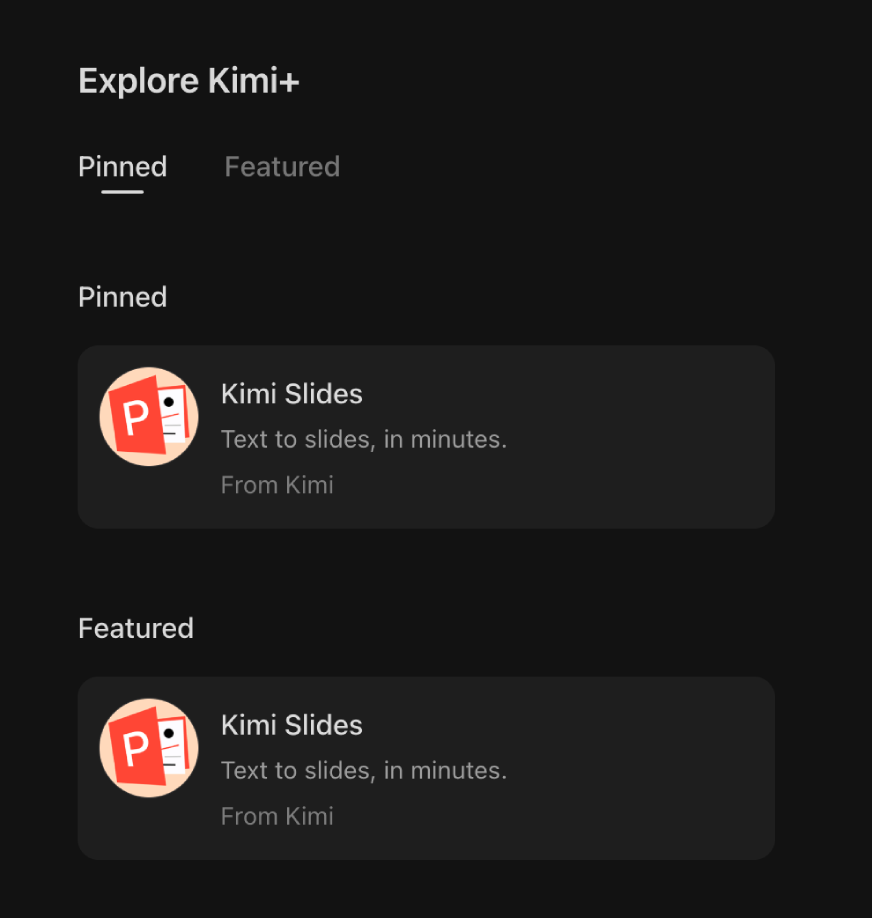
With a Kimi+ subscription, users get access to a larger context window, faster inference, priority access to the latest models, and integrated plugins (also known as mini apps or agents). Kimi Slides is one of these plugins, extending the chat interface to instantly create presentations.
Must Read: Kimi K2 -The Most Powerful Open-Source Agentic Model
Key Features of Kimi Slides
Some of the key highlights of Kimi’s PPT agent are:
- Easy to use: Just type a simple prompt about the PPT you want to create.
- Downloadable output: Save the generated PPT directly to your system.
- Works with your data: Upload PDFs or documents, and it will generate slides based on that content.
For now, Kimi+ (and Kimi Slides) is available free for all users. So before the paywall kicks in, it’s the perfect time to explore its full potential!
Also Read: How to easily make PowerPoint Presentations using Gamma
How to Access Kimi Slides?
Kimi K2 Slides agent is present within the Kimi chatbot. To access it,
- Head to https://www.kimi.com/
- Log in/ sign up to access your account.
- In the left side bar, under the “Kimi+” Section you will find “Kimi Slides”
- Click on “Kimi Slides”
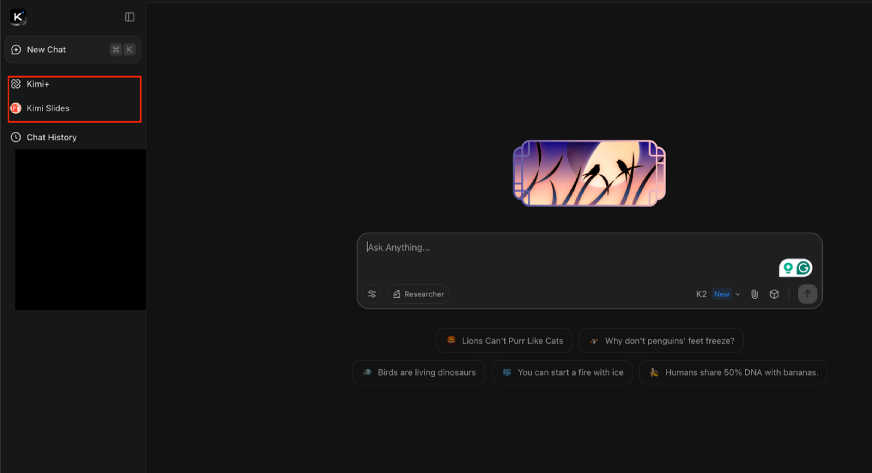
- In the text box present at the bottom of the screen, enter the text prompt for the PPT that you wish to create.
How to Create Free PPTs with Kimi Slides?
Using Kimi Slides, you can either:
- Create a PPT from scratch
- Create a PPT from some available data.
In this blog, we will try both methods.
Generating PPT from Scratch
I’m preparing to record a session on the difference between AI Agents and Agentic AI. For this, I’ll need a PPT that explains and compares the two concepts: AI Agents vs Agentic AI.
Prompt:
Create a detailed PPT discussing the differences between AI agent and Agentic AI.
Once you enter a prompt, the tool searches for content across various websites (displayed in the right-side panel). In the center of the screen, it generates an Editable Outline for your PPT. You can review and modify this outline as needed; add or remove sections using the “+” button at the top-right corner of each section, or regenerate the entire outline from scratch by clicking “Retry.”
Output
After you are done making changes to the outline, you can click on “Generate Slides” button at the bottom:
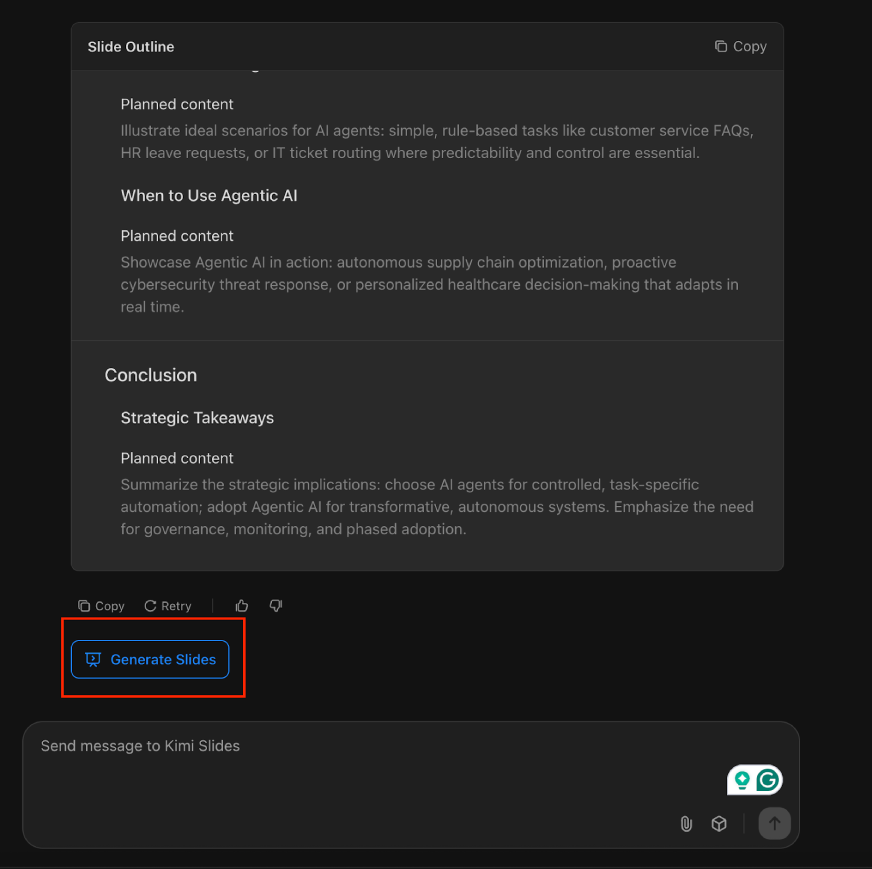
As soon as you click on it, you will find a “Choose a Template” popping up on your screen. Here you can select the template that you wish to use for your presentation:
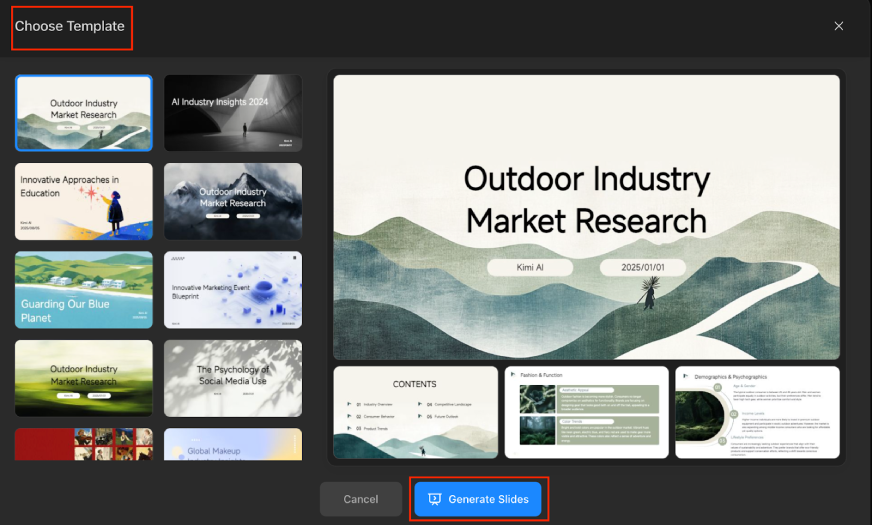
Once you’ve selected your template, click “Generate Slides.”
Kimi’s AI Agent then builds your PPT right before your eyes; placing all the content neatly into the chosen design. In just a couple of minutes, your full presentation is ready. It honestly feels like magic; I needed a moment to get over the awe of seeing it happen so fast!
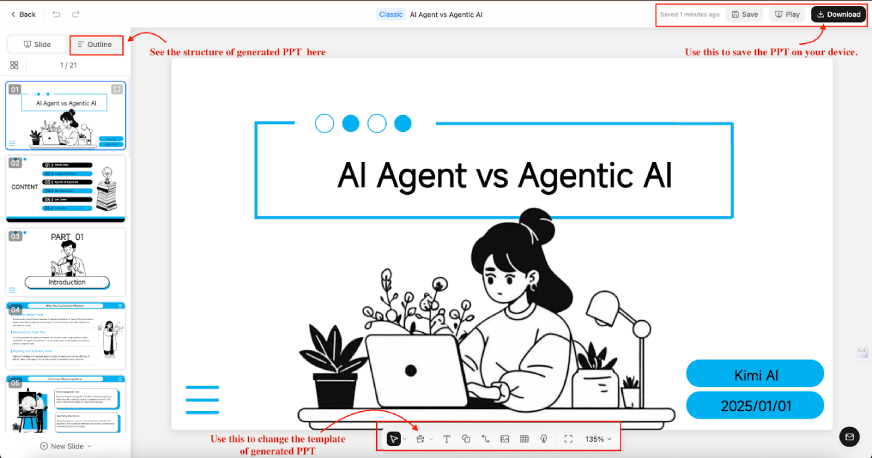
The outline comes with clean visual elements that feel quite natural. But that’s not even the best part of Kimi Slides. The generated PPT is fully editable:
- Change the entire template by clicking “Change Template” in the features bar at the bottom.
- Edit any part of the PPT directly – text, layout, or style.
- Add or remove images and animations as needed.
- Zoom in or out to adjust the view to your frame.
- Present your slides directly from Kimi’s interface, or click “Download” (top-left corner) to save your PPT as a .ppt file or image on your system.
You can check the PPT I had generated here.
Generate PPT using Available Resources
I’ve got a research paper to present in a couple of days. Let’s see if Kimi Slides can save me a ton of work by creating the presentation for me
Prompt:
Create a PPT on self evolving agents, based entirely on the attached research paper. Discuss the key aspects of the paper in a simplified manner and pick essential graphs and values from the research paper only.
Output:
Just like before, it first generated an outline, then asked me to choose a template, and within minutes, the complete PPT was ready.
You can see the generated PPT here.
It is a pretty good first draft. I can quickly edit this PPT and make it as per my requirements and use it directly for my presentation. If not a day’s work – Kimi Slides surely saved me hours of time.
Limitations of Kimi Slides
On the first look, Kimi Slides feels like a wish granted from AI gods! The agent itself is pretty good and efficient but there are certain areas where it can definitely do better. Some of them are:
- It currently offers a limited number of templates. So you always have to choose from the given list of templates (even when they might not really align with the theme of your PPT).
- It can read the text content from your shared resources but it can’t extract images or tables from them.
- It doesn’t edit the animations of a given template as per the theme of the PPT. So your PPT might contain some elements that would be entirely irrelevant to it.
But putting these aside, Kimi Slides give you a pretty good first draft, that you can then edit and save a ton of time.
Here are some of our previous Kimi articles:
- I Tested Kimi K2 For API-based Workflow: Here Are The Results
- Kimi K2 vs Llama 4: Which is the Best Open Source Model?
Conclusion
Generative AI has often been blamed for not really producing tools or agents that can actually help people in their day to day work. But Kimi Slides is actually an AI tool that would truly be useful. Its quite simple to use and the best part – its free, its quick and it’s results are editable. As china makes waves into building useful AI tools, it would be really interesting to see what would they come up ahead. For now, I insist that you try Kimi Slides, your first reaction to it would definitely be of that of awe. Its better than most of the Gen AI based PPT tools and the cherry on top – its outputs are downloadable!
Do try it out and let me know your thoughts in the comment section below!
Anu Madan is an expert in instructional design, content writing, and B2B marketing, with a talent for transforming complex ideas into impactful narratives. With her focus on Generative AI, she crafts insightful, innovative content that educates, inspires, and drives meaningful engagement.