Google just introduced its new agent-based web browser from Google DeepMind, powered by Gemini 2.5 Pro. Built on the Gemini API, it can “see” and interact with web and app interfaces: clicking, typing, and scrolling just like a human. This new AI web automation model bridges the gap between understanding and action. In this article, we’ll explore the key features of Gemini Computer Use, its capabilities, and how to integrate it into your agentic AI workflows.
Table of contents
What is Gemini 2.5 Computer Use?
Gemini 2.5 Computer Use is an AI assistant that can control a browser using natural language. You describe a goal, and it performs the steps needed to complete it. Built on the new computer_use tool in the Gemini API, it analyzes screenshots of a webpage or app, then generates actions like “click,” “type,” or “scroll.” A client such as Playwright executes these actions and returns the next screen until the task is done.
The model interprets buttons, text fields, and other interface elements to decide how to act. As part of Gemini 2.5 Pro, it inherits strong visual reasoning, enabling it to complete complex on-screen tasks with minimal human input. Currently, it’s focused on browser environments and doesn’t control desktop apps outside the browser.
Key Capabilities
- Automate data entry and filling out forms on websites. The agent will be able to find fields, enter text, and submit forms where appropriate.
- Conduct testing of web applications and user flows, through clicking pages, triggering events, and ensuring that elements show up accurately.
- Conduct research across multiple websites. For example, it may collect information about products, pricing, or reviews across several e-commerce pages and summarize results.
How to Access Gemini 2.5 Computer Use?
The experimental capabilities of Gemini 2.5 Computer Use are now publicly available for any developer to play with. Developers just need to sign up for the Gemini API via AI Studio or Vertex AI, and then request access to the computer-use model. Google provides documentation, runnable code samples and reference implementation that you can try out. For example, the Gemini API docs provide an example of the four-step agent loop, complete with examples in Python using the Google Cloud GenAI SDK and Playwright.
You would set up either a browser automation environment, such as Playwright for this follow these steps:
- Sign up for the Gemini API through AI Studio or Vertex AI.
- Request access to the computer-use model.
- Review Google’s documentation, runnable code samples, and reference implementations.
As an example, there is an agent loop example using four steps in Python provided by Google with the GenAI SDK and Playwright to automate the browser.
Also Read: How to Access and Use the Gemini API?
Setting Up the Environment
Here is the general example of what the setup looks like with your code:
Initial Configuration and Gemini Client
# Load environment variables

from dotenv import load_dotenv

load_dotenv()

# Initialize Gemini API client

from google import genai

client = genai.Client()

# Set screen dimensions (recommended by Google)

SCREEN_WIDTH = 1440

SCREEN_HEIGHT = 900
We’ll begin by setting up the environment variables are loaded for the API credentials, and the Gemini client is initialized. The recommended screen dimensions by Google are defined, and later used to convert normalized coordinates to the actual pixel values necessary for actions in the UI.
Browser Automation with Playwright
Next, the code sets up Playwright for browser automation:
from playwright.sync_api import sync_playwright

playwright = sync_playwright().start()

browser = playwright.chromium.launch(

headless=False,

args=[

'--disable-blink-features=AutomationControlled',

'--disable-dev-shm-usage',

'--no-sandbox',

]

)

context = browser.new_context(

viewport={"width": SCREEN_WIDTH, "height": SCREEN_HEIGHT},

user_agent='Mozilla/5.0 (Windows NT 10.0; Win64; x64) AppleWebKit/537.36 Chrome/131.0.0.0 Safari/537.36',

)

page = context.new_page()
Here we are launching a Chromium browser, utilizing the anti-detection flags to prevent webpages from recognizing automation. Then we define a realistic viewport and user-agent in order to emulate a normal user and create a new page in order to navigate and automate interaction.
Defining the Task and Model Configuration
After the browser is set up and ready to go, the model is provided with the user’s goal and given the initial screenshot:
from google.genai.types import Content, Part

USER_PROMPT = "Go to BBC News and find today's top technology headlines"

initial_screenshot = page.screenshot(type="png")

contents = [

Content(role="user", parts=[

Part(text=USER_PROMPT),

Part.from_bytes(data=initial_screenshot, mime_type='image/png')

])

]
The USER_PROMPT defines what natural-language task the agent will undertake. It captures an initial screenshot of the state of the browser page, which will then be sent, along with the prompt to the model. They are encapsulated with the Content object that will later also be passed to the Gemini model.
Finally, the agent loop runs sending the status to the model and executing the actions it returns:
The computer_use tool prompts the model to create function calls, which are then executed in the browser environment. thinking_config holds the intermediate steps of reasoning to provide transparency to the user, which may be useful for later debugging or understanding the agent’s decision-making process.
from google.genai.types import types

config = types.GenerateContentConfig(

tools=[types.Tool(

computer_use=types.ComputerUse(

environment=types.Environment.ENVIRONMENT_BROWSER

)

)],

thinking_config=types.ThinkingConfig(include_thoughts=True),

)
How it Works?
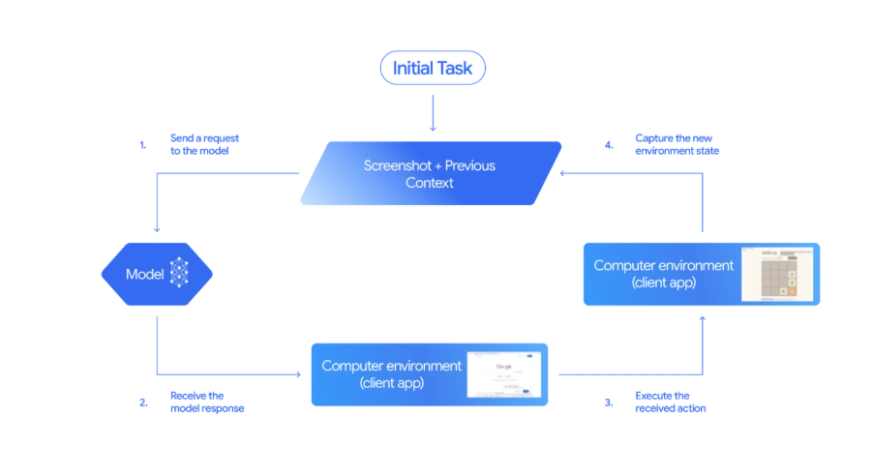
Gemini 2.5 Computer Use runs as a closed-loop agent. You give it a goal and a screenshot, it predicts the next action, executes it through the client, and then reviews the updated screen to decide what to do next. This feedback loop allows Gemini to see, reason, and act much like a human navigating a browser. The entire process is powered by the computer_use tool in the Gemini API.
The Core Feedback Loop
The agent operates in a continuous cycle until the task is complete:
- Input goal and screenshot: The model receives the user’s instruction (e.g., “find top tech headlines”) and the screenshot of the current state of the browser.
- Generate actions: The model suggests one or more function calls that correspond to UI actions using the computer_use tool.
- Execute actions: The client program carries out these function calls in the browser.
- Capture feedback: A new screenshot and URL are captured and sent back to the model.
What the Model Sees in Each Iteration
With every iteration, the model receives three key pieces of information:
- User request: The natural-language goal or instruction (example: “find the top news headlines”)
- Current screenshot: An image of your browser or app window and its current state
- Action history: A record of recent actions taken thus far (for context)
The model analyzes the screenshot and the user’s goal, then generates one or more function calls—each representing a UI action. For example:
{"name": "click_at", "args": {"x": 400, "y": 600}}This would instruct the agent to click at those coordinates.
Executing Actions in the Browser
The client program (using Playwright’s mouse and keyboard APIs) executes these actions in the browser. Here’s an example of how function calls are executed:
def execute_function_calls(candidate, page, screen_width, screen_height):
    for part in candidate.content.parts:
        if part.function_call:
            fname = part.function_call.name
            args = part.function_call.args
            if fname == "click_at":
                actual_x = int(args["x"] / 1000 * screen_width)
                actual_y = int(args["y"] / 1000 * screen_height)
                page.mouse.click(actual_x, actual_y)
            elif fname == "type_text_at":
                actual_x = int(args["x"] / 1000 * screen_width)
                actual_y = int(args["y"] / 1000 * screen_height)
                page.mouse.click(actual_x, actual_y)
                page.keyboard.type(args["text"])
            # ...other supported actions...
The function parses the FunctionCall entries returned by the model and executes each action in the browser. It converts normalized coordinates (0–1000) into actual pixel values based on the screen size.
Capturing Feedback for the Next Cycle
After executing actions, the system captures the new state and sends it back to the model:
def get_function_responses(page, results):
    screenshot_bytes = page.screenshot(type="png")
    current_url = page.url
    function_responses = []

    for name, result, extra_fields in results:
        response_data = {"url": current_url}
        response_data.update(result)
        response_data.update(extra_fields)
        function_responses.append(
            types.FunctionResponse(
                name=name,
                response=response_data,
                parts=[types.FunctionResponsePart(
                    inline_data=types.FunctionResponseBlob(
                        mime_type="image/png",
                        data=screenshot_bytes
                    )
                )]
            )
        )
    return function_responses
The new state of the browser is wrapped in FunctionResponse objects, which the model uses to reason about what to do next. The loop continues until the model no longer returns any function calls or until the task is completed.
Also Read: Top 7 Computer Use Agents
Agent Loop Steps
After loading the computer_use tool, a typical agent loop follows these steps:
- Send a request to the model: Include the user’s goal and a screenshot of the current browser state in the API call
- Receive model response: The model returns a response containing text and/or one or more FunctionCall entries.
- Execute the actions: The client code parses each function call and performs the action in the browser.
- Capture and send feedback: After executing, the client takes a new screenshot and notes the current URL. It wraps these in a FunctionResponse and sends them back to the model as the next user message. This tells the model the result of its action so it can plan the next step.
This process runs automatically in a loop. When the model stops generating new function calls, it signals that the task is complete. At that point, it returns any final text output, such as a summary of what it accomplished. In most cases, the agent will go through several cycles before either completing the goal or reaching the set turn limit.
More Supported Actions
Gemini’s Computer Use tool has dozens of built-in UI actions. The basic set includes actions that are typical for web-based applications, including:
- open_web_browser: Initializes the browser before the agent loop begins (typically handled by the client).
- click_at: Clicks on a specific (x, y) coordinate on the page.
- type_text_at: Clicks at a point and types a given string, optionally pressing Enter.
- navigate: Opens a new URL in the browser.
- go_back / go_forward: Moves backward or forward in the browser history.
- hover_at: Moves the mouse to a specific point to trigger hover effects.
- scroll_document / scroll_at: Scrolls the entire page or a specific section.
- key_combination: Simulates pressing keyboard shortcuts.
- wait_5_seconds: Pauses execution, useful for waiting on animations or page loads.
- drag_and_drop: Clicks and drags an element to another location on the page.
Google’s documentation mentions that the sample implementation includes the three most common actions: open_web_browser, click_at, and type_text_at. You can extend this by adding any other actions you need or excluding ones that aren’t relevant to your workflow.
- The full list of supported actions are available in the Gemini API documentation.
- Moreover for the complete code visit here.
Performance and Benchmarks
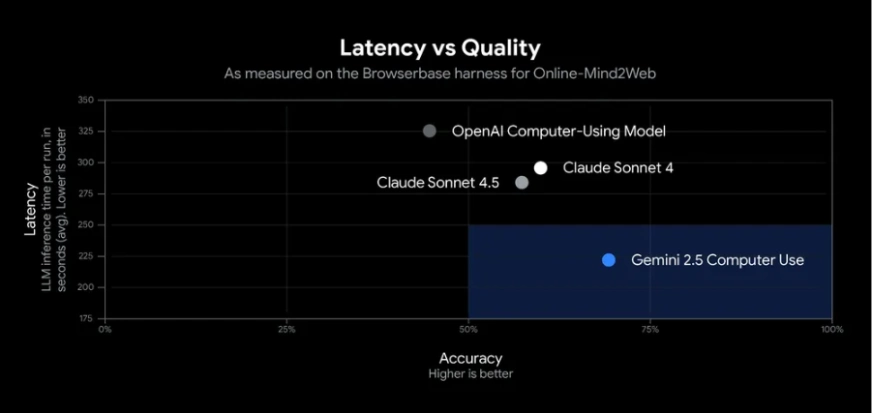
Gemini 2.5 Computer Use performs strongly in UI control tasks. In Google’s tests, it achieved over 70% accuracy with around 225 ms latency, outperforming other models in web and mobile benchmarks such as browsing sites and completing app workflows.
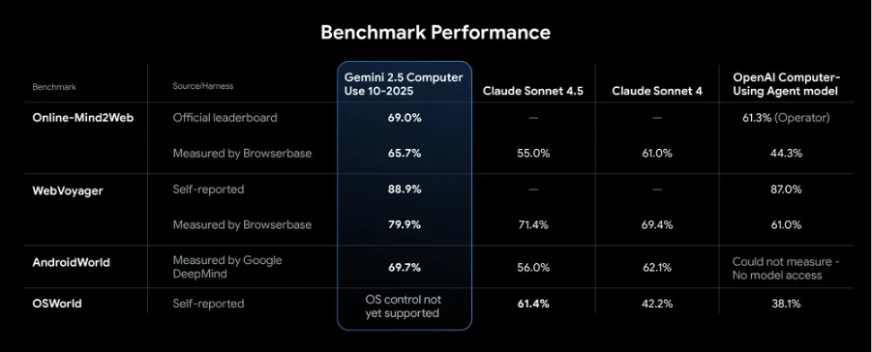
In practice, the agent can reliably handle tasks like filling forms and retrieving data. Independent benchmarks rank it as the most accurate and fastest public AI model for simple browser automation. Its strong performance comes from Gemini 2.5 Pro’s visual reasoning and an optimized API pipeline. Since it’s still in preview, you should monitor its actions, occasional errors may occur.
Also Read:
- Anthropic Computer Use: AI Assistant Taking Over Your Computer
- Manus: China’s NEW Autonomous AI Agent is GREAT
- Kimi OK Computer: A Hands-On Guide to the Free AI Agent
Conclusion
The Gemini 2.5 Computer Use is a significant development in AI-Supported Automation, allowing agents to effectively and efficiently interact with real interfaces. With it, developers can automate tasks like web browsing, data entry, or data extraction with great accuracy and speed.
In its publicly available state, we can offer developers a way to safely experiment with the capabilities of Gemini 2.5 Computer Use, adapting it into their own workflows. Overall, it represents a flexible framework through which to build next-generation smart assistants or powerful automation workflows for a variety of uses and domains.
Hello! I'm Vipin, a passionate data science and machine learning enthusiast with a strong foundation in data analysis, machine learning algorithms, and programming. I have hands-on experience in building models, managing messy data, and solving real-world problems. My goal is to apply data-driven insights to create practical solutions that drive results. I'm eager to contribute my skills in a collaborative environment while continuing to learn and grow in the fields of Data Science, Machine Learning, and NLP.