AI is changing education in all kinds of exciting ways! And it’s happening faster than many of us expected. Big companies like Google, Microsoft and OpenAI are leading the charge, rolling out new AI tools for classrooms around the world. Recently, Google has added something fresh to Google Classroom: NotebookLM. With it, teachers can quickly turn class materials into study guides, audio summaries, and more. No more relying only on textbooks. Let’s take a look at how this new AI tool could shape the future of learning in today’s classrooms.
Table of contents
AI and Google Classroom: Prior to this Update
Google first brought Gemini, its renowned and powerful AI model, to Google Classrooms back in June. Ever since, teachers could use Gemini’s built-in tools inside Classroom, helping them brainstorm ideas, draft rubrics, translate text, and fix common errors.
This was a powerful AI boost for classroom teaching, but still in a nascent stage. It worked, but it felt more like borrowing than building. Educators had to juggle between tabs to make anything truly interactive. AI helped with tasks, but it didn’t shape the learning itself. It acted more like a quiet assistant than a teaching partner.
This new update flips that. Instead of relying on AI to support a lesson, teachers can now build the AI experience around their lesson. And that’s a huge shift in how digital classrooms will work going forward.
How? Read on.
The New Update: NotebookLM in Google Classroom
Now, Google has officially rolled out the ability to create Gems and NotebookLM notebooks directly inside Classroom. Note that these are two new AI capabilities to supercharge student learning.
This basically means that teachers can turn their own class content into AI-powered learning tools in just a few clicks. No more switching between apps or links. With this update, every educator can:
- Build custom Gems that act like AI teaching assistants.
- Generate interactive study guides using Google Classroom NotebookLM.
- Assign both directly through the Classwork tab.
As for the students, they can access all the generated material in their familiar “Classwork page.”
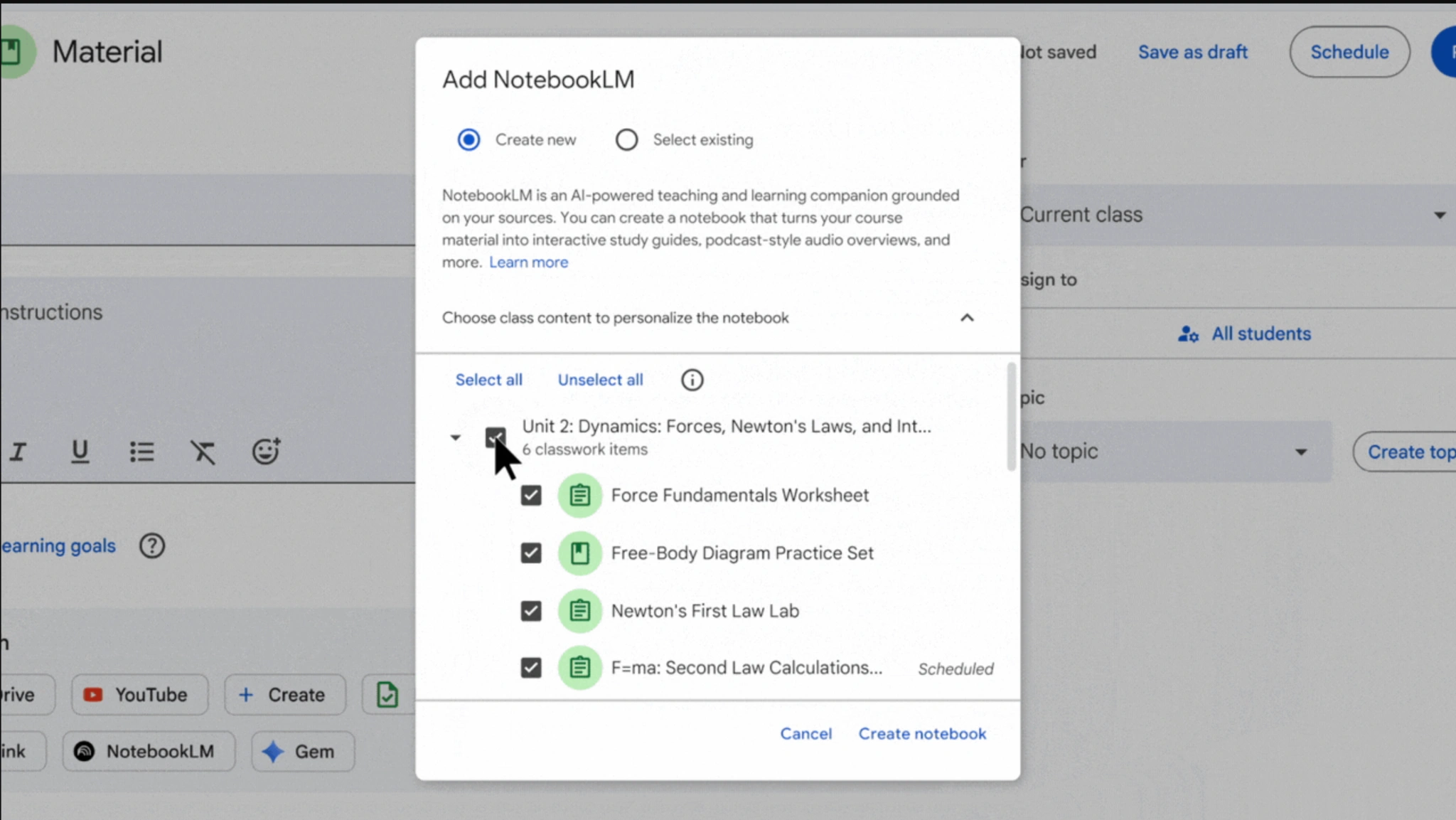
Let us explore both the new features one by one.
What Are Gems in Google Classroom?
Gems are meant to be your custom-built AI teaching buddies inside Classroom. Think of them as little AI partners you design for specific lessons.
To create a Gem inside Google Classroom, teachers can pick from ready templates like:
- Quiz Me: for quick concept checks
- Study Partner: to help revise lessons
- Brainstorm Buddy: for generating fresh ideas
- Real-world Connector: for linking theory to life
Or they can build one from scratch using their own class material. Once ready, Gems appear right in the Classwork tab. Students can chat, ask questions, and explore the topic at their own pace, all within the Classroom app.
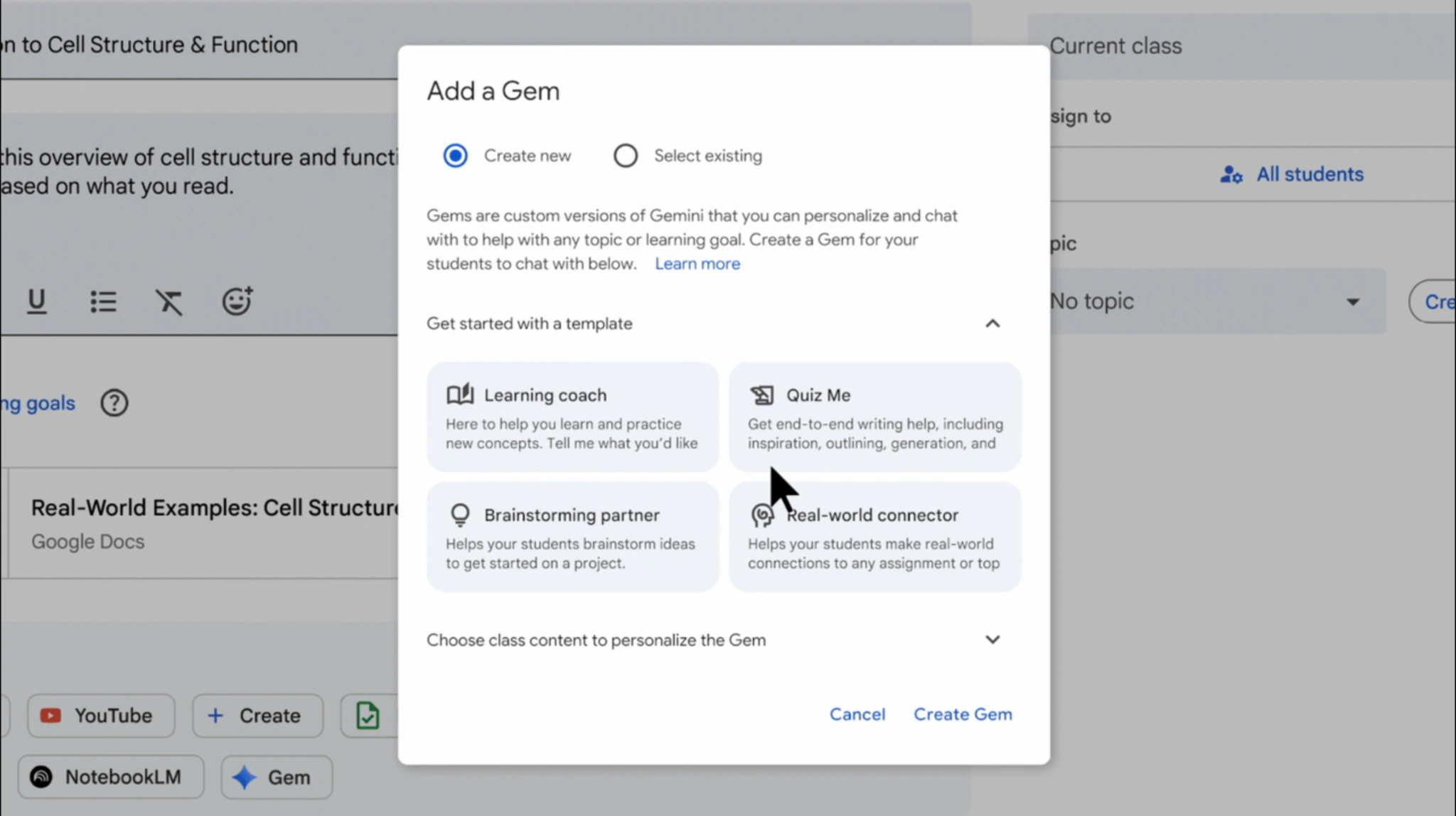
In essence, Gems feels like an AI shaped by teachers for holistic learning, and not just a random bot giving answers.
What is NotebookLM Integration into Google Classroom?
This is the major update, where things get really useful.
For those unaware, know that the NotebookLM is Google’s AI-powered research and writing tool (know all about it in 5 minutes here). It functions as a virtual research assistant, allowing users to upload various documents and sources to build a personalized knowledge base. It went viral ever since its launch as one of the most essential AI tools out there, largely because of its function that allows the conversion of any report or article into a podcast-style audio format.
Google has now integrated this AI functionality into its Classroom. This means teachers can now use NotebookLM within Google Classroom to turn existing class material into smart, interactive study tools.
What it means: Upload a document, pick your focus, and let AI do the heavy lifting. In seconds, it creates:
- Study guides for quick revision
- Mind maps for visual learners
- Audio explainers for better understanding
- Summaries and Q&A modules
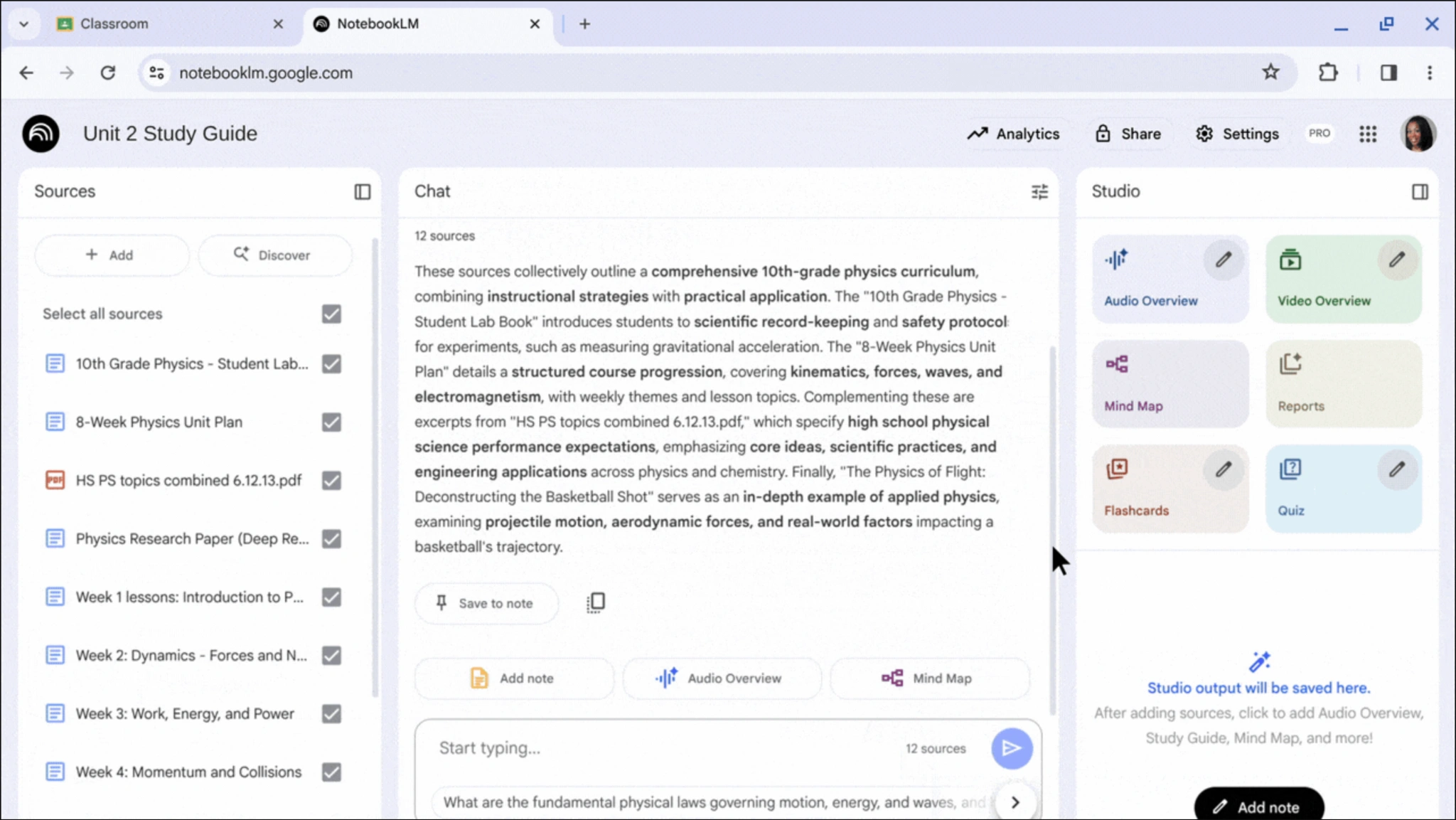
Everything is grounded in the teacher’s own content and is not generic AI fluff. Students get structured, reliable, and easy-to-use material directly in their Classwork tab. It is like turning a boring PDF into a smart, talkative notebook that actually helps students learn through active engagement.
Why This Matters for Educators
It is easy to envision how Google’s new update will completely transform the teaching process. First, it makes it much more interactive for students, rather than cramming information from a textbook. As mentioned, students will now be able to have audio explainers, mind maps, quizzes, and more interactive sessions on the same topic that they earlier relied on the text in a book to learn.
One would argue, but weren’t AI tools like Gemini in Google Classroom already making this possible? One-word answer – No! At least not at this capacity. And the most important part here is not even related to students. It is the convenience now imparted to teachers.
Imagine that a teacher who had to spend hours designing a quiz around a topic, or maybe recording an audio session to explain things, can now do so at the click of a button. An important note here: this content will not be generated by AI randomly. This will be based on the same study material that the teachers use, strictly confining the information to the level of expertise required.
In short, NotebookLM and Gems in Google Classroom will now let teachers design additional study material – audio, quizzes, mind maps, and more, at the click of a button. Easy to see, that is hours and days of manual work saved for teachers.
Admin & Privacy Controls
Google hasn’t forgotten the serious stuff. For this update to work, admins need to enable NotebookLM and Gemini in the Admin console. They also need to turn on Gem sharing for teachers. This ensures only verified users can create and assign AI tools.
Access can be set by age or domain, keeping younger students safe. Everything runs inside the secure Classroom environment, so no data hops across random tools.
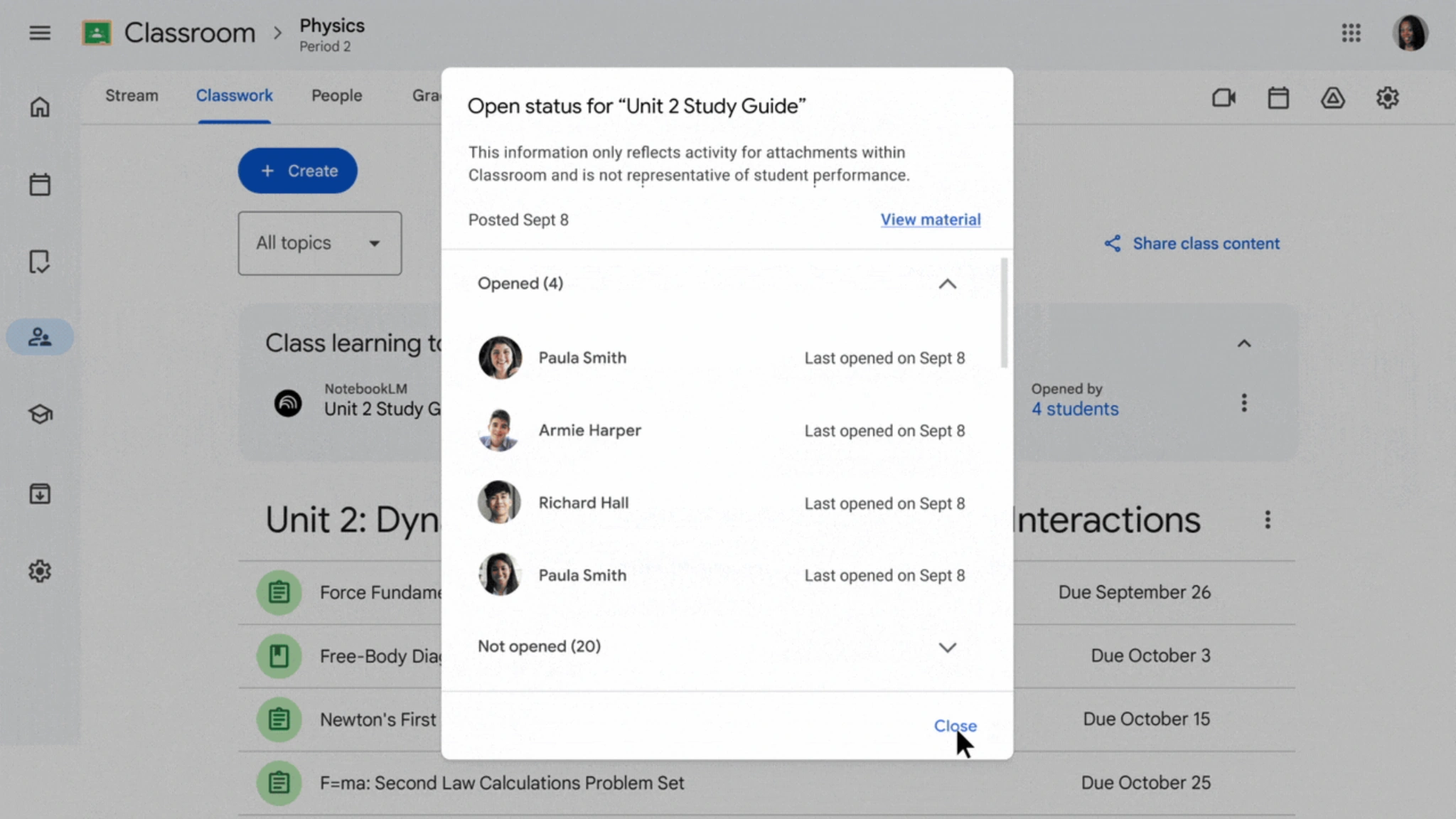
This layered setup builds a perfect balance of flexibility and safety, giving schools tight control while letting teachers experiment freely.
Rollout Timeline & Availability
In its announcement, Google says that the update first started rolling out on September 24, 2025, and will continue over the next few weeks.
At present, it is available for Google Workspace for Education Fundamentals, Standard, and Plus editions. NotebookLM and Gems can be used in English at launch, with more languages expected later.
This is an extended rollout, so not every classroom will see it instantly. Admins might need to enable features before teachers can use them. Once active, the tools appear right inside Classroom, so there are no extra installs, no extensions, and no waiting list required.
Conclusion
This is not just another update to gain headlines on a new and shiny AI tool. That is what most of the AI world has reduced to today. But Google’s update can easily be seen as a shift in how teachers use AI.
With Gems and Google Classroom NotebookLM, educators can now build their own AI-powered study tools, shaped by their lesson plans and not some random chatbot. Everything happens inside Classroom, making it secure, simple, and fast. Teachers get more control, students get smarter learning companions, and admins keep everything safe.