“Hey, can you make a quick video for this?”, a seemingly simple request that often kicks off a frustrating video creation journey. First, you hunt for the “right” tool. You either pay a small fortune for a professional suite with a million buttons you’ll never touch, or you wrestle with a “free” online tool that watermarks your final cut and has the processing power of a potato.
Then comes the search for assets. You spend hours on stock websites looking for the right, non-cringey clip. You struggle with text overlays, stress over fonts, and when you try to record a voiceover, your dog barks or a colleague interrupts, suddenly, your video has an unexpected guest.
By the end, that “quick video” has eaten up half your day, drained your patience, and the result is… just okay. A few days ago, I discovered a hidden gem in Google Apps – Vids. It’s a free video creation tool that makes the whole process much easier. In this blog, we’ll explore how to use Vids to create videos.
Table of contents
What is Vids?
Vids is Google’s answer to the video creation problem. It’s an AI-powered video tool that lives right inside Google Workspace – the same place as your Docs, Sheets, and Slides. Although launched back at Google I/O 2024, it is now that we can use this creative feature. Powered by Google’s Veo 2 video generation model, this app runs right within your web browser and doesn’t require any special software.
What Makes Google Vids Stand Out?
To start with, Vids is a FREE app like many other popular Google apps, and you can use it to create long videos – around 10 minutes long! Other key highlights of this Google app are:
- A Storytelling Assistant: Vids leverages Google’s AI (think Gemini) to help you from the very beginning. It doesn’t just give you tools; it helps you write, structure, and visualize your story.
- Your Content, Unified: It’s seamlessly integrated with Google Drive. All your documents, images, product shots, and data are instantly accessible. No more downloading and re-uploading.
- Effortless Collaboration: It has the collaborative DNA of Google Docs. You can share, comment, and edit with your team in real-time.
Besides these, Vids comes packed with a barrage of useful features.
Key Features of Google Vids
- Plan videos using a prompt or a Google Doc, Vids generates a storyboard with stock media and voiceover.
- Create 8-second clips instantly with impressive speed and quality.
- Record videos up to 10 minutes long and edit them directly in the app.
- Import images or videos from Google Drive or upload your own for easy assembly.
- Use built-in templates to quickly customize your video.
- Convert PowerPoint presentations into videos with a few clicks.
This all sounds great on a feature list, but what’s it like to use? Let’s put it to the test with a real-world task: creating a project kickoff video for a new marketing campaign.
Here’s how it went.
Creating Videos using Google Vids
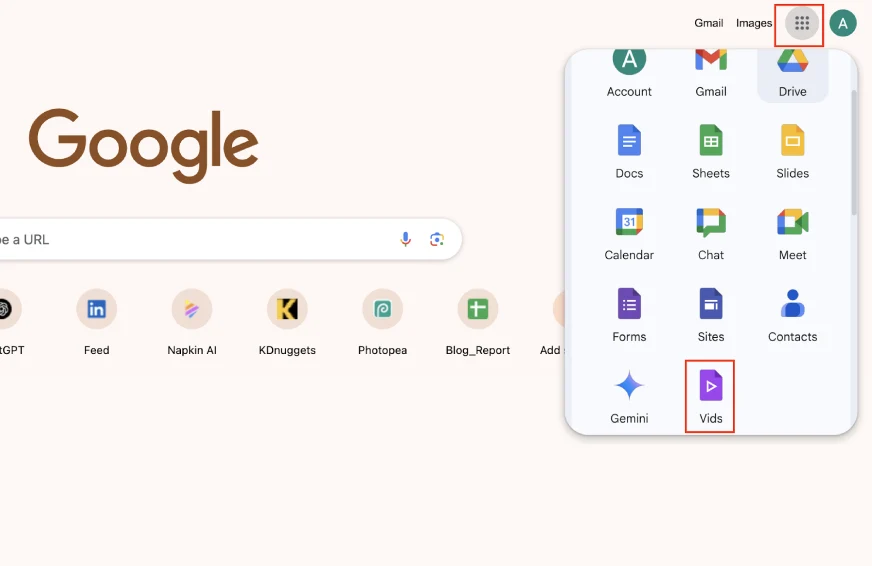
To start with making your video, open your web browser and head to Google. Then click on the Google apps icon in the top right corner of the screen. Then from the apps, click on the Vids icon. Finally, take a deep breath, and start.
Step 1: Prompting
Once you are in the Vids, you will see a pop-up take up space on your screen. From the given choices, click on “Plan your video story.”
- This will help you create a draft storyboard for your video.
- So instead of starting from scratch, you will have a prototype to work with.
For my project, I typed: “Create a project kickoff video for our new ‘Summer Glow’ skincare campaign. The goal is to get the sales and marketing teams excited about the launch. The tone should be energetic, inspiring, and professional.”
Then, I hit “Generate” and watched this free video generation tool spin its magic.
Output:
This is where Vids really impressed me. Instead of generating a fixed, uneditable video, it gave me an editable storyboard, like a Google Slides deck, with each “slide” representing a scene in the video.
Some key highlights of the video generated by Vids are:
- Outlined a Narrative Arc: It created an 8-scene structure: Title Card, The Opportunity, Introducing ‘Summer Glow’, Key Features, Target Audience, Marketing Strategy Highlights, Call to Action, and a Final ‘Let’s Do This!’ screen.
- Wrote a Draft Script: Each scene had a suggested script for the voiceover, written in the energetic and inspiring tone I asked for. The text was clear, concise, and surprisingly good.
- Suggested Visuals: The AI pre-populated each scene with a mix of high-quality stock video clips (a sunny beach, people smiling, close-ups of skincare products) and placeholders that said things like, “[Insert graph of market growth from Q2 report]” or “[Insert product shot of the ‘Summer Glow’ bottle]”.
In two minutes, I had a professional, well-structured foundation that would have taken me two hours to build from scratch.
Step 2: Editing
Now, either you can use this video directly, but most of us would want the video to be more personalised. To make it better and customise it as per your requirements, we can edit this video. Let’s now see what we can do.
Let’s start with the very first slide, you can edit both the “text and the “visuals”
Edit the text:
- Select the text that you want to edit. Make suitable changes to it. Once you are happy with the text, you can also change the way it looks and appears on the screen.
- Select the text box, and you will be able to animate the text, resize the text box, and format it.
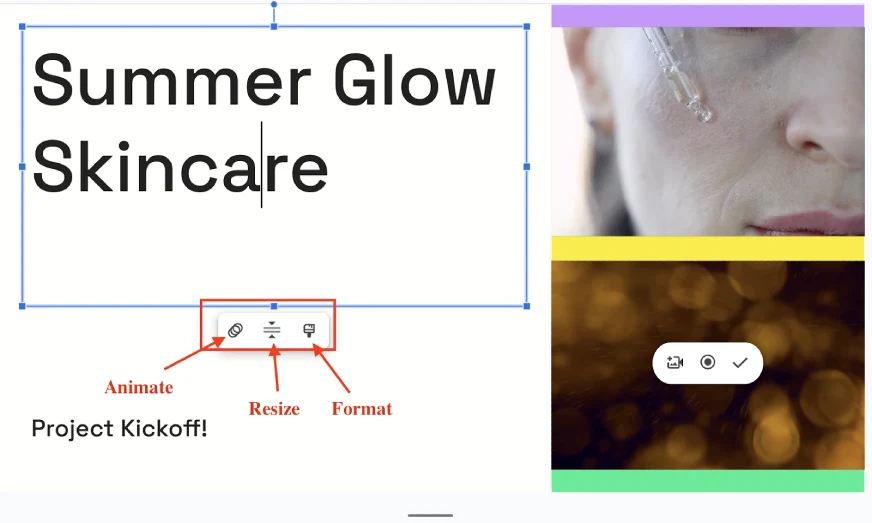
- Animate: Use this to set up how your text enters on the screen, and the duration for which it stays on the screen
- Resize: Use this to fit the text to the selected box size.
- Format: This allows you to change the settings regarding the size, rotation, position of your text, add a shadow to it, and even alt text if required.
Edit the Visuals
- Select the visual (it can either an image or a video) that you wish to edit and you will find various possibilities that you would be able to implement on these visuals. A few things that you can do:
- Animation: This feature allows you to change the way a visual enters or exists the screen. In case of a video, you can also set the duration for which you want to play it on the screen.
- Sound: Videos, if they have sound, might need some work regarding the volume or audio transitions. To make this changes, just click on the sound button.
- Playback: For videos, you can trim them and select the range and portion of it that you wish to play using this feature.
- Format Options: This allows you to change the size, rotation and position of the visual within the current frame. You can also add shadows to the visual or add alt text to it, enhancing SEO prospects.
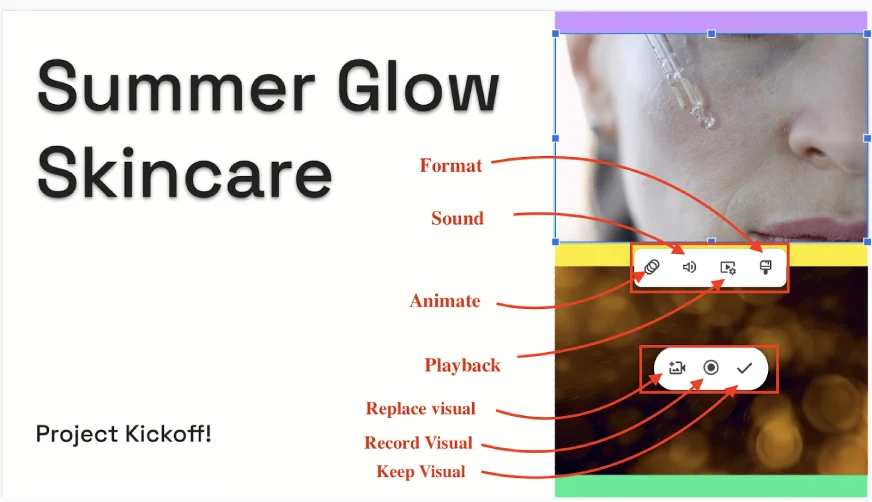
- If the visual is a video, then you have a few other possibilities that you can do to make it more personliazed.
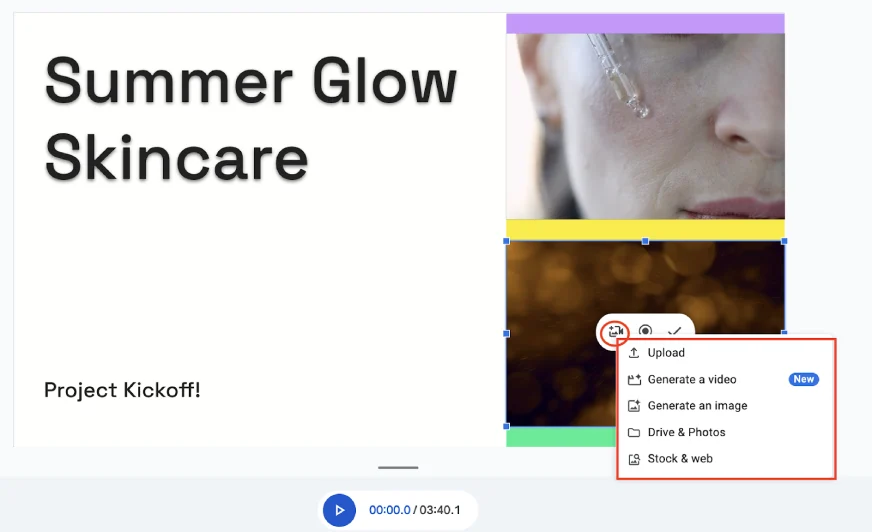
- Replace Video: This feature labels the existing video. Click on it and you can upload your own video from your system, google drive or even photos. You can generate a video using (Veo 2) or an image or simply add a different stock video/image.
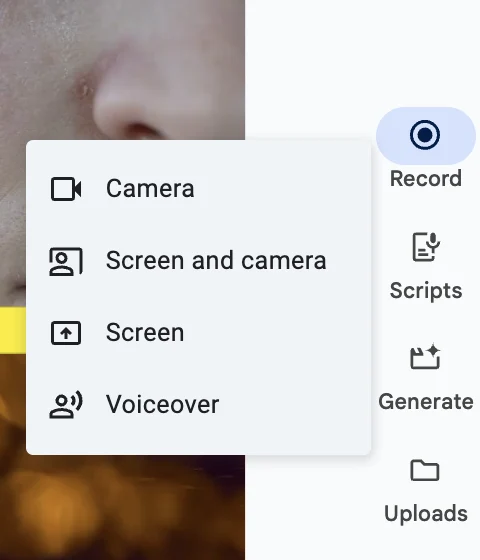
- Record the visual: You can access your camera right from this feature. Use it to record yourself or even share your screen and you can record that too. The existing video will get replaced by your recorded video.
- Keep the visual: If you are happy with the existing video, then you can either let it be or if you have clicked on the visual, then this button can be your salve.
Step 3: Enhancing
The editing limits you to work on the selected portion of the text or the visual within the slide or frame that you are working on. But what if you wish to add features that are not present in the existing slide? Such enhancements are possible with the features present on the right side corner.
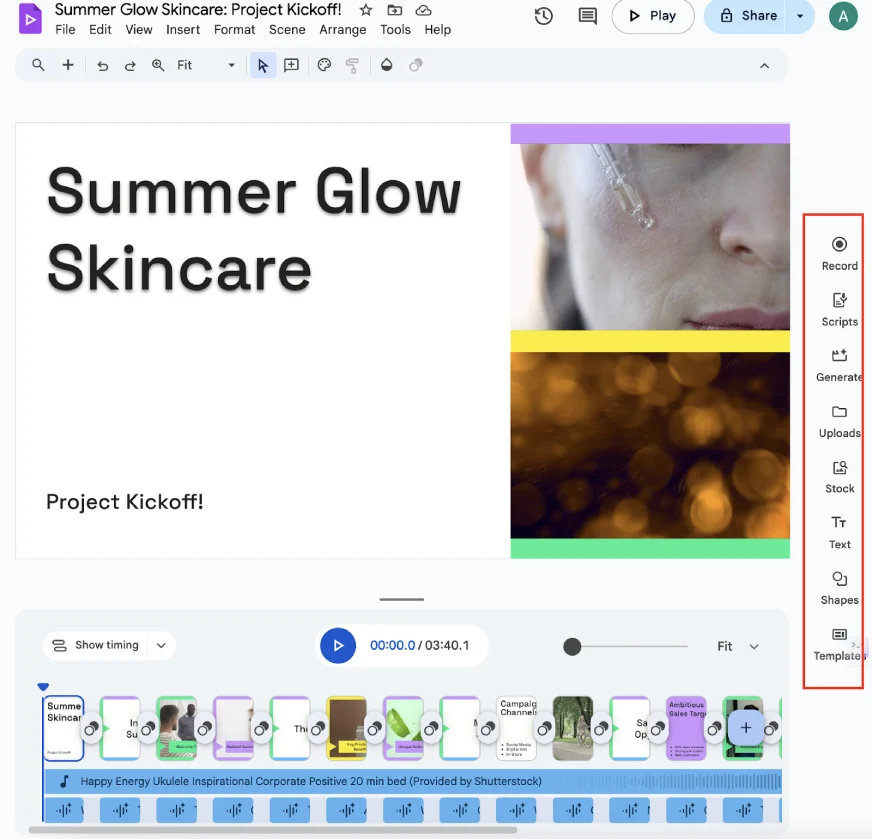
- Record: Use this to access the camera or mic of your system. This can be done to record your own video or voice or both. You can also record your screen too.
- Scripts: Click on it to read the script for each frame. Here you can either keep the script as it is or change it as per your wish and subsequently the voiceover for the script.
- Generate: Here you will get a prompt box, you can add a prompt for the video that you wish to generate, and you will get an 8 sec video.
- Upload: Use this to upload your video on the frame and once on the frame, you can use the editing features to make adjust this video suitably.
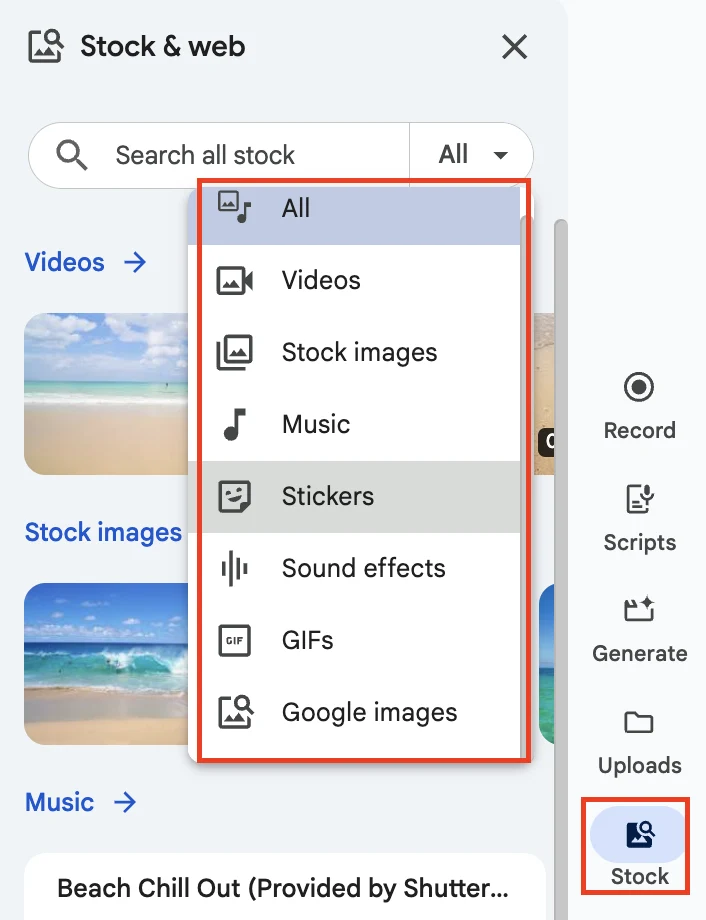
- Stock: Here you get a collection of stock resources like videos, images, music, stickers, gifs and more.
- Text: To add the text to any frame or an interesting design for heading, phrases, quotes or CTA’s (call to action).
- Shapes: You can add shapes, arrows, callouts and even equations using this feature.
- Templates: Just as we did in the beginning, you can select a template from here and change your existing template to any other one of your choice.
You can enhance your frames using these features. Along with these, you also get a set of cool functions in the top panel to further enhance your videos.
Step 4: Reviewing
A video is only ready after it has been reviewed. Now, what happens when you usually share a video? You will have to render it and then email it to your friends/colleagues, or you might just upload it on a platform where it can be accessed by multiple people for review purposes. Now this is quite inconvenient. With Vids, sharing your videos is very easy, just click on the share button at the top right corner of the screen.
Then you can just add the email addresses of the people that you wish to share the videos with, or copy its link and change the access settings and share it with anyone.
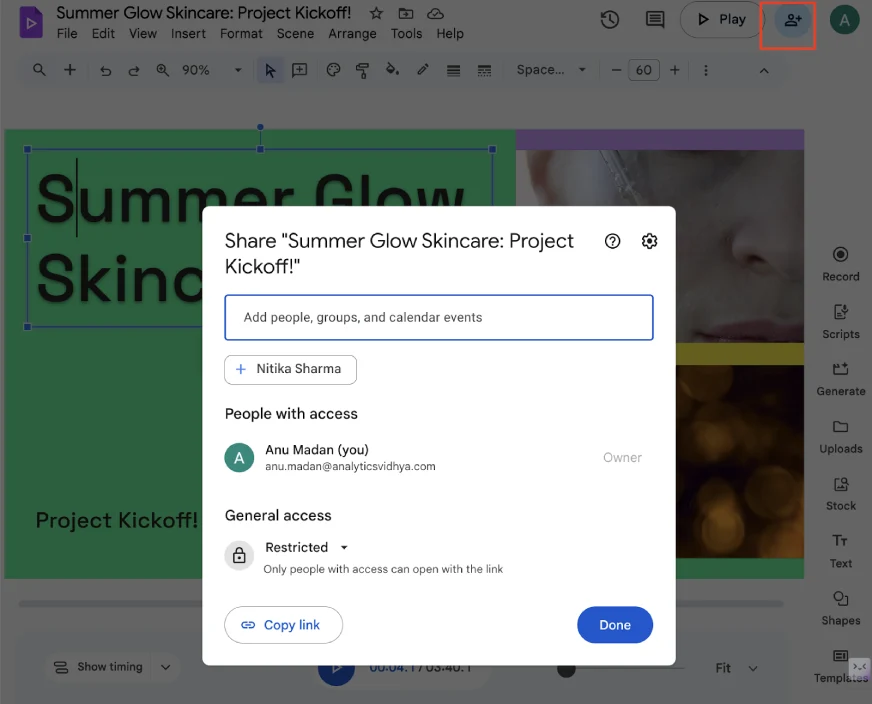
Once shared anyone who is reviewing the video and overall visual storyboard, anyone who has the access to it can leave comments on it. Just as you get notified when someone leaves comments on google docs, you will get notified when someone leaves a comment on your video.
A “short” that I created for my campaign using Vids:
All it took was a couple of prompts and a script—both of which I generated using ChatGPT. Once everything was in place, I created the voiceover for each scene based on my script and selected a speaker from the list of options Vids provided. Finally, I chose a song that best matched the vibe of my video, and voilà, I had a short ready to share on social media to promote my product. Best part? It took me less than 20 minutes to do it all!
Who is This For? (Hint: It’s For You)
After my initial experiment, my mind raced with possibilities. This isn’t just for marketers.
- For the Founder: Imagine creating a compelling pitch video for investors in an afternoon, pulling data directly from your business plan.
- For the Project Manager: Send weekly video updates to stakeholders that are more engaging than an email and faster to create than a presentation.
- For the Sales Team: Create personalized video outreach for key clients, mentioning their company by name and pulling relevant case studies from your Drive.
- For the HR Department: Onboarding videos, policy updates, company announcements – all created in minutes, not days.
- For the Educator: Develop engaging lesson summaries, explain complex topics visually, or create assignment guides for students.
- For a designer: Create a quick overview of the video you have in mind to share with the stakeholders and get their feedback.
If you have ever needed to communicate an idea, share an update, or tell a story, Vids is for you. It tears down the technical and time barriers that have kept millions of people from using the most powerful communication medium on the planet.
Also Read:
- 10 Latest Video Generation Tools You Need to Check Out
- Learn How to Use and Access Veo 3?
- Goku AI: Is This the Future of AI-Generated Video?
Conclusion
Google Vids isn’t just a new tool. It represents a fundamental democratization of video. For decades, creating high-quality video required a specific skillset, expensive software, and a significant time investment. Vids obliterates all three of those requirements.
The true magic isn’t just the AI; it’s the seamless integration into the ecosystem where work already happens. By connecting directly to your documents, data, and collaborators, Vids removes the friction, leaving only the creative process.
The next time someone asks me, “Hey, can you make a quick video for this?”, I won’t groan. I’ll smile and say, “Absolutely. Give me 20 minutes.”
That’s a new kind of superpower.
Frequently Asked Questions
Q1. What is Vids?
A. Vids is an AI-powered video creation Google app that allows users to generate and edit compelling videos.
Q2. Is Vids paid?
A. No Vids is a free video tool by Google Apps. Anyone can use it for free using their Google Chrome web browser.
Q3. Can I create videos for free?
A. Yes, you can create videos for free using Google’s latest tool – Vids. This tool comes with a set of interesting features that allow users to generate a video storyboard, record their videos, and convert PPTs into videos too.
Q4. Can I create a training video using Vids?
A. Since you can record yourself, your screen, and add stock videos in Vids, you will be able to create a training video through it.
Q5. Can I create a reel or TikTok video on Vids?
A. Yes, you can. Infact, Vids come with various editing and enhancing features that will allow you to produce your videos any way that you want.
Anu Madan is an expert in instructional design, content writing, and B2B marketing, with a talent for transforming complex ideas into impactful narratives. With her focus on Generative AI, she crafts insightful, innovative content that educates, inspires, and drives meaningful engagement.