Just earlier this month, Moonshot AI dropped a bomb in the AI world with the Kimi K2.5. With a 1 trillion-parameter MoE model with 32 billion active parameters, Kimi K2.5 roared onto the scene, shaking the likes of GPT 5 and Gemini 3 Pro. At the time, we had covered how it is one of the strongest contenders for the title of ‘best open-source model of 2026.’ In this article, we shall explore some more features of Kimi K2.5 that make it worthy of all the accolades it is fast-garnering across the internet.
To recall, Moonshot AI dubs Kimi K2.5 as ‘Visual Agentic Intelligence.’ And once you use it, you will know that it comes with some very powerful features that earn it the respect that such a title demands. Here, we shall explore these one by one. From the ability to create Sheets to Slides and Docs, we will test out Kimi K2.5 for these features that are being deemed the upper extent of what AI can do.
We shall dive right into these capabilities, testing them out as we go. But first, a brief about what Kimi K2.5 is and what it brings to the table.
Also read: Kimi K2: The Most Powerful Open-Source Agentic Model
Table of contents
What is Kimi K2.5?
In technical terms, Kimi K2.5 is a next-generation open-source multimodal model built on architectural and training upgrades over Kimi K2. With significant improvements over the latter, it now excels at agentic reasoning, vision, and large-scale execution, integrating text, images, videos, and tools across its tasks.
Note that Kimi K2.5 stands apart for its self-directed agent swarm paradigm. Which basically means that instead of relying on predefined workflows, the system can now autonomously spawn and coordinate up to 100 sub-agents. In doing so, it enables thousands of synchronized operations to run in parallel. This allows Kimi K2.5 to operate independently across complex, multi-step tasks without requiring manual orchestration.
Also read: How OpenAI Swarm Enhances Multi-Agent Collaboration?
Now that we know what Kimi K2.5 is and how it improves Moonshot AI’s shot at being the top AI provider, here is how you can use it to elevate your everyday tasks from simple AI responses to fully formed AI assets.
Generate Stunning Presentations in Minutes
You may have seen n-number of AI tools out there that promise to make a complete PowerPoint presentation for you with just a prompt. None, however, does this with as much finesse as the Kimi K2.5. Try it once, and you will know that the new AI model is a league above any competition in this regard.
I tried it out for myself and was astonished at the results. Check out the prompt I used, and the fantastic presentation that Kimi K2.5 returned with, all in a matter of minutes.
How to Make Presentations with Kimi K2.5
- Visit Kimi.com
- Sign in to your account
- Select ‘Slides’ from the menu on the left
- Enter your prompt and watch it get to work
Prompt
Give me a 10 to 12-slide presentation showcasing the overall concept, highlights, key metrics, beneficiaries, and potential effect on the market and the economy in general, of the recent trade deal (“Mother of all Deals”) between India and the European Union
Output
My Take
Kimi K2.5 not only did its job of putting the information into a visually appealing format, but it did so with a level of excellence that simply isn’t found in any other AI tool. Check out the layout, text styles, theme, and the statistical arrangement of the data within the presentation. The presentation itself looks so professional and appealing that you tend to forget the charm of raw, authentic data that Kimi K2.5 was able to pull on its own from the farthest corners of the internet. Since it mentions the sources to you as well, you can always be assured of the data quality within your work.
Though never forget, AI can make mistakes, so make sure to double-check your facts and figures for the best possible use.
Create Entire Excel Worksheets in Seconds
Microsoft Excel is one of the most sought-after skills, especially so in the world of data and statistics. Though in the era of artificial intelligence, it was only a matter of time before AI made Excel and worksheets accessible to non-technical users as well. Lo and behold, Kimi K2.5 now excels at this frontier too, taking things to a whole new level.
With Kimi K2.5, you can now easily narrate your wants to the chatbot in the language of your choice, and the AI model will follow it well for the optimum result. Don’t believe me? Check out the results we were able to get from Kimi K2.5 for a pretty comprehensive Excel worksheet. The best part, all of this took less than 2 minutes.
How to Generate Excel Sheets on Kimi K2.5
- Visit Kimi.com
- Sign in to your account
- Select ‘Sheets’ from the menu on the left
- Enter your prompt and wait for the result
Prompt
Create an Excel workbook with three sheets exactly as described below. The workbook should be editable by user and not pre-populated with random data.
Sheet 1: Monthly Expenses
Create a table named “Expense Log” with the following columns (and their format):
- Category (Text) – Fill in with following rows: Rent, Groceries, Transport, Utilities, Entertainment, Dining
- Description (Text) – leave column blank
- Payment Method (drop-down list) with these options only: Cash, UPI, Card, Bank Transfer
- Date (Date) – leave column blank
- Amount (Indian currency (₹)) – leave column blank
- Monthly Budget (Format as Indian currency (₹)) – leave column blank
Apply:
Header styling
Table formatting
Proper column data typesSheet 2: Category Summary
Create a table titled “Monthly Spend by Category” with two columns:
- Category
- Total Amount Spent (₹)
Rules:
- Categories should dynamically reference the Category column from Sheet 1
- Total Amount must be calculated using formulas, summing the Amount column from Sheet 1 for each category
- Do not hard-code numbers
- Add a Grand Total row that sums all category totals and format it in bold.
Sheet 3: Budget vs Actual
Create a table titled “Monthly Budget vs Actual” with these columns:
Category
- Monthly Budget (₹) – Pull values from “Monthly Budget” column of Sheet 1
- Actual Spend (₹) – Pull values from “Total Amount Spent” section of Sheet 2
- Difference (₹) – Calculate: Monthly Budget – Actual Spend
Apply:
Currency formatting (₹)Conditional formatting:
Green if the difference is positive (under budget)
Red if the difference is negative (over budget)Workbook Requirements
- Use Excel formulas, not static values
- Use data validation for dropdowns
- Ensure all sheets are linked correctly
- The workbook should update automatically when users enter amounts in Sheet 1
- Keep formatting clean and professional
Output
My Take
One look at the response and you know that Kimi k2.5 has done its job perfectly. Note that the worksheet that it comes up with is not editable within the window. You will have to download it before you can make any changes.
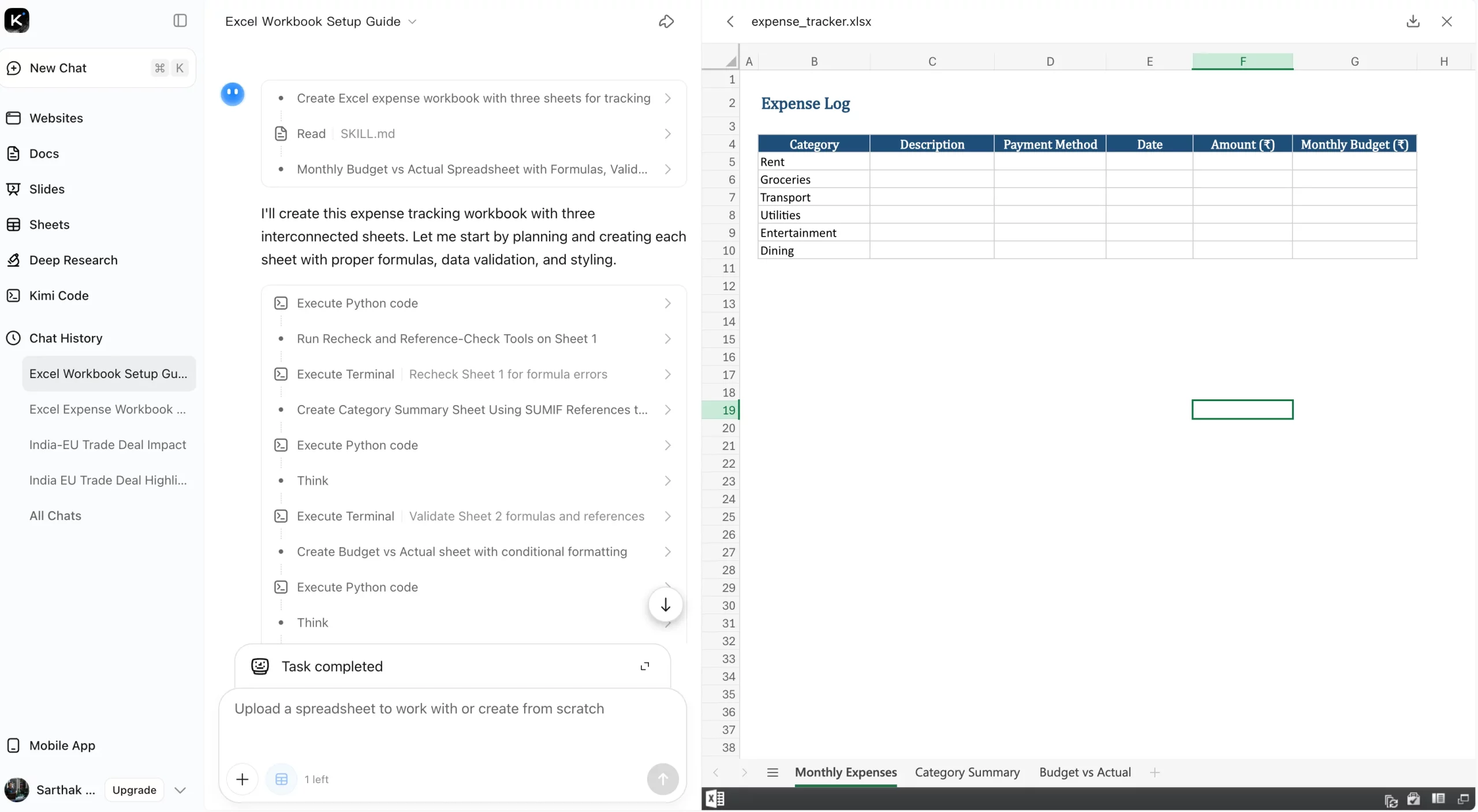
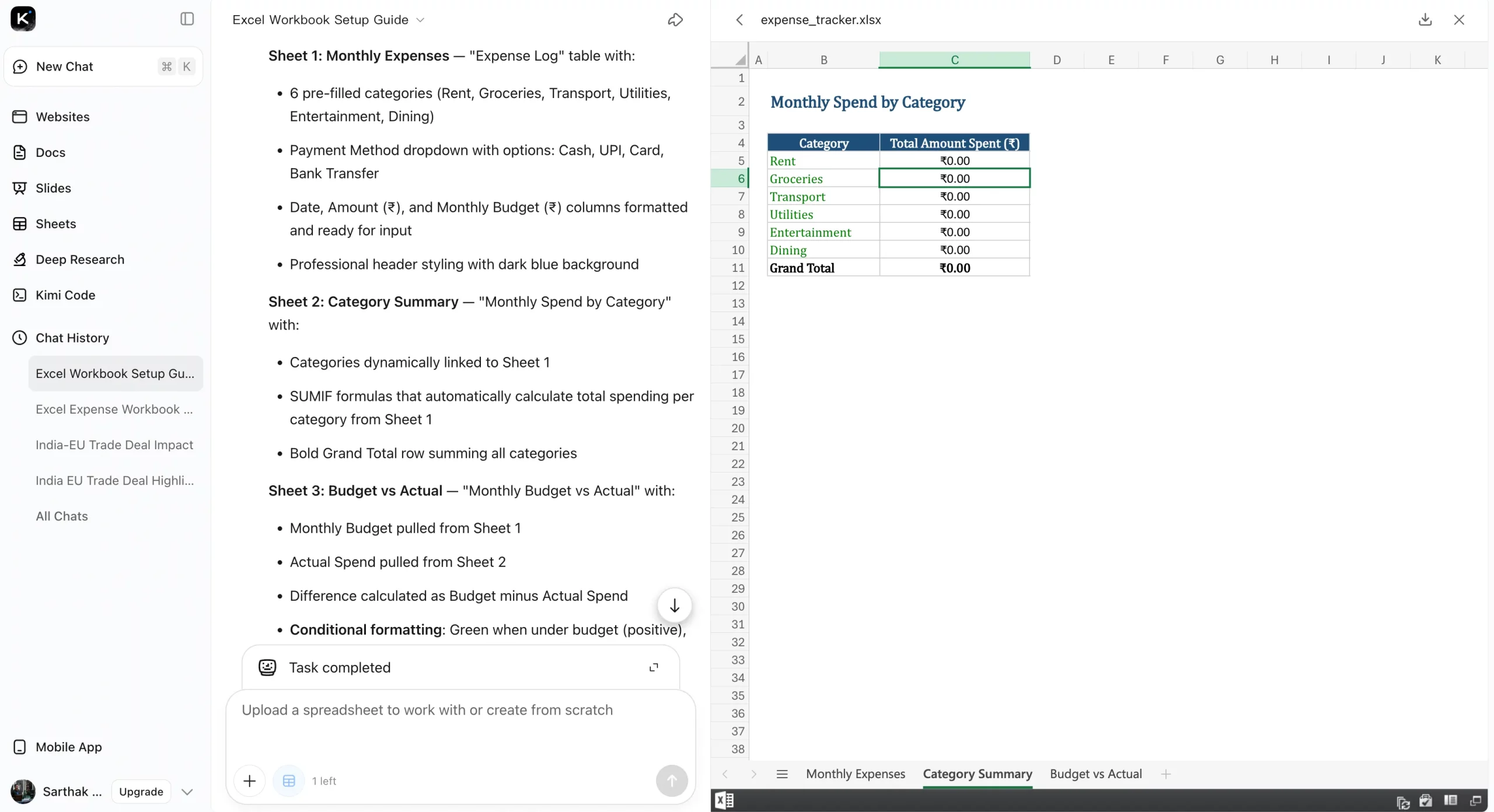
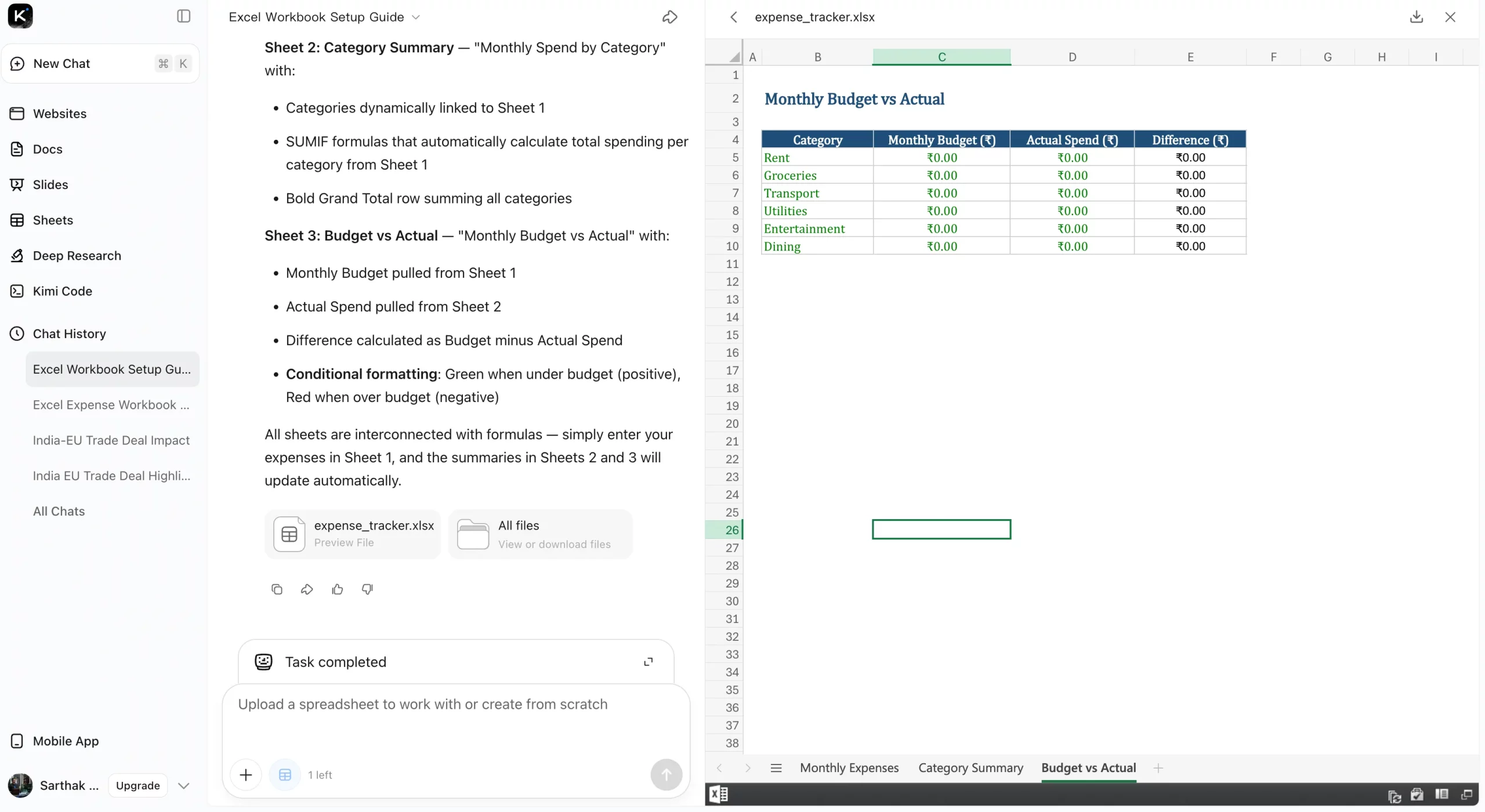
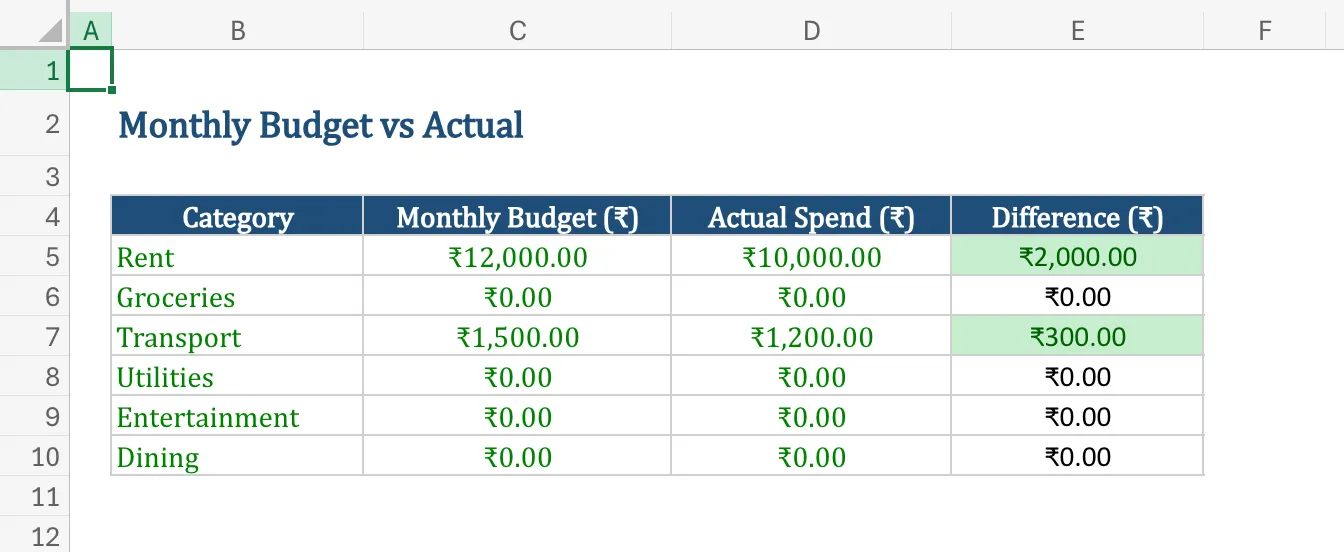
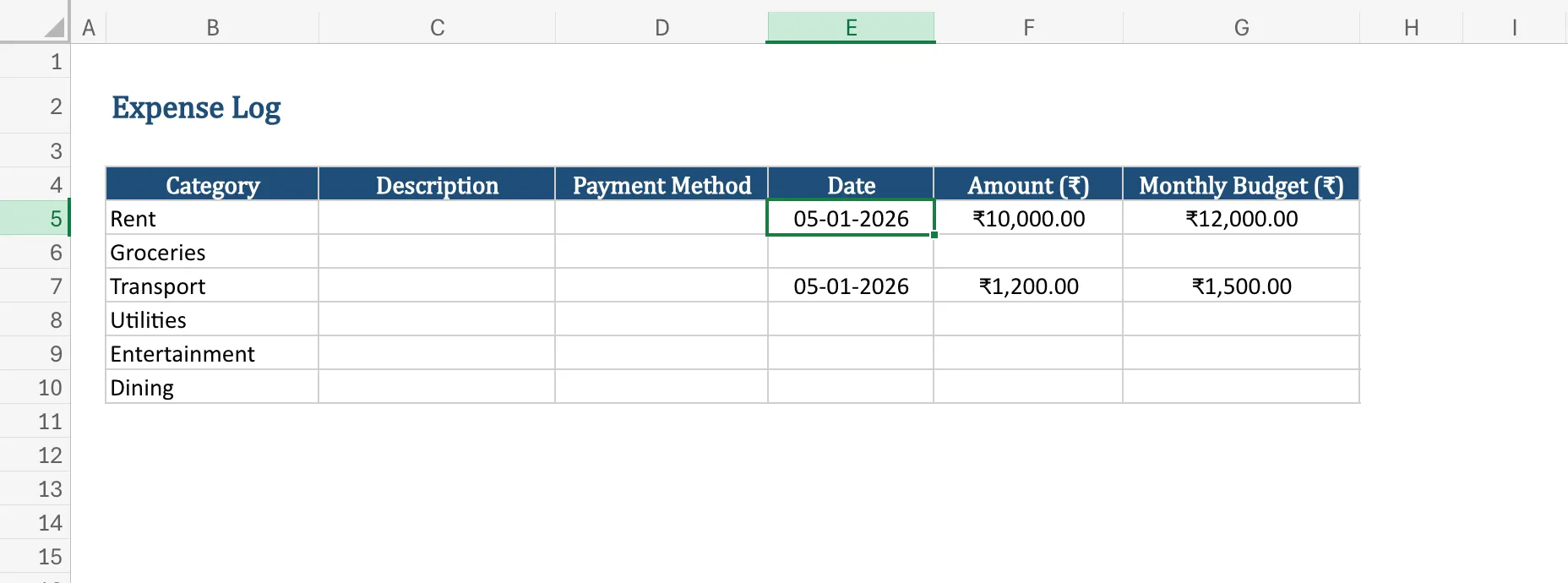
Right from the first sheet, Kimi K2.5 lists all the columns and rows perfectly. It even fills in the data just as instructed. In images 1 to 3, you can see the programming it carried out for the 3 sheets on the left. Also check out the resulting Excel workbook on the right.
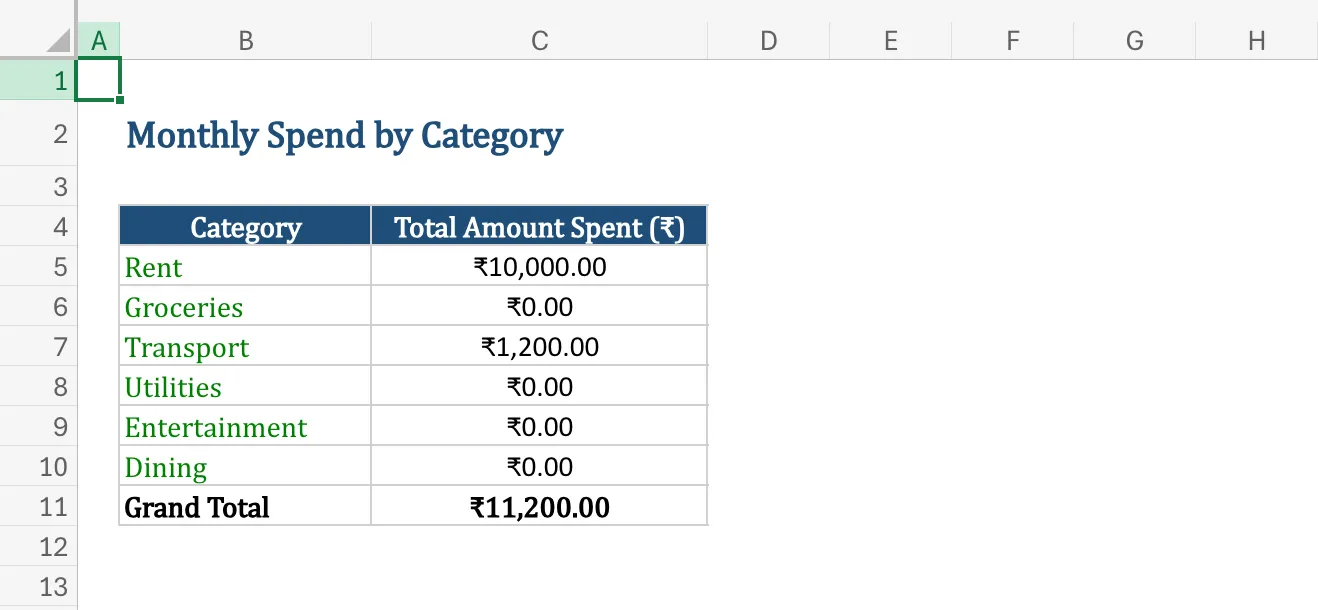
In images 4 to 6, you can see that the data entries in any one of the sheets correspond to the right value change in the subsequent sheets. This proves that Kimi K2.5 did not just produce an Excel sheet that looks professional, but also works the way it is intended to.
Produce Powerful PDFs with a Single Prompt
If presentations and spreadsheets are about thinking, PDFs are about delivery. They are what you send to clients, submit to stakeholders, archive for compliance, or publish for the world to read. And this is exactly where most AI tools still stumble. They can generate text, sure, but turning that text into a well-structured, professionally formatted PDF, complete with headings, tables, spacing, and logical flow, usually requires a lot of manual cleanup.
This is where Kimi K2.5 quietly flexes its real strength. The clear and massive difference from other AI tools that I experienced was its first-class output format. With the right prompt, it doesn’t just write content but assembles a complete document.
Go ahead, take a look at the example prompt we tested it out with, and the output thereafter. You will surely be amazed, just as I was.
How to Generate PDFs with Kimi K2.5
- Visit Kimi.com
- Sign in to your account
- Select ‘Docs’ from the menu on the left
- Enter your prompt and wait for the result
Prompt
Create a professionally structured PDF report intended for general readers and working professionals on the topic “How Artificial Intelligence Is Changing Everyday Work in 2026”
Must include sections – AI at Work Today, What Changed in the Last 12 Months, Benefits and Productivity Gains, and Challenges and Risks.
Formatting & Presentation Rules –
- Use clear section headings and subheadings
- Include at least one table
- Keep language clear, non-academic, and engaging
- Avoid filler or generic AI hype
Output
My Take
As you can see in the video, Kimi K2.5 came up with one of the best AI-generated PDF I have ever seen. With a perfect formatting, professional design layout, and to-the-point information, the AI model certainly ranks one-of-the (if not the) best options for generating highly practical PDFs within seconds.
Conclusion
Kimi K2.5 makes one thing very clear: AI is no longer just about generating answers. It has now evolved to delivering complete, usable assets. Whether it is presentations that look client-ready, Excel workbooks that function exactly as intended, or PDFs that read like polished reports, Kimi K2.5 consistently crosses the line from “assistant” to “operator.” What stands out is both speed and execution. The outputs are structured, connected, and immediately practical.
That said, this is not an excuse to switch off human judgment. Remember, AI can still slip, so verification remains non-negotiable. But as a tool for accelerating serious work, Kimi K2.5 sets a new benchmark. If this is what open-source AI looks like in 2026, the gap between human intent and finished output is surely at a new low.