So you’ve probably seen the buzz. Nano Banana, Google’s new AI image model, is making waves for being ridiculously fast and surprisingly good. But all the tech talk in the world doesn’t mean a thing if you can’t figure out how to actually use the damn thing. This article would not only help you to access it, but would also provide different ways of doing so. Without further ado, let’s jump into it.
Table of contents
Let’s cut through the confusion. You don’t need to be a coding wizard or have a supercomputer in your basement to get started (being one does increase the options, though). Here’s the breakdown of how you can start making images with it right now.
1. The “Easiest” Way: Google AI Studio
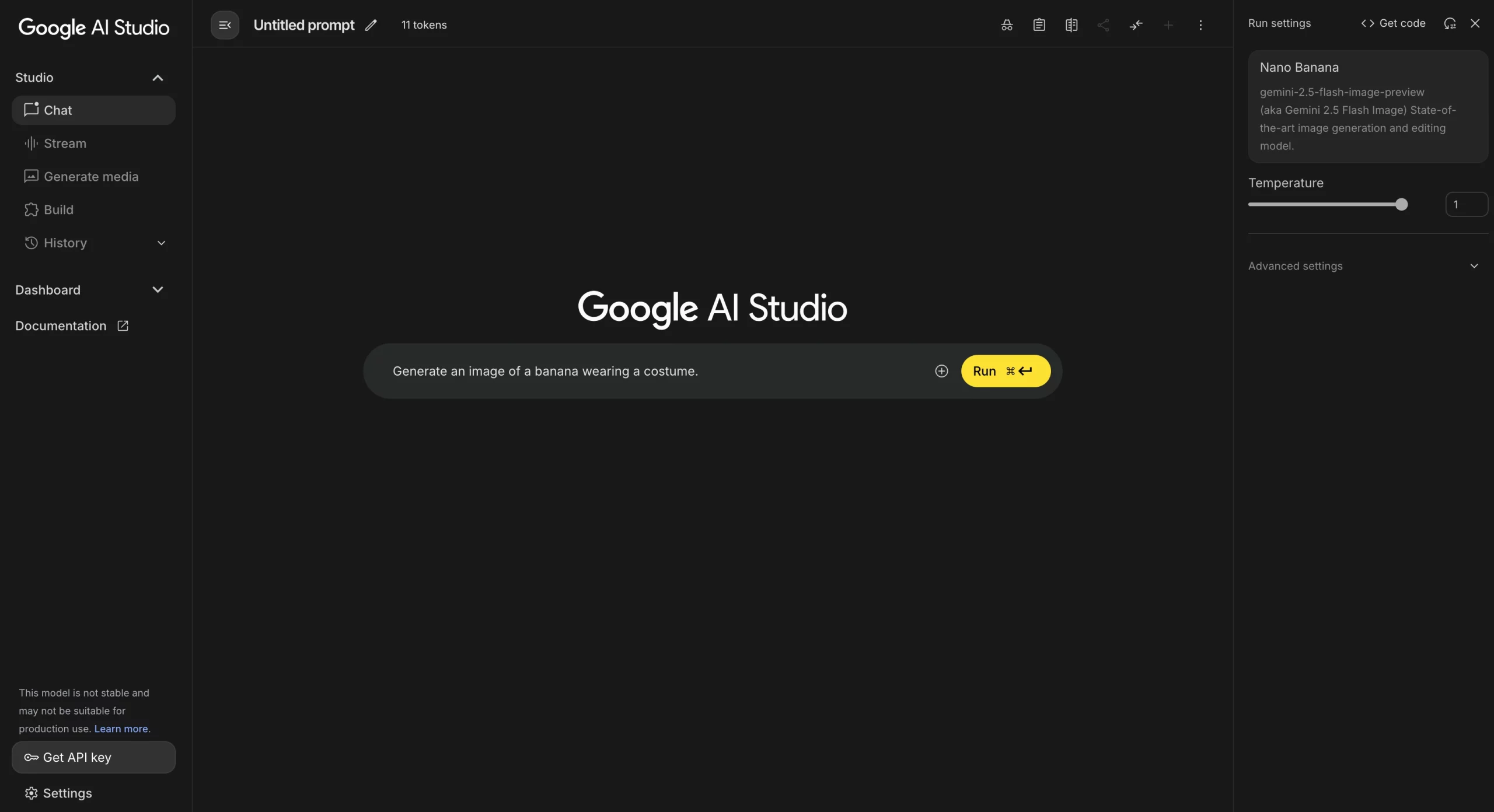
If you just want to test-drive the model with zero fuss, your first stop should be the Google AI Studio. Think of it as the official, free-to-use playground for Google’s AI. It’s a simple website where you can type what you want to see, hit “Run,” and get an image back in seconds. There’s no install, no code, just you and the AI. It’s the perfect way to get a feel for its style and speed without any commitment.
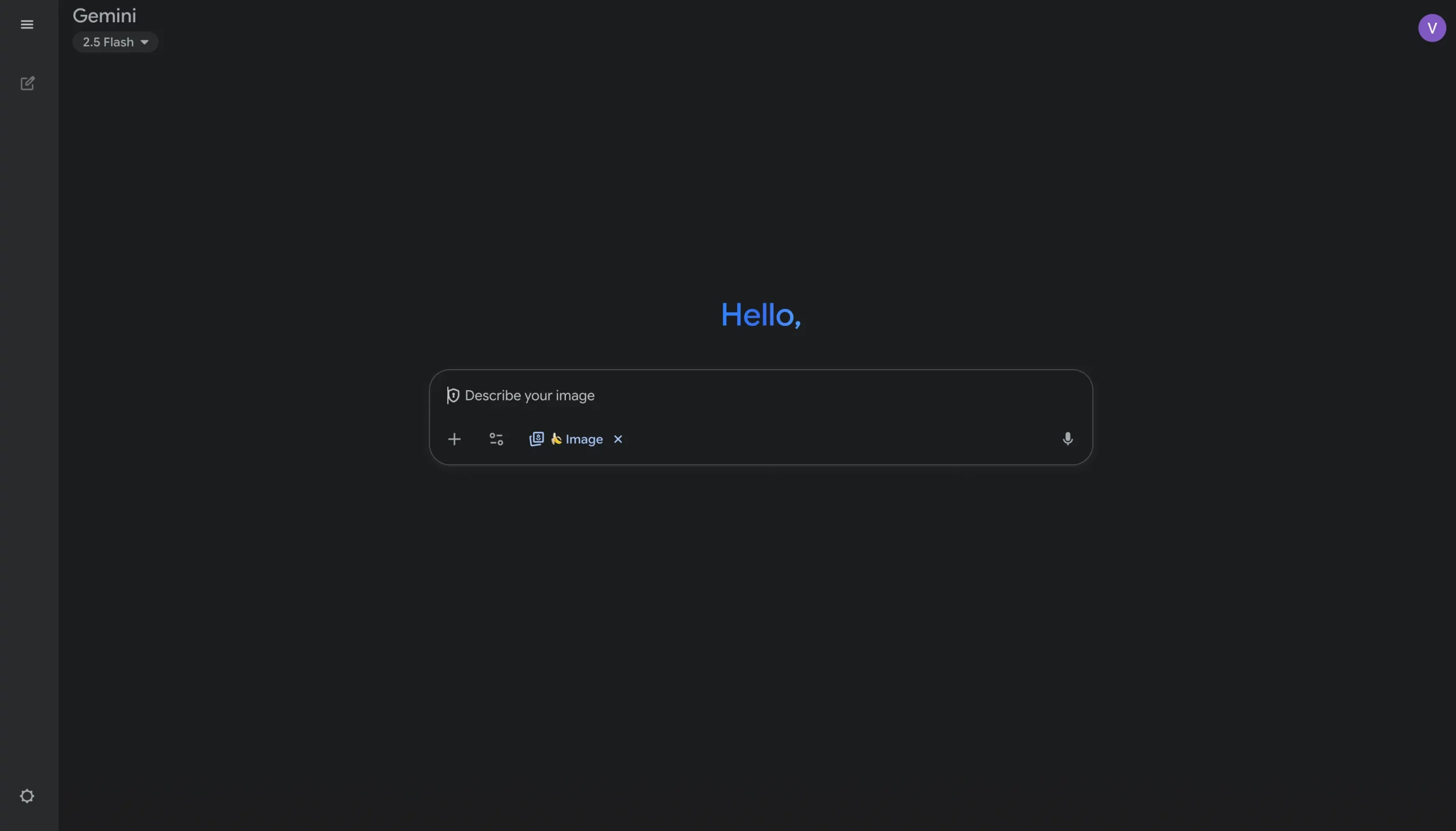
2. The “On the Go” Way: The Gemini App
Chances are, you might already have access to Nano Banana and not even realize it. If you’ve ever used the Gemini App on your phone or browser, you’re already set. When you ask the chatbot to create a picture, it often uses models like Nano Banana under the hood to get it done quickly.
Just open a chat and tell it what you want to create. Try something like, “Create an image of a raccoon wearing a tiny leather jacket, riding a skateboard.” It’ll switch from text mode to image mode and generate it for you right in the conversation, making it the easiest way to create on the go.
3. The Creative Control Way: Third-Party Art Tools
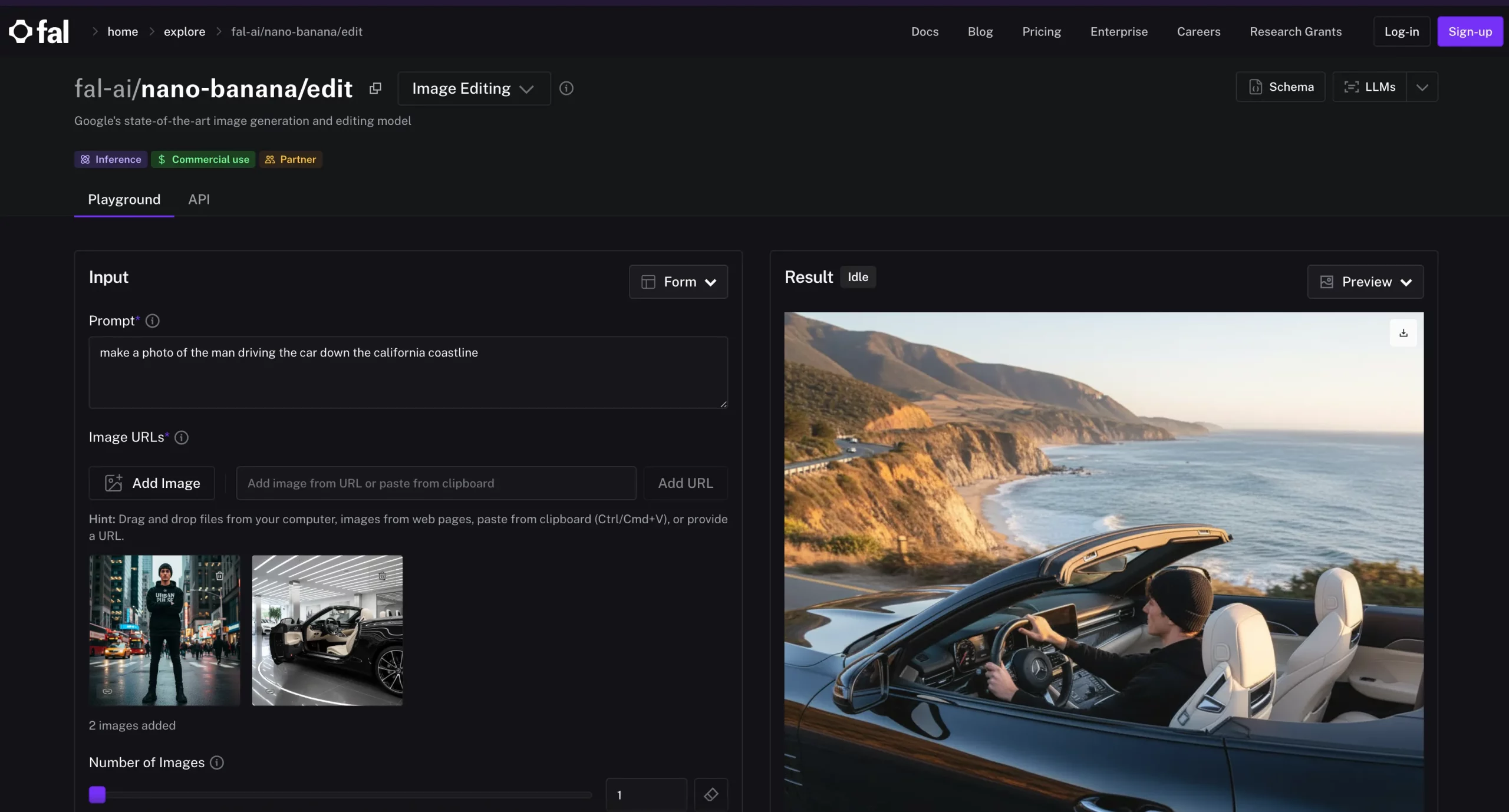
Okay, so a simple text box isn’t enough for you. You’re an artist. You want sliders, settings, and the ability to integrate AI into a real creative workflow. This is your lane. Professional (and free!) art programs like Fal.ai are perfect for this.
You’ll need to grab a free API key from the Google AI Studio, but once you plug that into the plugin’s settings, you’ve suddenly got a powerhouse. You can generate an image and immediately start painting over it, blending it, and using all your regular art tools. It’s the best of both worlds. There are other alternatives, like fal.ai, which integrates the API itself and offers a digital playground (frontend) for the model.
4. The Builder’s Path: A Little Bit of Code
Alright, this one’s for the tech heads, the builders, and the people who want to create their own tools. But even if you’re not a coder, check out how simple this is. This is how you build Nano Banana into your own website, a Discord bot, or whatever cool project you’ve been dreaming up. You’ll just need the API key and the official Python AI library from Google. With a few lines of code, you can start telling the model what to do directly.
You can find your API key here: Google AI Studio API Key
Python Code:
from google import genai

from PIL import Image

from io import BytesIO

import os

def generate_gemini_image(api_key, prompt_text):

    # Configure the client with the API key

    genai.configure(api_key=api_key)

    client = genai.Client()

    # Call the Gemini 2.5 Flash Image model to generate content

    response = client.models.generate_content(

        model="gemini-2.5-flash-image-preview",

        contents=[prompt_text]

    )

    # Extract the image data from the response parts

    for part in response.candidates[0].content.parts:

        if part.inline_data is not None:

            # The 'data' field should be base64 encoded string; decode it properly

            image_data_base64 = part.inline_data.data

            image_bytes = BytesIO(base64.b64decode(image_data_base64))

            image = Image.open(image_bytes)

            # Save the generated image locally

            filename = "generated_gemini_image.png"

            image.save(filename)

            print(f"Image saved as {filename}")

            return filename

    print("No image found in the API response.")

    return None

if __name__ == "__main__":

    api_key = os.getenv("__ADD__YOUR__API__KEY__HERE")

    if not api_key:

        api_key = input("Enter your Google AI API key: ")

    prompt = "A futuristic cityscape with flying cars at sunset"

    generate_gemini_image(api_key, prompt)
Add your Google AI Studio API key in __ADD__YOUR__API__KEY__HERE or you can enter one upon program execution. That’s it. It’s way less intimidating than it looks, and it opens up a universe of possibilities.
So, What’s Your Move?
Ultimately, there’s a path in for everyone. From the casual curiosity of the Gemini app to the deep creative control in Fal.ai, the barrier to entry has been kicked to the curb. The hardware or subscriptions are no longer the gatekeeper; your imagination is. The only question left is which door you’ll open first.
Also Read:
- Turn Your Family Photo into a Royal Portrait Using this Nano Banana Prompt
- Create your own 3D Figurine Using Nano Banana AI
- 15 Nano Banana Prompts to Try Today!
- Is Nano Banana Better than GPT-5? Let’s Find Out!
- Nano Banana vs Qwen: Which is Better?
- End-to-End Marketing Automation Using Nano Banana + n8n
- How to Create Videos Using Nano Banana + Veo 3?
Frequently Asked Questions
Q1. How do I try Nano Banana without installing anything?
A. Use Google AI Studio. It’s free, runs in your browser, and lets you type a prompt and instantly get an image back. No setup, no coding.
Q2. Can I use Nano Banana on my phone?
A. Yes. The Gemini app often taps into Nano Banana for image generation. Just open a chat, describe what you want, and the app creates it right in the conversation.
Q3. What if I want more creative control?
A. Pair Nano Banana with art tools like Krita. Install the Krita AI Diffusion plugin, connect it with a free API key, and you’ll be able to generate, tweak, and paint over AI images in one workflow.
Q4. Do I need coding skills to use it?
A. Not at all. AI Studio and Gemini cover casual use. But if you want to build bots, apps, or websites, a few lines of Python using Google’s AI library is all it takes.
Q5. What’s the best option for beginners?
A. Start with Google AI Studio. It’s the simplest and fastest way to see what Nano Banana can do without getting lost in setup or technical details.
I specialize in reviewing and refining AI-driven research, technical documentation, and content related to emerging AI technologies. My experience spans AI model training, data analysis, and information retrieval, allowing me to craft content that is both technically accurate and accessible.