Most AI projects start with one annoying chore: cleaning messy files. PDFs, Word docs, PPTs, images, audio, and spreadsheets all need to be converted into clean text before they become useful. Microsoft’s MarkItDown finally fixes this problem. In this guide, I will show you how to install it, convert every major file type to Markdown, run OCR on images, transcribe audio, extract content from ZIPs, and build cleaner pipelines for your LLM workflows with only a few lines of code.
Table of contents
- Why MarkItDown Matters?
- Installation and Setup of Microsoft’s MarkItDown
- 8 Things To Do With Microsoft’s MarkItDown Library
- Task 1: Converting MS Word Documents
- Task 2: Extract Tables from Excel as Markdown
- Task 3: Turn PowerPoint Slides into Clean Markdown
- Task 4: Parse PDFs into Structured Markdown
- Task 5: Generate Text From Images Using OCR
- Task 6: Transcribe Audio Files Into Markdown
- Task 7: Process Multiple Files Inside ZIP Archives
- Task 8: Handling HTML and Text-Based Formats
- Process Multiple Files Inside ZIP Archives
- Conclusion
- Frequently Asked Questions
Why MarkItDown Matters?
Before we jump into the hands-on examples, it helps to understand how MarkItDown actually converts different files into clean Markdown. The library does not treat every format the same. Instead, it uses a smart two-step process.
First, each file type is parsed with the tool best suited for it. Word documents go through mammoth, Excel sheets through pandas, and PowerPoint slides through python-pptx. All of them are converted into structured HTML.
Second, that HTML is cleaned and transformed into Markdown using BeautifulSoup. This ensures the final output keeps headings, lists, tables, and logical structure intact.
You can add the image here to make the flow clear:
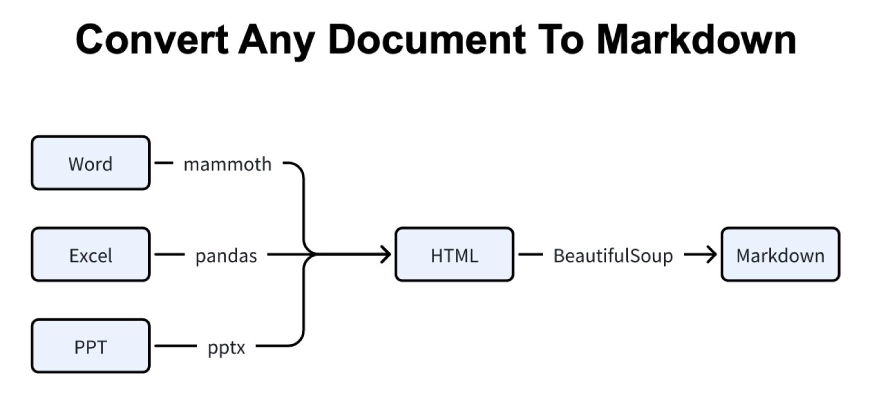
MarkItDown follows this pipeline every time you run a conversion, regardless of how messy the original document is.
Read more about it in our previous article on How to Use MarkItDown MCP to Convert the Docs into Markdowns?
Installation and Setup of Microsoft’s MarkItDown
A Python environment and pip are required to start. You will also require an open AI API key in case you intend to process images or audio.
In any terminal, the following command will install the MarkItDown Python Library:
!pip install markitdown[all] It is better to establish a virtual environment to prevent conflict with other projects.
# Create a virtual environment
python -m venv venv

# Activate it (Windows)
venv\Scripts\activate

# Activate it (Mac/Linux)
source venv/bin/activate
After installation, import the library in Python to test it. You are now ready to convert files into Markdown
8 Things To Do With Microsoft’s MarkItDown Library
MarkItDown supports most formats. These are the examples of using its usage on common files.
Task 1: Converting MS Word Documents
Word documents commonly include headers, bold text, and lists. MarkItDown preserves this formatting during conversion.
from markitdown import MarkItDown
md = MarkItDown()
res = md.convert("/content/test-sample.docx")
print(res.text_content)
Output:
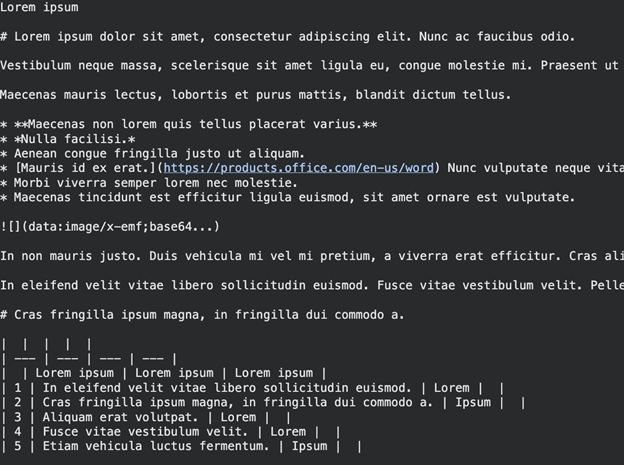
You will find the Markdown text. Headings are outlined by the letters # and lists by *. This form of structure assists the LLMs to comprehend the structure of your paper.
Task 2: Extract Tables from Excel as Markdown
Excel data is regularly required by data analysts. It is a document converting tool that can convert spreadsheets into clean Markdown tables.
from markitdown import MarkItDown
md = MarkItDown()
result = md.convert("/content/file_example_XLS_10.xls")
print(result.text_content)
Output:
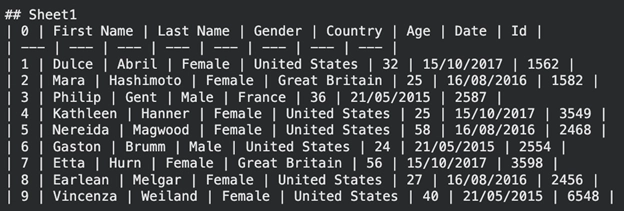
The information is presented in the form of a Markdown table. This format is not difficult to interpret both by humans and AI models.
Task 3: Turn PowerPoint Slides into Clean Markdown
Decks of slides possess useful summaries. This text can be extracted to create data to be used in LLM summarization tasks.
from markitdown import MarkItDown
md = MarkItDown()
result = md.convert("/content/file-sample.pptx")
print(result.text_content)
Output:
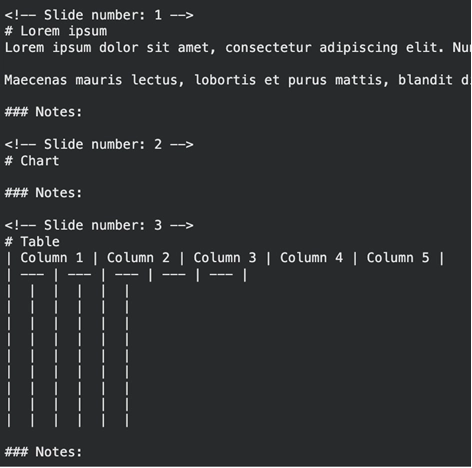
The tool captures bullet points and slide titles, separated by slide number. It disregards complicated layout features that cause text parsers to get lost.
Task 4: Parse PDFs into Structured Markdown
The PDF is infamously extremely hard to decode. MarkItDown makes this process easier.
from markitdown import MarkItDown
md = MarkItDown()
result = md.convert("/content/1706.03762.pdf")
print(result.text_content)
Output:
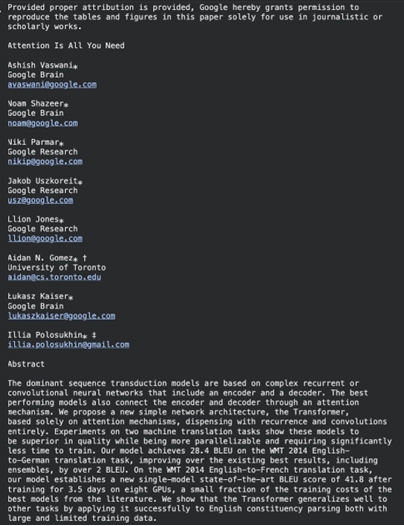
It extracts the text with the formatting, section wise. The library can also combine with OCR tools when using the complex PDFs of scanned documents.
Task 5: Generate Text From Images Using OCR
MarkItDown Python Library is able to describe images in case you relate it to a multimodal LLM. This involves an LLC client arrangement.
from markitdown import MarkItDown
from openai import OpenAI
from google.colab import userdata
client = OpenAI(api_key=userdata.get('OPENAI_KEY'))
md = MarkItDown(llm_client=client, llm_model="gpt-4o-mini")
result = md.convert("/content/Screenshot 2025-12-03 at 5.46.29 PM.png")
print(result.text_content)
Output:
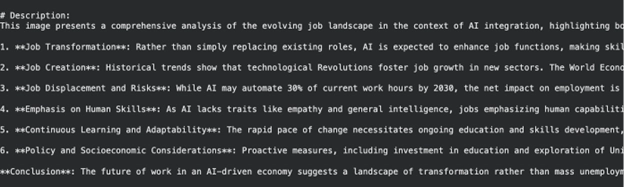
The model will produce a descriptive caption or text that is visible in the image.
Task 6: Transcribe Audio Files Into Markdown
You are even able to turn audio files into text. It has this feature via speech transcription.
from markitdown import MarkItDown
from openai import OpenAI
md = MarkItDown(llm_client=client, llm_model="gpt-4o-mini")
result = md.convert("/content/speech.mp3")
print(result.text_content)
Output:

A text transcription of the audio file in Markdown format.
Task 7: Process Multiple Files Inside ZIP Archives
MarkItDown can handle whole archives simultaneously, should you have a ZIP file of documents.
from markitdown import MarkItDown
md = MarkItDown()
result = md.convert("/content/test-sample.zip")
print(result.text_content)
Output:
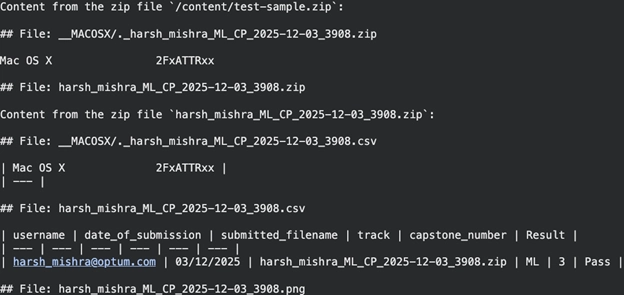
The application unifies the contents of all supported files inside a ZIP into a single Markdown output. It also extracts CSV file content and converts it into Markdown.
Task 8: Handling HTML and Text-Based Formats
Web pages and data files like CSVs are simple to convert files to Markdown.
from markitdown import MarkItDown
md = MarkItDown()
result = md.convert("/content/sample1.html")
print(result.text_content)
Output:
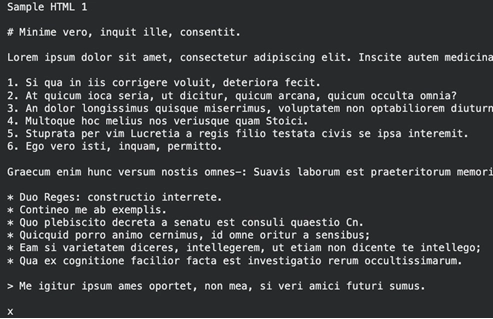
Process Multiple Files Inside ZIP Archives
Clean Markdown that preserves links and headers from the HTML.
Advanced Tips and Troubleshooting
Keep the following tips in mind to get the best results from this document conversion tool:
Select 77 more words to run Humanizer.
- Optimization of the Output: The -o flag can be used in the command line to save to a file.
- Big files: Large files might be time consuming to process. Make sure that sufficient memory capacity is provided in your machine.
- API Errors: API key and internet issue: in case of problems with image/audio conversion, check API key and internet connection.
- Supported Formats: Capture a failure: Review the GitHub issues page. The society is engaged and supportive.
Taking It Further: Building an AI Pipeline
MarkItDown acts as a strong foundation for AI workflows. You can integrate it with tools like LangChain to build powerful AI applications. High-quality data matters when training LLMs. Microsoft’s open-source tools help you maintain clean input data, which leads to more accurate and reliable AI responses.
Conclusion
MarkItDown Python Library is a breakthrough in preparation of data. It enables you to convert files to Markdown with the least amount of effort. It processes simple texts to multimedia. Microsoft open-source tools are also making the developer experience better. This is a document conversion tool that needs to be in your toolkit in case you deal with LLMs. Try the examples above. Join the community on GitHub. Naturally ready data to workflows of LLM in the briefest possible time.
Frequently Asked Questions
Q1. Is MarkItDown free to use?
A. Yes. Microsoft maintains it as an open-source library, and you can install it for free with pip.
Q2. Does MarkItDown support PDFs?
A. It supports textual PDFs best but is capable of working with scanned images provided you set it up with a LLM client to do OCR.
Q3. Should all of my conversions require an API key with OpenAI?
A. No. MarkItDown requires an API key only for image and audio conversions. It converts text-based files locally without any API key.
Q4. Is MarkItDown command line capable?
A. Installing the library, too, does mean an available command-line tool to insert quick file conversions.
Q5. Which file formats does MarkItDown support?
A. It can support PDF, Docx, PPTX, XLSX, images, audio, HTML, CSV,JSON, ZIP, and YouTube URLs.
Harsh Mishra is an AI/ML Engineer who spends more time talking to Large Language Models than actual humans. Passionate about GenAI, NLP, and making machines smarter (so they don’t replace him just yet). When not optimizing models, he’s probably optimizing his coffee intake. 🚀☕