Pandas DataFrames provide powerful tools for selecting and indexing data efficiently. The two most commonly used indexers are .loc and .iloc. The .loc method selects data using labels such as row and column names, while .iloc works with integer positions based on a 0-based index. Although they may seem similar, they function differently and can confuse beginners.
In this guide, you’ll learn the key differences between .loc and .iloc through practical examples. Using a real dataset, we’ll show how each method works and what kind of output they produce in real use cases.
Table of contents
Understanding .loc and .iloc in Pandas DataFrames
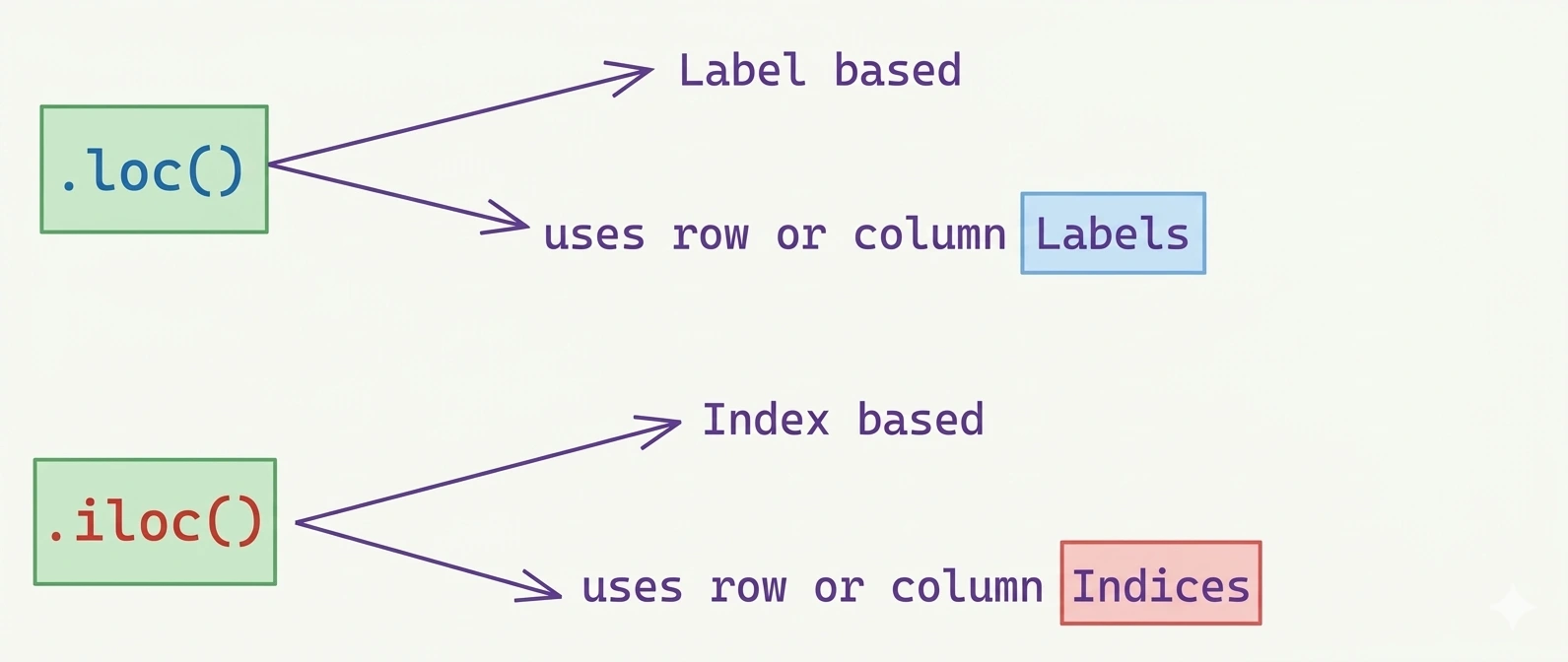
The Pandas library provides DataFrame objects with two attributes .loc and .iloc which users can employ to extract specific data from their DataFrame. These two functions display identical syntax through their implementation of indexers whereas they show different behavior when processing indexers. The .loc function treats its input as row or column label names while the .iloc function treats its input as numeric row or column indexes. The two functions allow users to filter data through the use of boolean arrays.
.loc: Label-based indexing. Use actual row/column labels or boolean masks (aligned by index).iloc: Integer position-based indexing. Use numeric indices (0 to N-1) or boolean masks (by position).
For Example:
Let’s assume your training data covers information until October of the year 2025. Therefore, the date index allows .loc['2025-01-01':'2025-01-31'] to perform label-based slicing which .iloc requires through date conversion to integer positions for its function. The function of .loc should be selected when handling label data while .iloc should be used when working with numerical data that represents positions.
import pandas as pd
import numpy as np

dates = pd.date_range(start="2025-01-01", periods=40)

df = pd.DataFrame({
   "value": np.arange(40)
}, index=dates)

df.loc["2025-01-01":"2025-01-31"][:2]| value | |
| 2025-01-01 | 0 |
| 2025-01-02 | 1 |
df.iloc[0:2] | value | |
| 2025-01-01 | 0 |
| 2025-01-02 | 1 |
Working with .loc: Label-Based Indexing in Practice
Before jumping into the hands-on part lets create a dataset first.
import pandas as pd

# Sample DataFrame
df= pd.DataFrame({

   "Name": ["Alice Brown", "Lukas Schmidt", "Ravi Kumar", "Sofia Lopez", "Chen Wei"],
   "Country": ["Canada", "Germany", "India", "Spain", "China"],
   "Region": ["North America", "Europe", "Asia", "Europe", "Asia"],
   "Age": [30, 45, 28, 35, 50]
}, index=["C123", "C234", "C345", "C456", "C567"])

df
The DataFrame df contains index labels which range from C123 to C567. We will use .loc to select subsets of this data through label-based selection.
| Name | Country | Region | Age | |
| C123 | Alice Brown | Canada | North America | 30 |
| C234 | Lukas Schmidt | Germany | Europe | 45 |
| C345 | Ravi Kumar | India | Asia | 28 |
| C456 | Sofia Lopez | Spain | Europe | 35 |
| C567 | Chen Wei | China | Asia | 50 |
Accessing a Single Row with .loc
The user can obtain a single row by its label through passing the label to .loc as the row indexer. The result is a Series of that row:
row = df.loc["C345"]

row
Name Ravi Kumar
Country India
Region Asia
Age 28
Name: C345, dtype: object
The function df.loc[“C345”] retrieves the data from the row which has index value ‘C345’. The data includes all columns in the dataset. The system uses label-based access, so attempting to access df.loc[“C999”] (a non-existent entry) will result in a KeyError.
Retrieving Multiple Rows with .loc
To select multiple non-consecutive rows requires us to provide their respective row labels through the row_indexer function. The operation requires us to use two sets of square brackets because we need one set for .loc standard operations and another set for the label list.
The line df.loc[['row_label_1', 'row_label_2']] will return the two rows of the df DataFrame specified in the list. Let’s say we wanted to know not only the information on Ali Khan but as well on David Lee:
subset = df.loc[["C345", "C567"]]

subset| Name | Country | Region | Age | |
| C345 | Ravi Kumar | India | Asia | 28 |
| C567 | Chen Wei | China | Asia | 50 |
Slicing Rows Using .loc
We can select a range of rows by passing the first and last row labels with a colon in between: df.loc[‘row_label_start’:’row_label_end’]. The first four rows of our DataFrame can be displayed with this method:
slice_df = df.loc["C234":"C456"]

slice_df| Name | Country | Region | Age | |
| C234 | Lukas Schmidt | Germany | Europe | 45 |
| C345 | Ravi Kumar | India | Asia | 28 |
| C456 | Sofia Lopez | Spain | Europe | 35 |
The df.loc["C234":"C456"] function returns the range of rows from ‘C234’ to ‘C456’ which includes ‘C456’ (unlike normal Python slicing).The .loc method will select all records within a .loc range that includes both starting point and ending point when your DataFrame index is sorted.
Filtering Rows Conditionally with .loc
We can also return rows based on a conditional expression. The system will display matching rows when we apply a specific condition to filter all available data. The corresponding syntax is df.loc[conditional_expression], with the conditional_expression being a statement about the allowed values in a specific column.
The statement can only use the equal or unequal operator for non-numeric columns such as Name and Country because these fields do not have any value hierarchy. We could, for instance, return all rows of where age >30:
filtered = df.loc[df["Age"] > 30]

filtered| Name | Country | Region | Age | |
| C234 | Lukas Schmidt | Germany | Europe | 45 |
| C456 | Sofia Lopez | Spain | Europe | 35 |
| C567 | Chen Wei | China | Asia | 50 |
The expression df["Age"] > 30 generates a boolean Series which uses the same indices as df. The boolean Series gets passed to .loc[...] which extracts rows that match the condition which returns all rows where the condition is True. The .loc function uses the DataFrame index to create correct subsets which eliminates the need for specific numeric position details.
Selecting a Single Column via .loc
The selection of columns needs us to provide the column_indexer argument which follows after we define our row_indexer argument. When we want to use only our column_indexer we must indicate our intention to select all rows while applying column filters. Let’s see how we can do it!
A user can select an individual column through the column_indexer when they provide the column label. The process of retrieving all rows requires us to use row_indexer with a basic colon symbol. We arrive at a syntax that looks like this: df.loc[:, 'column_name'].
The display of country’s names will take place in the following manner:
country_col = df.loc[:, "Country"]

country_col
C123 Canada
C234 Germany
C345 India
C456 Spain
C567 Chin
Name: Country, dtype: str
Here, df.loc[:, "Country"] means “all rows (:) and the column labeled ‘Country’”. This returns a Series of that column. Note that the row index is still the customer IDs.
Extracting Multiple Columns with .loc
The process of choosing multiple rows requires us to provide a list with column names which we use to retrieve nonsequential DataFrame columns through the command df.loc[:, [col_label_1, 'col_label_2']].
The process of adding Name and Age to our most recent result requires the following method.
name_age = df.loc[:, ["Name", "Age"]]

name_age| Name | Age | |
| C123 | Alice Brown | 30 |
| C234 | Lukas Schmidt | 45 |
| C345 | Ravi Kumar | 28 |
| C456 | Sofia Lopez | 35 |
| C567 | Chen Wei | 50 |
Column Slicing Using .loc
country_region = df.loc[:, "Country":"Region"]

country_region| Country | Region | |
| C123 | Canada | North America |
| C234 | Germany | Europe |
| C345 | India | Asia |
| C456 | Spain | Europe |
| C567 | China | Asia |
Selecting Rows and Columns Together Using .loc
The system allows users to define both row_indexer and column_indexer parameters. This method enables users to extract specific data from the DataFrame by selecting one cell. The command df.loc['row_label', 'column_name'] allows us to select one specific row and one specific column from the data set.
The below example shows how to retrieve customer data which includes their Name and Country and Region information for customers who are older than 30 years.
df.loc[df['Age'] > 30, 'Name':'Region'] | Name | Country | Region | |
| C234 | Lukas Schmidt | Germany | Europe |
| C456 | Sofia Lopez | Spain | Europe |
| C567 | Chen Wei | China | Asia |
Using .iloc: Integer-Based Indexing Explained
The .iloc indexer functions like .loc indexer but it operates through numeric index values. The system only utilizes numeric indexes because it does not consider any row or column identifiers. You can use this function to select items through their physical location or when your naming system proves difficult to use. The two systems differ mainly through their slicing methods because .iloc uses standard Python slicing which excludes the stop index.
Accessing a Single Row with .iloc
You can select one specific row by using its corresponding integer index which serves as the row_indexer. We don’t need quotation marks since we are entering an integer number and not a label string as we did with .loc. The first row of the DataFrame named df can be accessed through the command df.iloc[2].
row2 = df.iloc[2]

row2
Name Ravi Kumar
Country India
Region Asia
Age 28
Name: C345, dtype: object
The third row of the data set appears as a Series which can be accessed through df.iloc[2]. The data in this section exactly matches the data in df.loc["C345"] because ‘C345’ is at position 2. The integer 2 functioned here as our method of accessing the data instead of using the label ‘C345’.
Retrieving Multiple Rows with .iloc
The .iloc method allows users to select multiple rows through the same process used by .loc, which requires us to input row indexes as integers contained within a list that uses squared brackets. The syntax looks like this: df.iloc[[2, 4]].
The respective output in our customer table can be seen below:
subset_iloc = df.iloc[[2, 4]]

subset_iloc| Name | Country | Region | Age | |
| C345 | Ravi Kumar | India | Asia | 28 |
| C567 | Chen Wei | China | Asia | 50 |
The command df.iloc[[2, 4]] retrieves the third and fifth rows from the data. The output shows their labels for clarity, but we chose them by position.
Slicing Rows Using .iloc
The selection of row slices requires us to use a colon between two specified row index integers. Now, we have to pay attention to the exclusivity mentioned earlier.
slice_iloc = df.iloc[1:4]

slice_iloc| Name | Country | Region | Age | |
| C234 | Lukas Schmidt | Germany | Europe | 45 |
| C345 | Ravi Kumar | India | Asia | 28 |
| C456 | Sofia Lopez | Spain | Europe | 35 |
The line df.iloc[1:4] serves as a demonstration for this particular principle. The slice begins at index number 1 which represents the second row of the table. The index integer 4 represents the fifth row, but since .iloc is not inclusive for slice selection, our output will include all rows up until the last before this one. The output will show the second row together with the third row and the fourth row of data.
Selecting a Single Column via .iloc
The logic of selecting columns using .iloc follows what we have learned so far. The system operates through three different methods which include single column retrieval and multiple column selection and column slice operations.
Just like with .loc, it is important to specify the row_indexer before we can proceed to the column_indexer. The code df.iloc[:, 2] allows us to access all rows of the third column in df.
region_col = df.iloc[:, 2]

region_col
C123 North America
C234 Europe
C345 Asia
C456 Europe
C567 Asia
Name: Region, dtype: str
Extracting Multiple Columns with .iloc
To select multiple columns that are not necessarily subsequent, we can again enter a list containing integers as the column_indexer. The line df.iloc[:, [0, 3]] returns both the first and fourth columns.
name_age2 = df.iloc[:, [0, 3]]

name_age2| Name | Age | |
| C123 | Alice Brown | 30 |
| C234 | Lukas Schmidt | 45 |
| C345 | Ravi Kumar | 28 |
| C456 | Sofia Lopez | 35 |
| C567 | Chen Wei | 50 |
The command df.iloc[:, [0, 3]] retrieves columns 1 and 4 which are located at positions 0 and 3 named “Name” and “Age”.
Column Slicing Using .iloc
The .iloc slicing method uses column_indexer logic which follows the same pattern as row_indexer logic. The output excludes the column which corresponds to the integer that appears after the colon. To retrieve the second and third columns, the code line should look like this: df.iloc[:, 1:3].
country_region2 = df.iloc[:, 1:3]

country_region2
The df.iloc[:, 1:3] function retrieves the columns from the first two positions, which include “Country” and “Region” while excluding the third position.
| Country | Region | |
| C123 | Canada | North America |
| C234 | Germany | Europe |
| C345 | India | Asia |
| C456 | Spain | Europe |
| C567 | China | Asia |
Selecting Rows and Columns Together Using .iloc
The .loc method enables us to choose indexers through list notation with square brackets or through slice notation with colon. The .iloc method enables users to select rows through conditional expressions however this method is not advisable. The .loc method combined with label names offers users an intuitive method which decreases their chances of making mistakes.
subset_iloc2 = df.iloc[1:4, [0, 3]]

subset_iloc2
The code df.iloc[1:4, [0, 3]] selects from the DataFrame all rows between positions 1 and 3 which excludes position 4 and all columns at positions 0 and 3. The result is a DataFrame of those entries.
| Name | Age | |
| C234 | Lukas Schmidt | 45 |
| C345 | Ravi Kumar | 28 |
| C456 | Sofia Lopez | 35 |
.iloc vs .loc: Choosing the Right Indexing Method
The choice between .loc and .iloc depends on the specific situation. Like what kind of problem we are trying to solve while dealing with the data.
- Using the
.locfunction provides access to data through its corresponding labels. The .loc function allows direct access to labels when your DataFrame index includes meaningful labels which contain dates and IDs and names. - Using the
.ilocfunction enables users to access data according to its specific position. The .iloc function becomes easy to use when users need to loop through numeric values or already know their specific positions. - Slicing preference: If you want inclusive slices and your index is sorted,
.locslices include the end label. The .iloc function provides predictable results for users who want to apply the standard Python slicing method which excludes the final element. - Performance: The two methods present equal speed capabilities since performance depends on the task. In most situations, you should select the option that corresponds with your intended use which involves either labels or positions without needing to perform extra transformation.
- Practical guidelines: The guidelines for using DataFrames with labeled indexes and named columns show that
.locperforms better in terms of readability. The function .iloc becomes more beneficial during code development which requires you to observe your progress by counting active rows.
Common Mistakes with .loc and .iloc
Sometimes the functions .loc and .iloc create error problems which require careful handling. The most frequent errors arise from these situations:
- KeyError with .loc: When you use .loc with a nonexistent label, it raises a KeyError. The code
df.loc["X"]will generate a KeyError because “X” does not exist in the index. You need to verify that the label has been entered correctly. - IndexError with .iloc: Pandas IndexError occurs when you request a row or column through .iloc which exceeds the valid row limit. You should verify the boundaries before cutting data at specific positions.
- Inclusive vs Exclusive slices: The inclusive slice behavior of
df.loc[a:b]which includes element b contrasts with the exclusive slice behavior ofdf.iloc[a:b]which excludes element b. This often leads to off-by-one issues. - Mixing up label and position: Label and position exist as distinct elements which you should keep separate. The system treats index labels 0,1 and 2 as numeric values which means
df.loc[0]accesses the index label 0 instead of the first row. The system treatsdf.iloc[0]as a command which always selects the first row of data irrespective of its assigned label. - Using ix (deprecated): The ix function has been eliminated from Pandas because it presented an outdated implementation which combined two different functions into one. You should use .loc or .iloc exclusively.
- Chain indexing: The method
df[df.A > 0].B = ....needs to be replaced with .loc which will enable you to filter data and execute assignment operations while preventing unexpected “SettingWithCopy” errors from occurring.
Conclusion
Pandas offers two key tools for DataFrame subsetting: .loc and .iloc. The .loc method uses labels (row/column names), while .iloc relies on integer positions. A key difference is slicing: .loc includes the end label, whereas .iloc follows Python’s exclusive slicing. Mastering both helps you select data efficiently, apply filters, and write cleaner, more reliable data manipulation code.
Frequently Asked Questions
Q1. What is the difference between .loc and .iloc in Pandas?
A. .loc selects data using labels, while .iloc uses integer positions based on index order.
Q2. When should you use .loc vs .iloc in Pandas?
A. Use .loc for labeled data like names or dates, and .iloc when working with numeric positions or index-based access.
Q3. Why does .loc include the end index but .iloc does not?
A. .loc uses label-based slicing (inclusive), while .iloc follows Python slicing rules, excluding the stop index.
Hello! I'm Vipin, a passionate data science and machine learning enthusiast with a strong foundation in data analysis, machine learning algorithms, and programming. I have hands-on experience in building models, managing messy data, and solving real-world problems. My goal is to apply data-driven insights to create practical solutions that drive results. I'm eager to contribute my skills in a collaborative environment while continuing to learn and grow in the fields of Data Science, Machine Learning, and NLP.