No matter what your role is, I can bet you waste (at least some) time in your job. Not because you want to. You waste time because your job quietly demands it. Copying data from one tool to another. Chasing approvals. Sending the same update for the tenth time. Such mundane, yet essential tasks decide whether your work moves forward or not. Day after day, these small, repetitive tasks drain your focus far more than the “important” work ever does. Enter Microsoft Power Automate, an AI automation tool built to solve exactly this problem.
Power Automate takes the repetitive, rules-based work off your plate and lets automation handle it for you. Instead of adjusting how you work around broken processes, Power Automate reshapes the process itself. Once that shift happens, you stop working as per the process; your process starts working for you.
As the name suggests, Microsoft Power Automate brings the “power” of automation with it. With little to no-code requirement, Power Automate lets you optimize several business processes with end-to-end automation. What this basically means is this – set up the process automation once, then sit back and relax, as Power Automate does the job for you, every day, without fail.
Here, we shall explore this AI tool from the house of Microsoft in detail. We shall look at how it benefits the users, how it works, and how to put it to use for your own processes.
Enlightening, right? But why do you need it?
Table of contents
- Why Use Power Automate – Benefits & Value
- Microsoft Power Automate: Core Concept and How it Works?
- How to Access Microsoft Power Automate?
- Setting Up: First Steps with Power Automate
- Get Instant Alerts When a File Is Uploaded to OneDrive
- Automatically Summarize Incoming Emails Using ChatGPT
- Power Automate: Common Use Cases
- Real-World Examples of Microsoft Power Automate
- Conclusion
Why Use Power Automate – Benefits & Value
Let us begin with the very basics. Above, I have shared what Microsoft Power Automate really is – an AI-powered automation tool. But the real, or rather more impactful question is – how does it help you?
Well, the benefits are many, yet the biggest one, and the very reason for its existence, is that Power Automate lets you save time by reducing manual work. Imagine not having to send that daily mail with all the reports to everyone in your team. Once set up, Power Automate can do it for you automatically, every day, without fail.
In case that wasn’t a reason enough to use it, here is how Microsoft Power Automate can bring unparalleled efficiency to your workflows:
- Improves accuracy & consistency: A human employee may be on leave or simply “forget” to do the repetitive task every day. An AI automation will never miss it. What’s more, it will do it with utmost accuracy, just as you train it to do, so no more miscalculations or “Oops! Missed it” moments.
- No-code automation for business users: Once you begin using Power Automate, you will realise how Microsoft has built it from scratch for utmost accessibility. How? The AI tool basically handles all the backend coding and automation on its own. All you have to do then is simply link some processes on a canvas and let AI do the rest.
- Integrates Microsoft and third-party tools: Even though it is an in-house tool by Microsoft, Power Automate does not restrict itself to Microsoft apps. It can automate processes across third-party apps as well, like Gmail and others, removing any possible roadblocks in your process automation journey.
Microsoft Power Automate: Core Concept and How it Works?
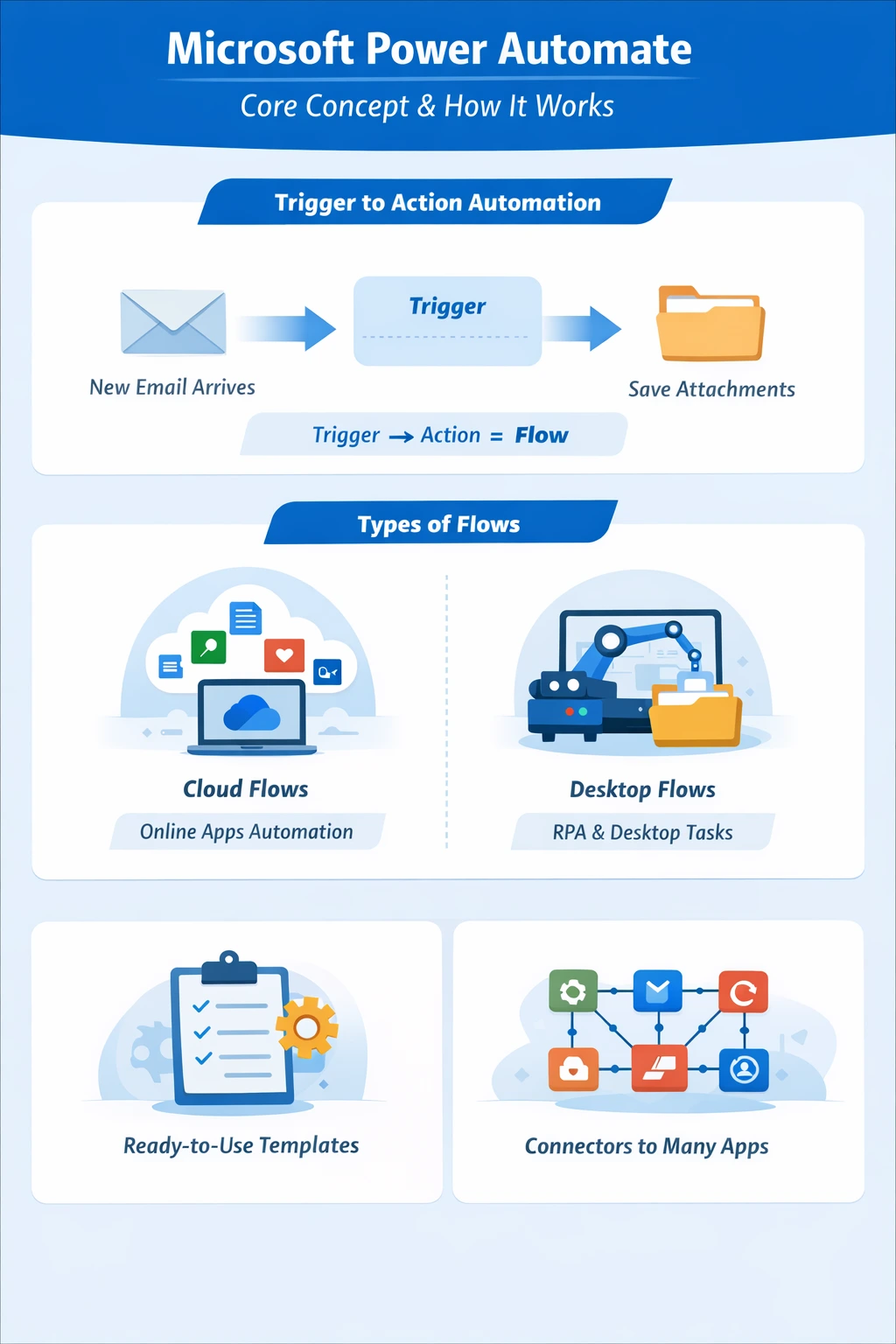
To make the most of Microsoft Power Automate, we first need to understand how it actually works. Luckily, the core idea behind the tool is very simple. It follows a ‘Trigger to Action’ format. Something happens first, and Power Automate responds with an action that you have defined earlier. In case you are familiar with Make.com or n8n automation tools, you know what I mean here.
For example, a new email arrives in your inbox. That is the trigger. Power Automate then saves the attachments from the email into a folder of your choice. That is the action. You can chain as many actions to a trigger as you want, building up an entire chain of automation.
These automated chains are called Flows. Each flow handles one complete task from start to finish. Microsoft Power Automate offers different types of flows to handle different environments:
- Cloud Flows: These flows run entirely on the cloud. They work best for online apps like Outlook, SharePoint, OneDrive, Teams, Google Drive, or Slack. Just select a trigger event, define the action, and your automation runs online without touching your desktop.
- Desktop Flow: Some tasks do not happen online. Many companies still rely on old or offline apps. Desktop flows solve this problem. They use RPA (Robotic Process Automation) to click buttons, type text, and move files on your computer just like a human would do. This makes automation possible even for legacy systems.
- Templates and Connectors: Here is the best part of Microsoft Power Automate. You do not need to build everything from scratch. The platform offers hundreds of ready-to-use templates. Pick one that matches your task, tweak a few settings, and you are done.
Connectors help Power Automate talk to other applications. These connectors act like bridges between different tools. Because of them, a single flow can move data smoothly across Microsoft apps and many third-party platforms.
Here is an image to summarise everything about Power Automate that we’ve gone through till now.
How to Access Microsoft Power Automate?
Getting started with Microsoft Power Automate is surprisingly simple. You do not need any special hardware, complex installations, or technical setup. All you need is a web browser and an email address. That’s it.
Power Automate is available as part of Microsoft’s Power Platform and can be accessed directly through your browser. If you already use Microsoft products like Outlook, Teams, SharePoint, or Excel, chances are you already have access to Power Automate in some form. In that case, simply log in with your Microsoft account and start building your first flow.
For beginners, Microsoft also offers a free tier. This lets you explore basic automation features, try out templates, and understand how flows work before committing to a paid plan. As you advance, you may want to opt for flexible paid plans that scale with your needs.
In short, there is no steep entry barrier here. Power Automate is designed to be accessible from day one, and powerful as you grow into it.
So now that we know where to find it, let’s jump right into a practical use-case to better understand its working.
Setting Up: First Steps with Power Automate
Since Power Automate is designed with accessibility at its core, it does not require any prior automation experience. In fact, the platform is designed to guide you through the process from the very first click.
Here are step-wise instructions to give you a glimpse of your upcoming experience with Power Automate:
- Visit the Microsoft 365 website by clicking here.
- Sign in to your Microsoft account if not logged in already.
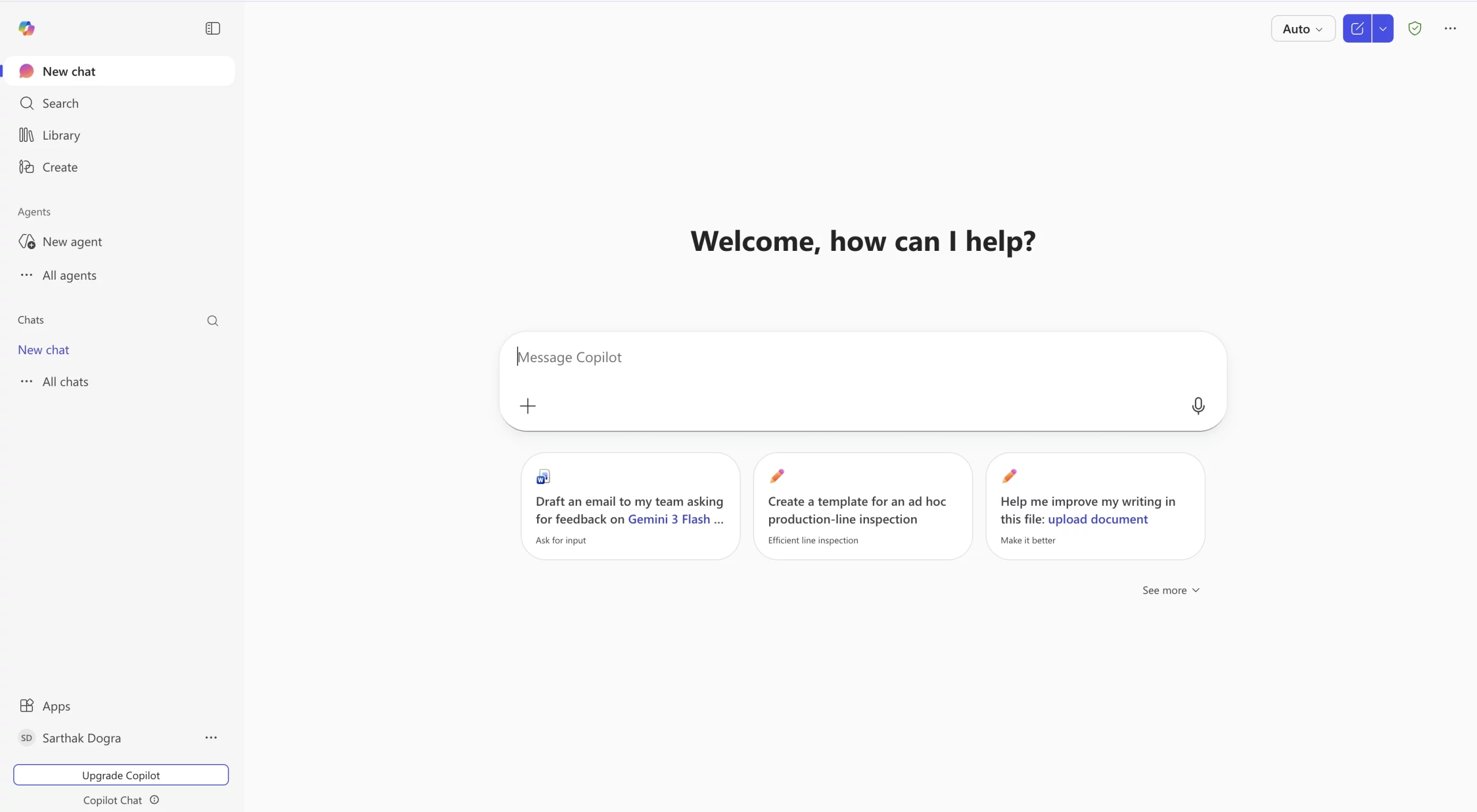
- Click on the Apps option at the bottom of the sidebar on the left. You will see this right above your account info.
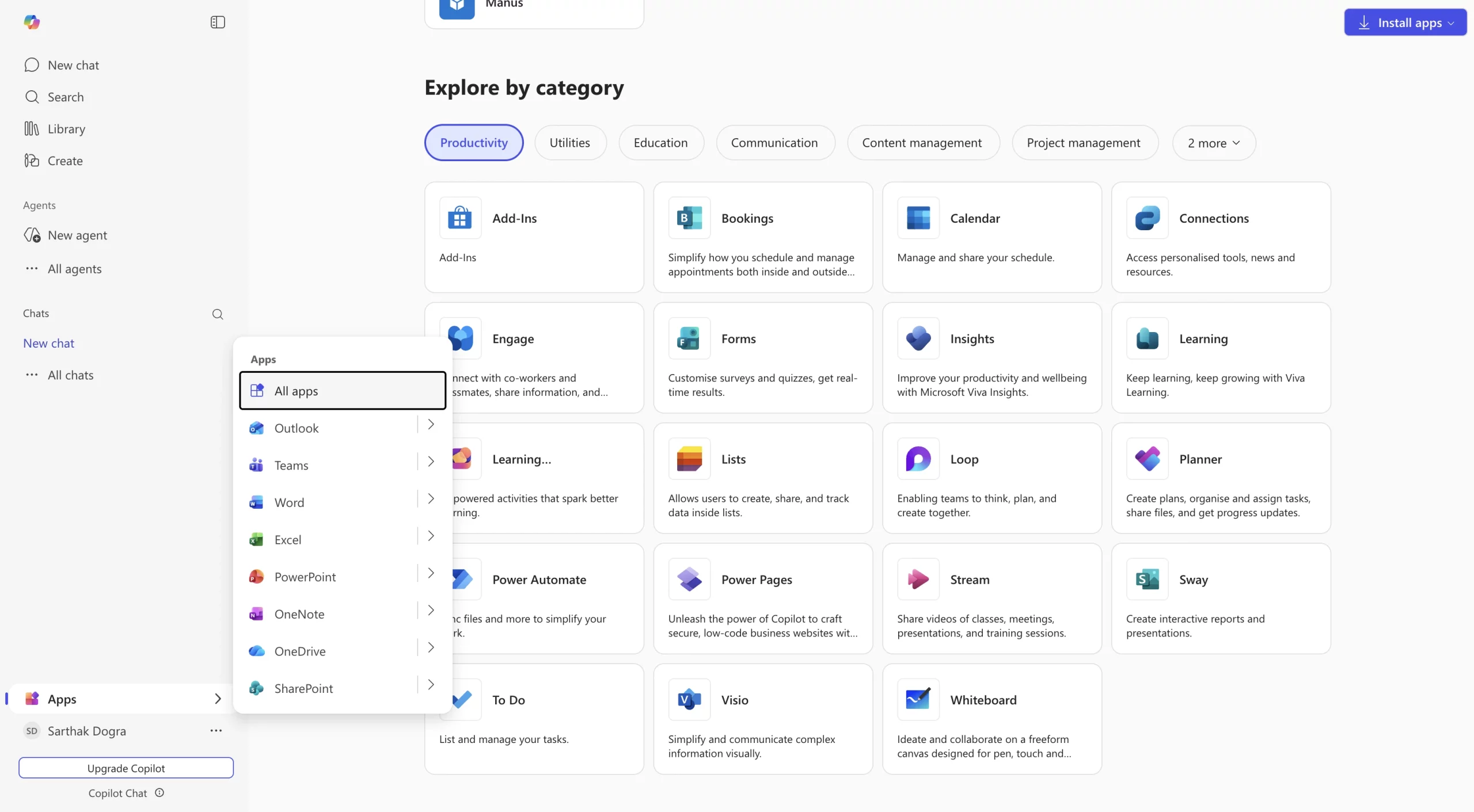
- From the extended menu, click on All Apps. Then scroll down to find Power Automate. Click to open.
You can follow these images for any assistance through this process:
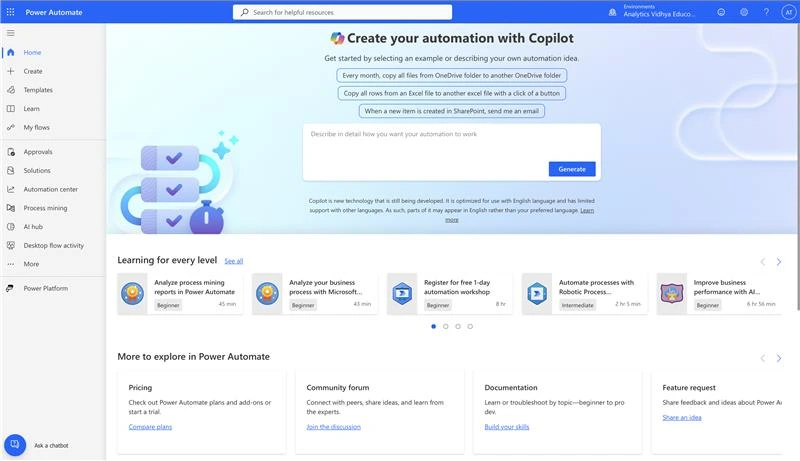
Once open, you shall now see the dashboard of Power Automate. Hereon, you have two options to proceed:
1. Build workflow from Scratch
To build a flow from scratch, select ‘Create’ from the sidebar on the left. Then begin by selecting a trigger – an event that starts the automation. This could be something like receiving a new email, a file being uploaded, or a form being submitted. Once the trigger is set, you define one or more actions that Power Automate should perform in response. These actions can range from sending messages to updating records or moving files. e.g., an incoming email may trigger a notification for a group on Teams.
2. Use a Template
For beginners, this is an ideal way to explore the capabilities of Power Automate. Microsoft offers hundreds of ready-made templates for common tasks such as sending notifications, saving email attachments, syncing files, or managing approvals. If you are new, simply head to ‘Templates’ in the left sidebar, find one that suits your needs, and click on it to set it up in a canvas. It is that simple!
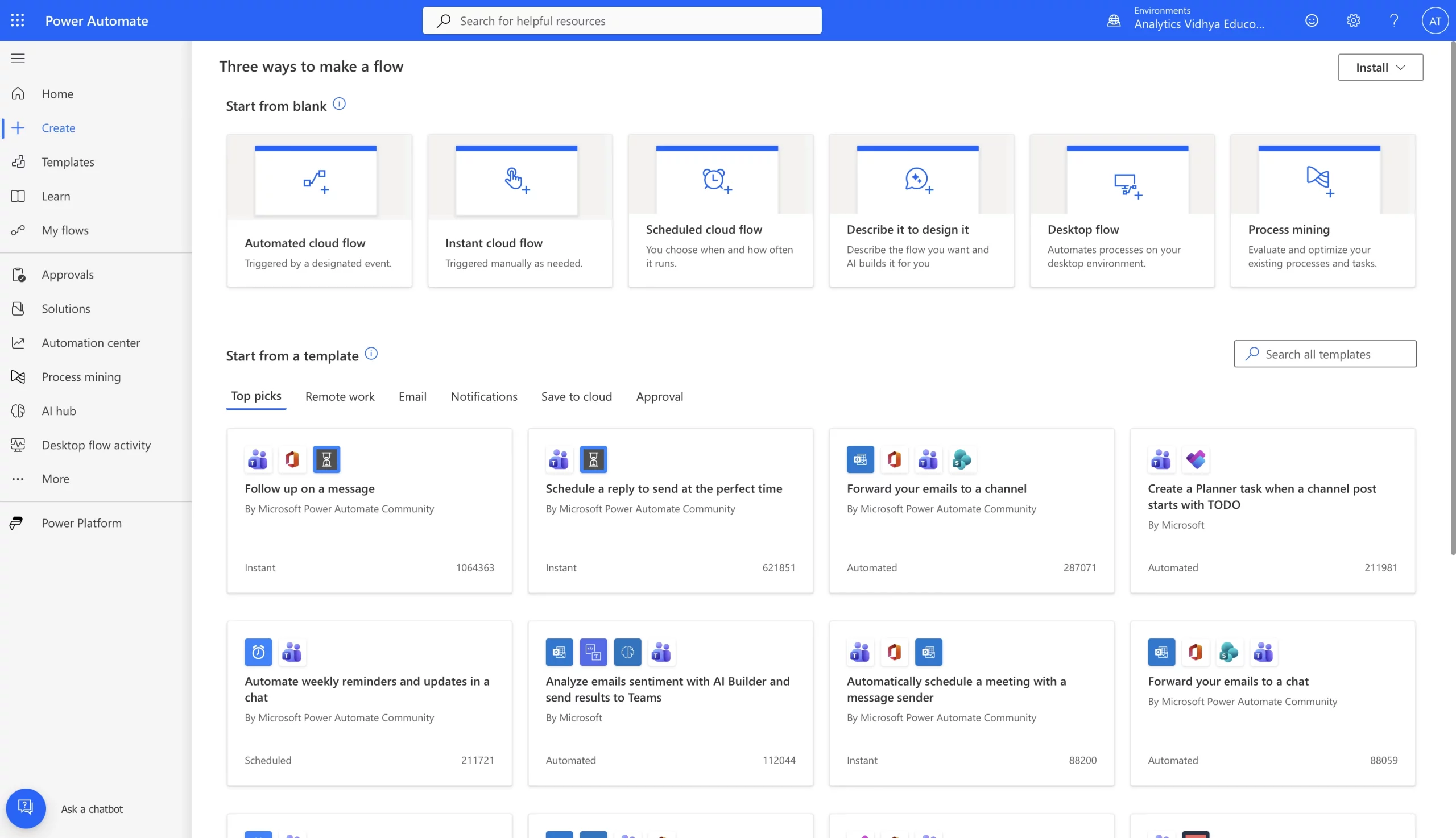
Learn as you go, as Power Automate walks you through each step using a visual editor. You simply select apps, choose actions, and configure them using simple inputs. There is no coding involved.
Once your flow is ready, you save it, turn it on, and let it run in the background.
Your setup is now complete, and the workflow should now execute automatically whenever the trigger occurs. Now sit back, and say goodbye to manual effort.
Having walked through the steps of setting up an automation, let us now explore what a real-life automation with Power Automate looks like.
Get Instant Alerts When a File Is Uploaded to OneDrive
To demonstrate how Microsoft Power Automate works in a real-life scenario, we first take an example from the templates within the app. The automation will forward a mobile notification, as well as an email, as soon as a file is uploaded to a drive. Here is how it goes:
Notify and email when a new file is uploaded to OneDrive
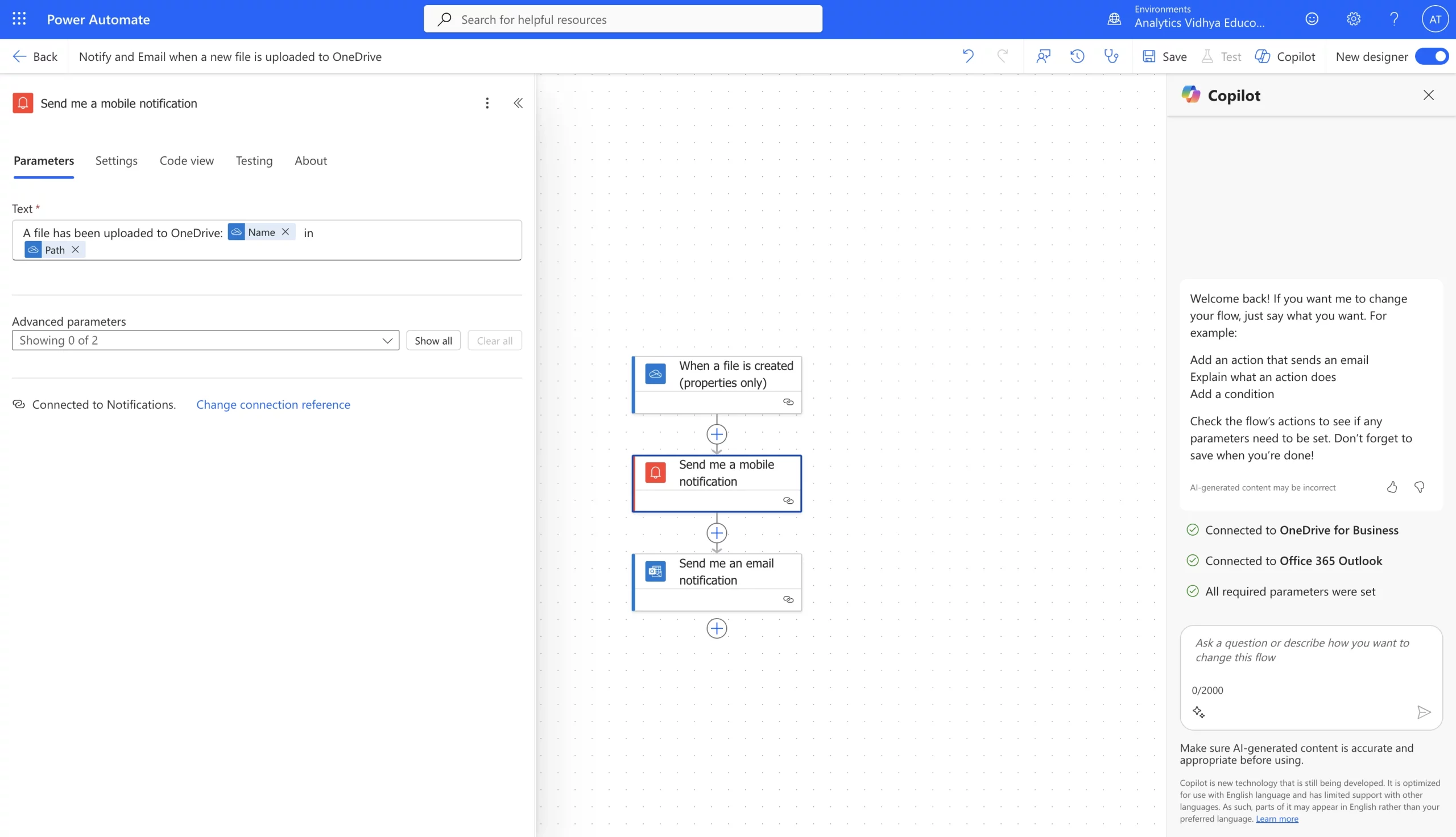
1. To begin with, select the following template from the Templates menu – ‘Notify and Email when a new file is uploaded to OneDrive.’ This shall open a dashboard with a pre-set 3-step automation. You can have a look at this in the image below.
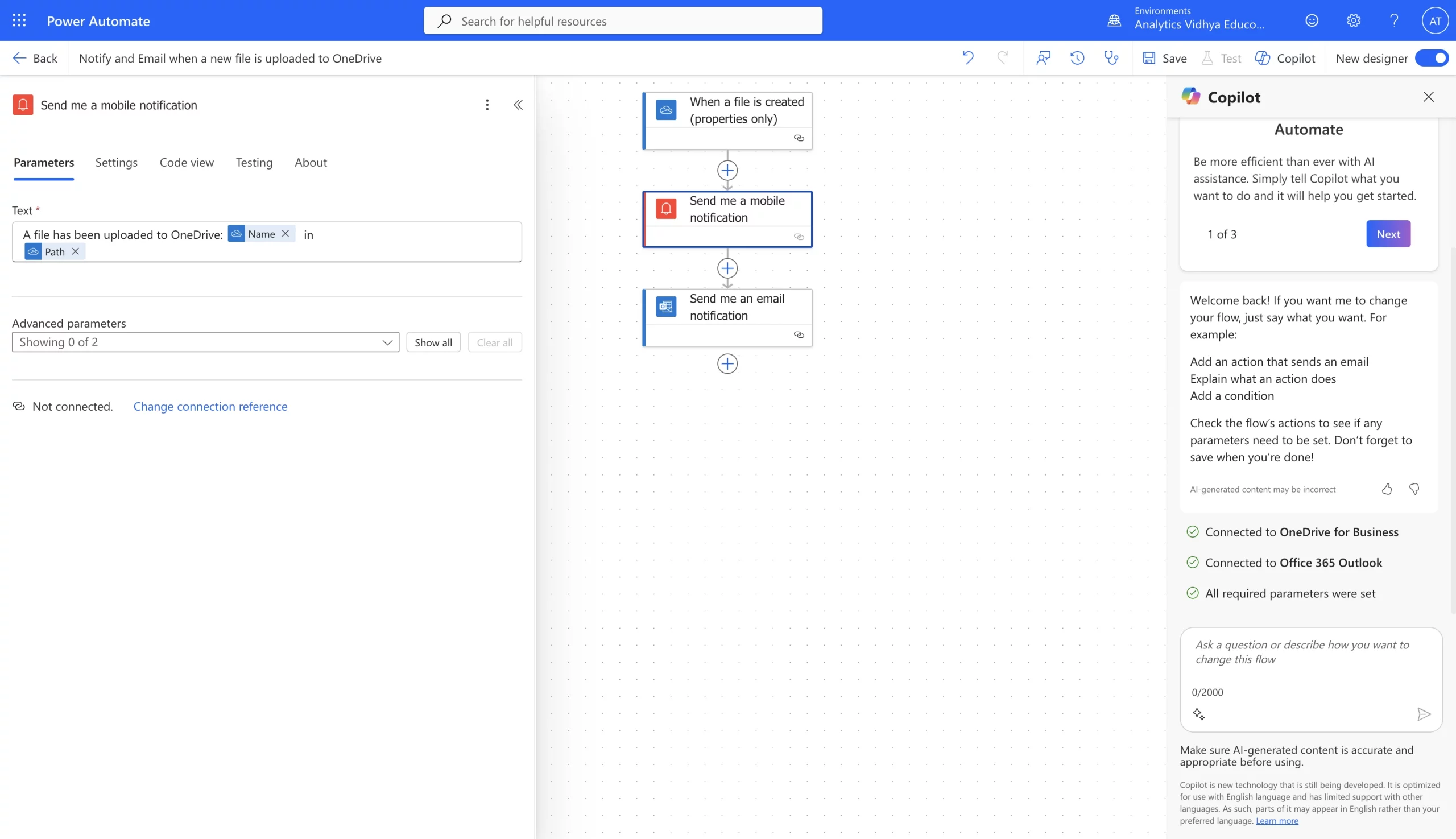
2. All we now have to do is set the parameters in the various steps, and the automation shall start running. Select the first step – ‘When a file is created’ – and choose the folder you wish to connect under the ‘Folder’ option. You can leave the rest of the fields as they are.
Note: In case your OneDrive is not already connected, you may wish to connect it first through the ‘Change connection reference’ at the bottom of the left panel.

3. Next, select the second step – ‘Send me a mobile notification’ – finalise the message in the ‘Text’ field, and connect your phone number at the bottom.
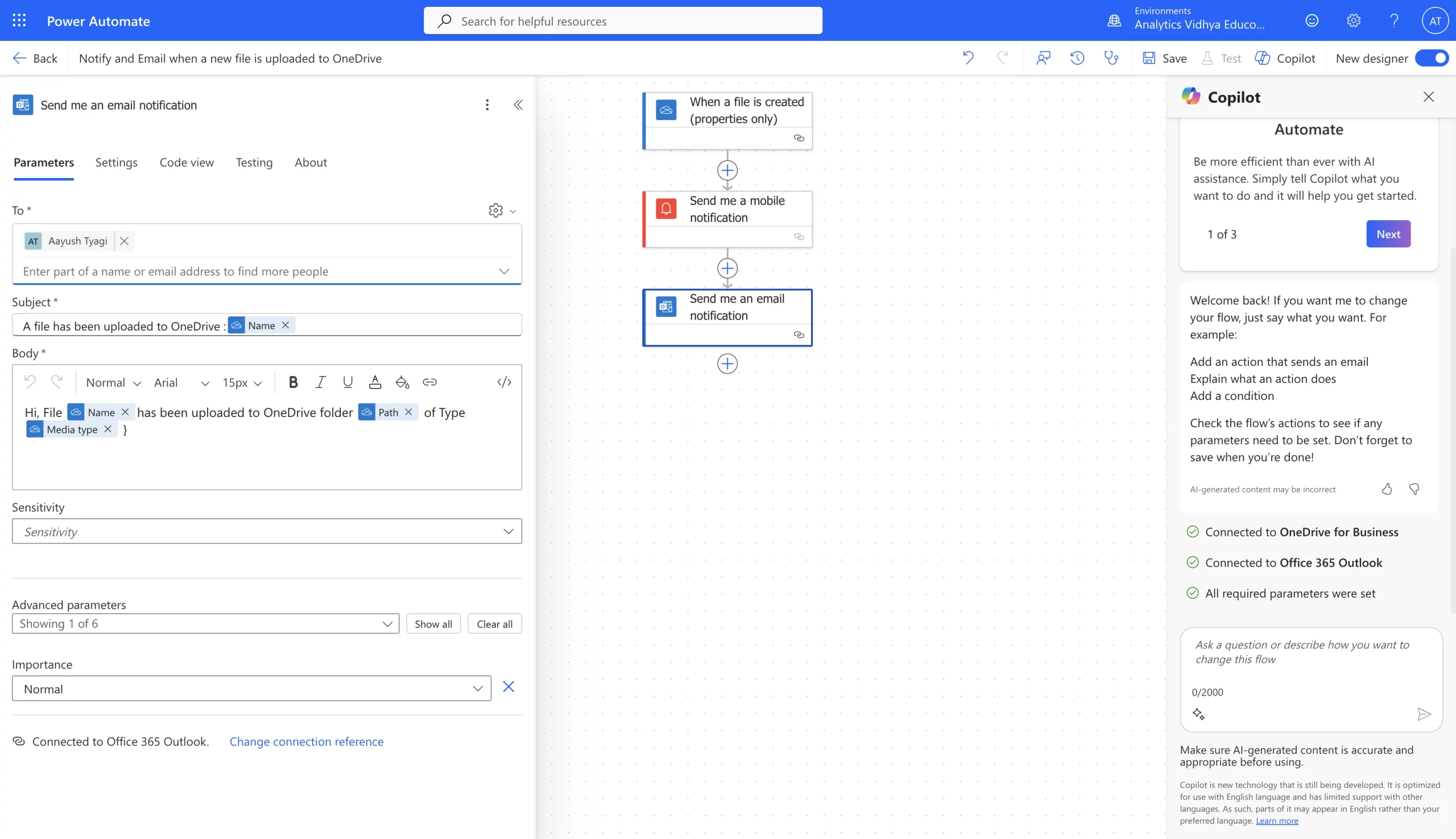
4. Select the third step – ‘Send me an email notification’ – choose the target email and frame the Subject and the Body of the email as you want, and you are done. Click on the ‘Save’ option from the top toolbar, and test it if you like (through the option adjacent to Save) before running the automation.
Automatically Summarize Incoming Emails Using ChatGPT
Our second automation example summarizes emails using ChatGPT. Here is how it works:
Summarize emails using ChatGPT
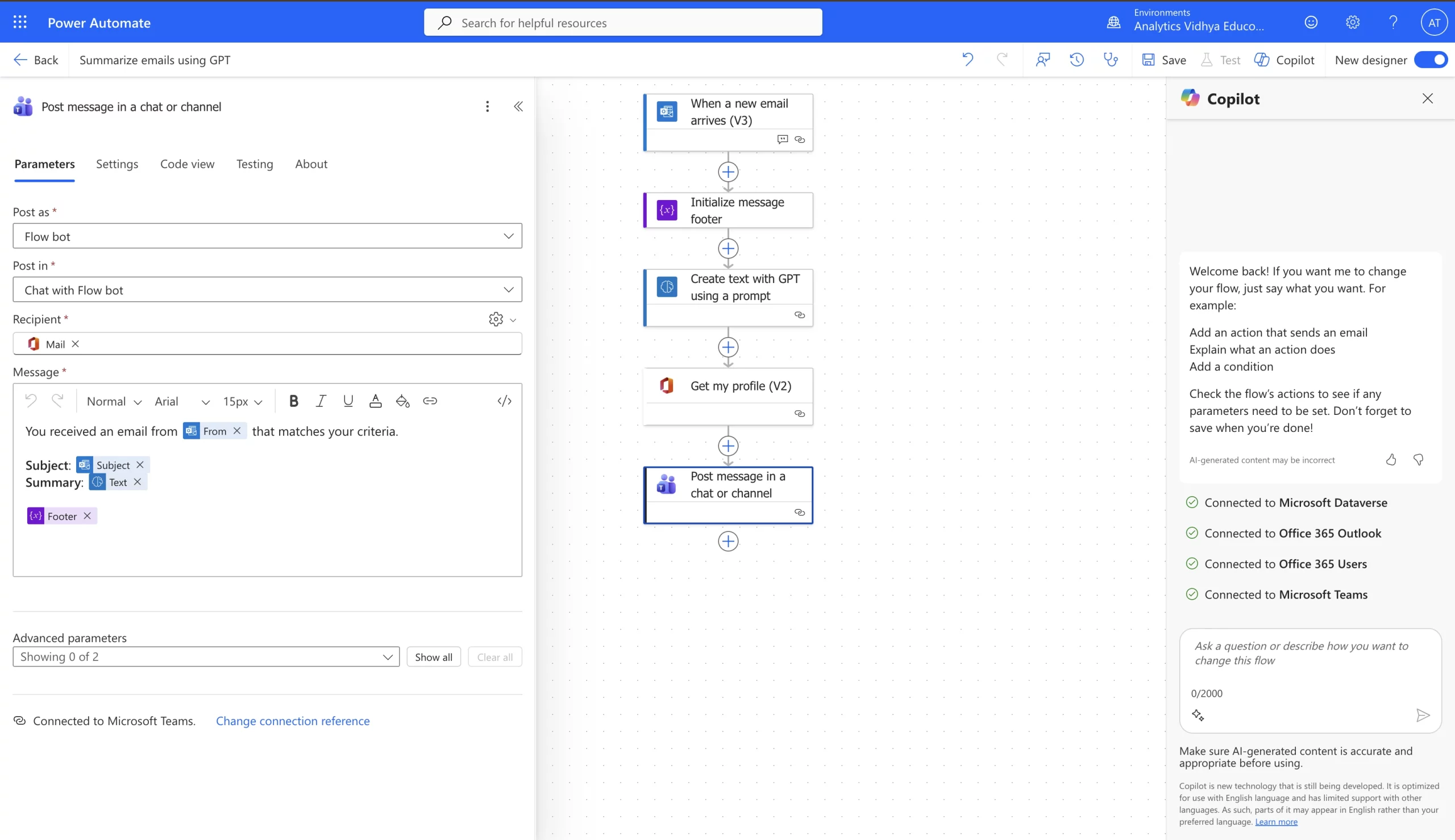
1. Select the template ‘Summarize emails using ChatGPT’ from the Templates menu. This shall open a dashboard with a pre-set 5-step automation. You can have a look at this in the image below. Select the first step and enter all the parameters for the new email in the left panel.
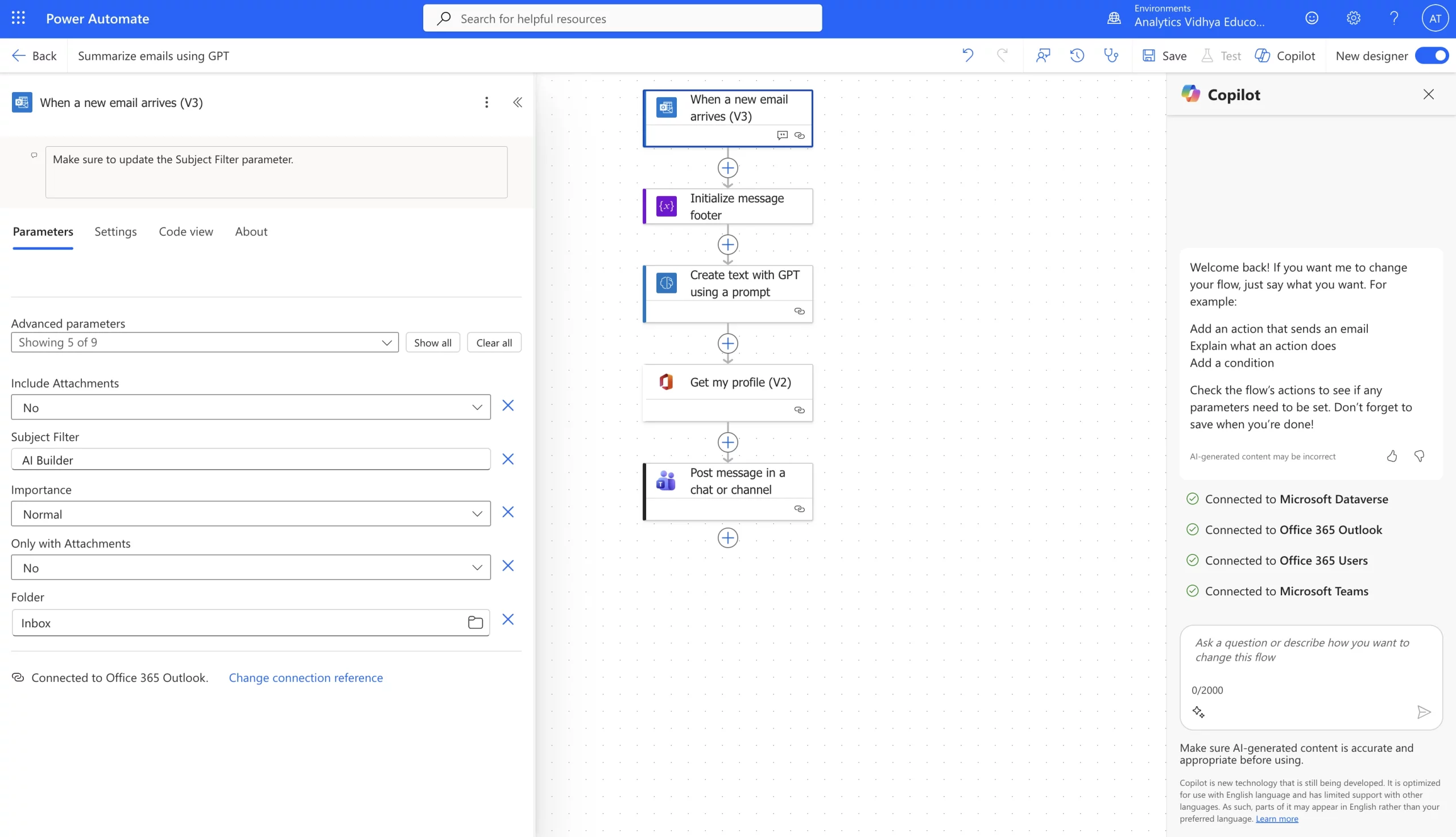
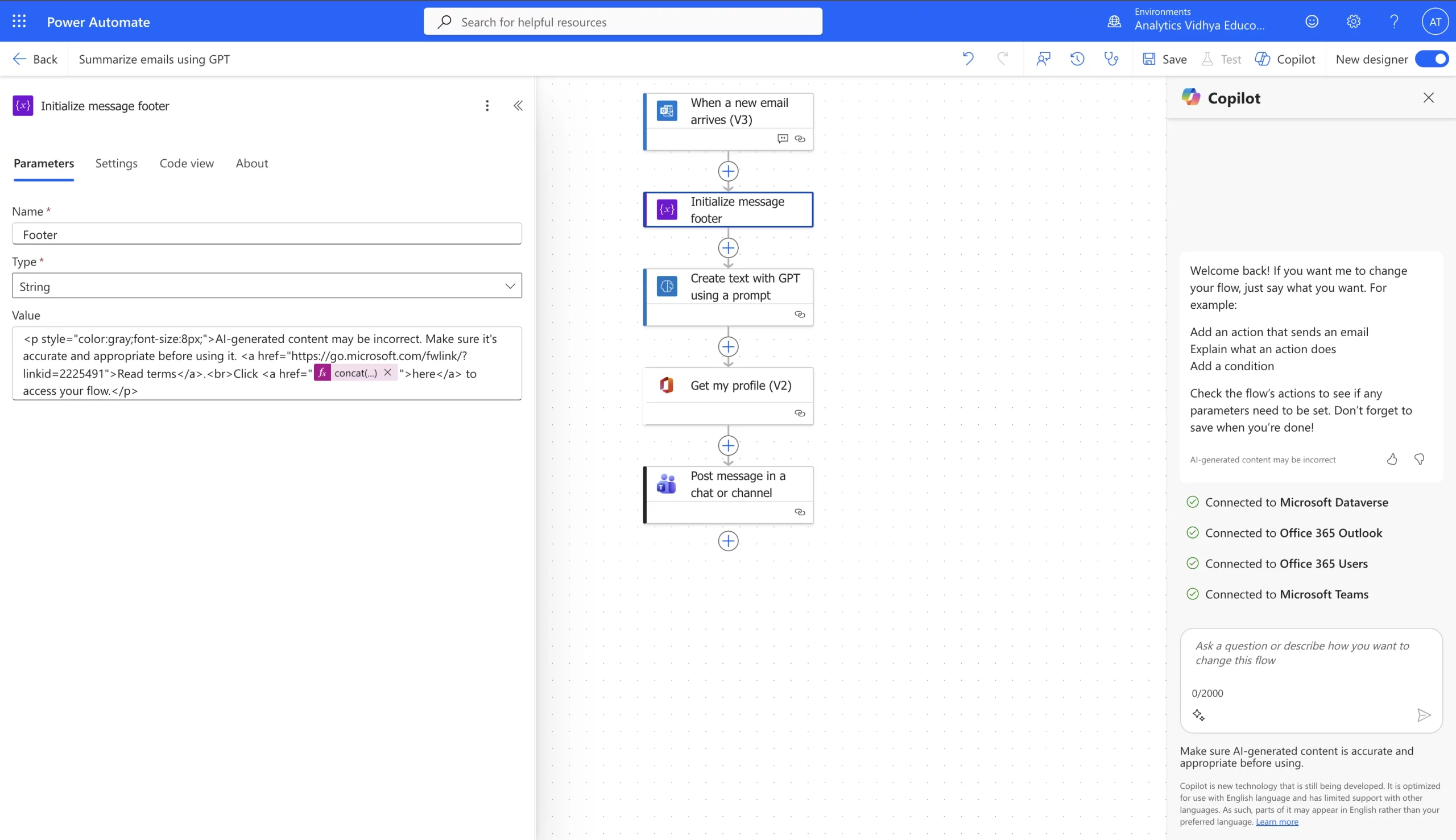
2. Select step 2 – this step creates a string variable that stores a reusable HTML footer message. This footer message is basically attached to AI-generated summaries for compliance and transparency. You can leave all the parameters here as they are.
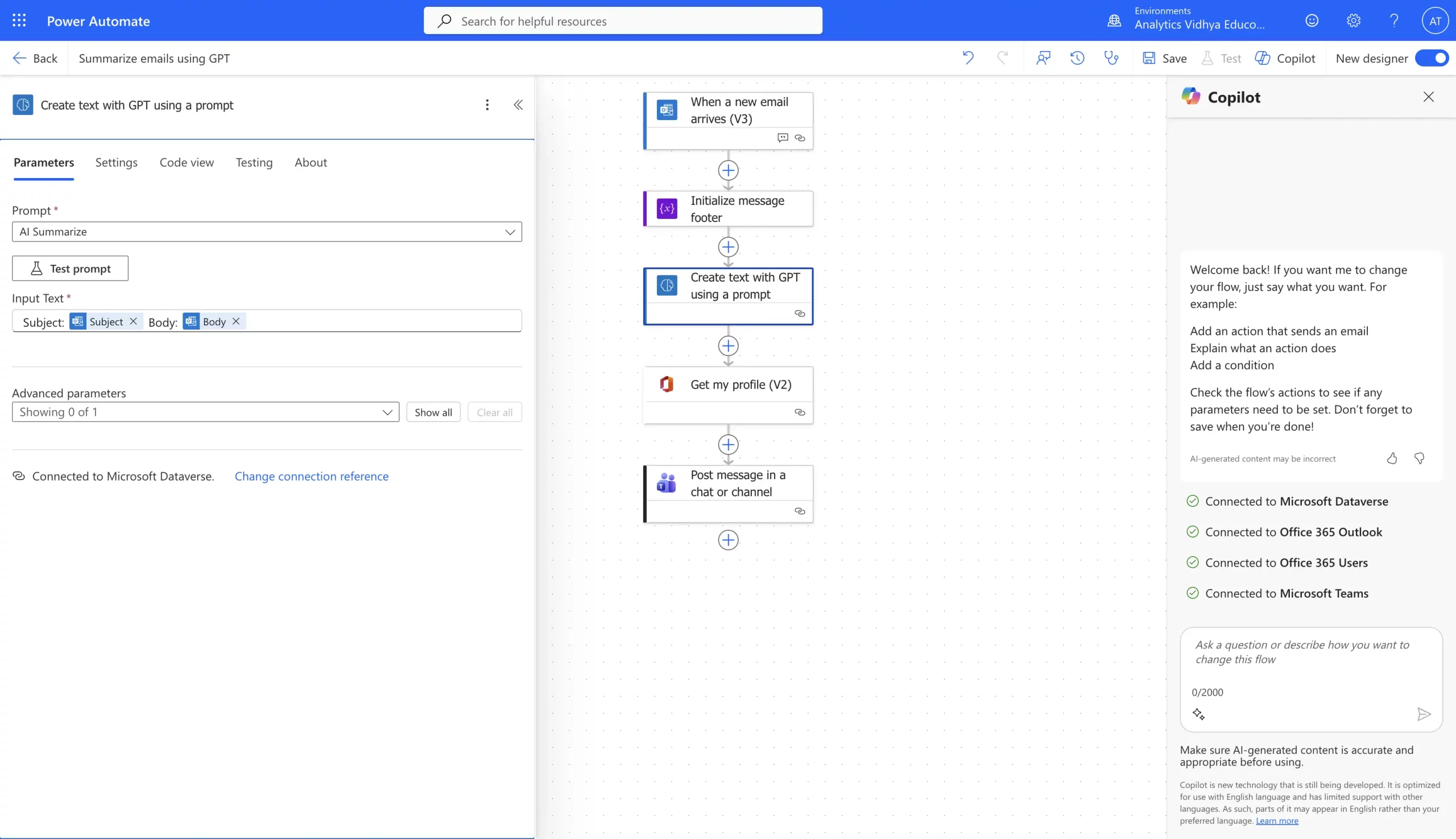
3. Select the third step to finalise its parameters. Within the Prompt section, select the prompt you wish to execute (in this case, AI Summarize is apt). Select ‘Subject’ and ‘Body’ as Input Text. This shall subset the subject and body of the incoming email within your prompt.
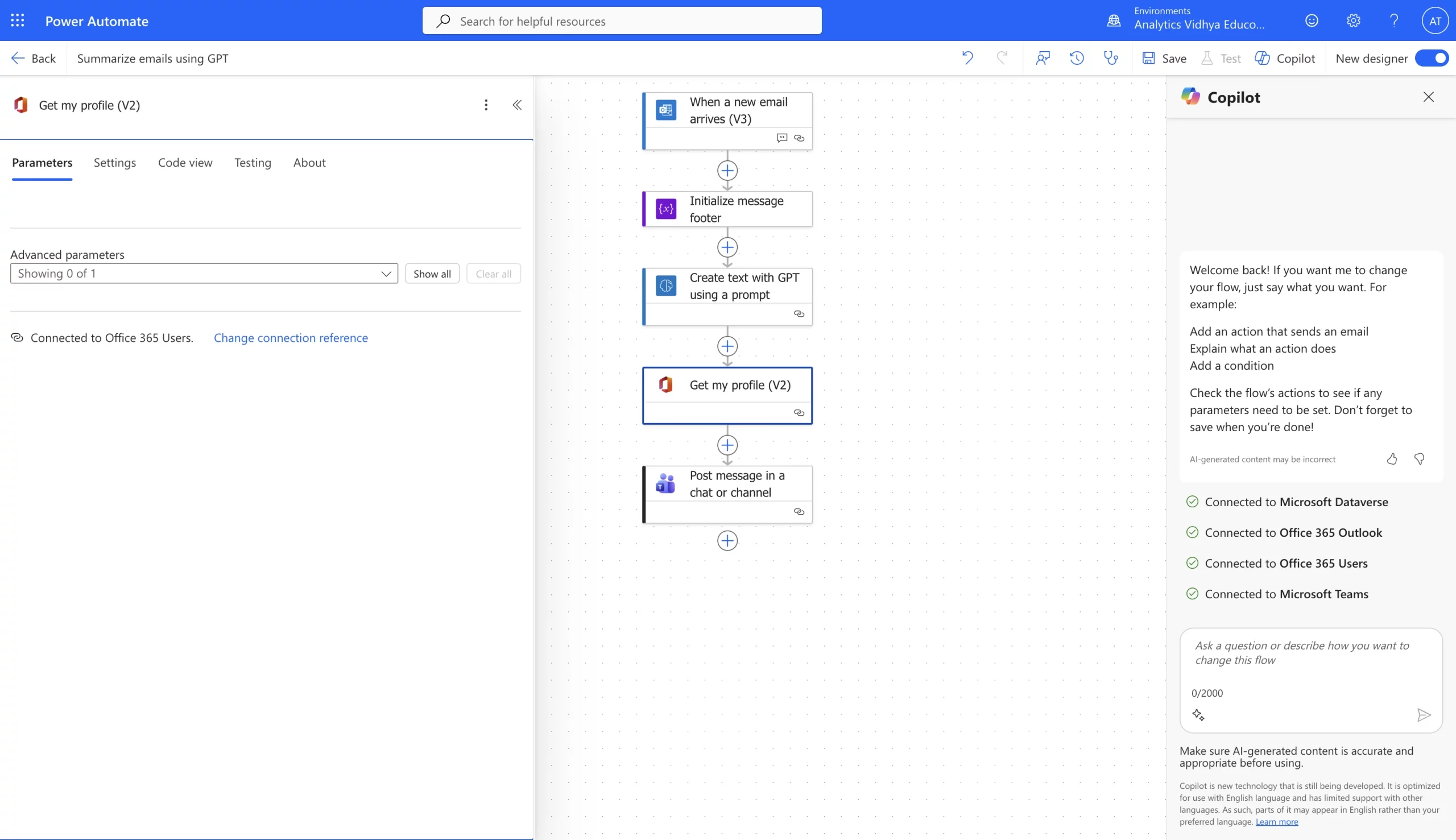
4. Select step 4 – the “Get my profile (V2)” step fetches your Microsoft 365 user details so the GPT-generated summary can be correctly attributed, routed, or posted in Teams under your identity.
5. Select step 5 and define the parameters for Post as, Post in, Recipient, and Message. Once done, you can simply Save the automation and Test it before making it live.
Power Automate: Common Use Cases
Now that we know how Power Automate works, here are just some of the possibilities that the Microsoft tool opens the doors to:
1. Email Management and Notifications
Receiving the same type of email every day? Power Automate can alert you only when something important happens, instead of you sifting through the boring stuff constantly. For example, it can send a Teams message when a high-value customer sends an email.
2. Automated Data Entry and Syncing
Copy-pasting data from one tool to another is annoying and risky. Power Automate keeps your records updated across systems, also helping to clean data and reduce human errors.
3. Approval Workflows
With Power Automate, you can request approvals for leaves, budgets, or documents with one click. So, no more waiting for someone to check their inbox. Approvers get reminders instantly.
4. Document and File Handling Automation
Whenever a new file arrives, Power Automate can rename it, organise it into a folder, and even extract important data. So, now you spend more time working with the file and less time managing it.
5. Helpdesk and Customer Support Tasks
Support teams can automate ticket creation, resulting in swifter customer support response. For example, every time a user fills a form, a support ticket is created in the system.
6. HR and Employee Onboarding
Sending welcome emails, granting access, creating user accounts, now all of it can run in an automated flow within Power Automate.
7. Desktop Automation for Legacy Systems
Many organisations still use old software that cannot integrate with cloud tools. Desktop flows let Power Automate click, type, and navigate screens like a human, solving the problem perfectly.
There are many more use cases across finance, supply chain, compliance, facilities, and IT operations. Automation possibilities expand every day as more systems connect with Microsoft Power Automate. So, simply identify how Microsoft Power Automate can help lessen your workload and use it to automate your systems, best suited for you. Let us look at a few examples of how this is being done around the world.
Real-World Examples of Microsoft Power Automate
Here are some real-world implementations of Power Automate that highlight its automation prowess and the results it delivers.
1. Cineplex – Media & Entertainment
With Power Automate, Cineplex automated invoice processing, ticket refunds, onboarding tasks, and financial reporting. They saved over 30,000 working hours every year. Employees now focus on decision-making instead of paperwork.
2. SLB – Global Energy Provider
The company automated large-scale data entry and invoice processes using Power Automate. Desktop flows now extract information from scanned documents and transfer it into systems without human effort. This improved accuracy and speed for thousands of transactions.
3. Toyota Motor North America – Manufacturing
Toyota automated quality-control reviews and reporting activities with Power Automate. What earlier took hours of manual checks now completes in minutes, increasing product reliability and complete automation of repetitive tasks.
4. Virgin Atlantic – Aviation
The airline uses Microsoft Power Automate to speed up internal approval and documentation flows. Response times dropped significantly. The crew can now focus more on delivering a better passenger experience.
Conclusion
By now, we have explored what Microsoft Power Automate is, how it works behind the scenes, and how it can be of use to automate our everyday workflows. We also saw real-life use cases of how it benefits companies, and established some quick workflows to have a basic understanding of how to use it.
All that is left for you now is to experience the power of automation first-hand. Trust me, once you do, there is no turning back to the regular, boring, and extremely tedious tasks that took up half of your workday. Power Automate will be your new, and extremely capable work buddy that has your back.






