Excel is the default tool for data management, analysis, and calculations. But what if there were a way to make this tool even smarter and easier to use? Our friendly AI assistant ChatGPT, an AI that can assist with everything from generating complex formulas to offering insights on your data. Whether you’re a student organizing grades or a professional managing financial data, ChatGPT can make your work faster and more efficient. In this article, you’ll learn to enhance your Excel experience with ChatGPT’s guidance.
Table of contents
The Magic of Excel and ChatGPT Together
The integration of AI into everyday tools like Excel is a practical reality today. ChatGPT can enhance your Excel productivity by:
- Helping you write complex formulas quickly and accurately.
- Troubleshooting errors in formulas or functions.
- Assisting with data analysis and visualization.
- Automating repetitive tasks with VBA macros.
By using ChatGPT, you get Excel’s powerful functionality paired with AI’s quick thinking and problem-solving skills.
Connecting the Dots Between ChatGPT and Excel
Before we dive into specifics, it’s important to understand how to interact with ChatGPT while working in Excel. You can ask ChatGPT anything, whether it’s about a formula or an error message, and it will guide you with clear, step-by-step instructions.
The best part? You don’t need any advanced technical skills to ask questions. Whether you’re asking for a formula or explaining an issue, ChatGPT speaks your language.
Now, we’ll be going over different use cases in Excel where ChatGPT can come in handy. For demonstration purposes, we’d be using the following table:

Generate Excel Formulas
Let’s say we want to get the average of a column in Excel. Really basic stuff, right? For this, I provided the picture/screenshot of the previously mentioned table to ChatGPT and asked the following question:
“What formula will calculate the average grade for all students?”
ChatGPT Response:

After using the above formula, we get the following result:

ChatGPT was able to provide us with a formula that satisfied our requirements.
Generating Improved Formulas
As seen before, ChatGPT was able to help us out with doing the basic Excel stuff. But our requirements may not always be this simple. This time, we would be testing the chatbot on something more complicated using the following question:
“Write a formula to categorize students’ grades as “Pass” (for grades >= 80) or “Fail” (for grades < 80).”
ChatGPT Response:

Upon using the previously mentioned formula on column E, we get the following:

Column E has successfully categorized the status of students based on their Grades.
Fixing Errors in Formulas
Till now, we’ve seen how ChatGPT can assist us in problem-solving from scratch. But it is also capable of problem diagnosis and resolution. This time, we’ll be testing its capability by offering it a formula that isn’t working, using the following prompt:
“Why is this VLOOKUP formula returning an error, and how can you fix it?
=VLOOKUP(“Max Brown”, A2:C7, 3, FALSE)”
ChatGPT Response:

Upon using the previous formula, we get the following result:

The command executed successfully and was able to find the grade of “John Doe”.
Conditional Formatting
But what about formatting? Considering that a big workload of regular Excel users is presentation and representation, formatting takes a central spot when it comes to importance. Now, we’ll be testing ChatGPT on the following prompt:
“Apply Conditional Formatting to highlight all students with grades above 85.”
ChatGPT Response:

Following the suggestions in the response, we have to go to Home > Conditional Formatting > New Rule.

Upon doing the same, we get the following prompt:
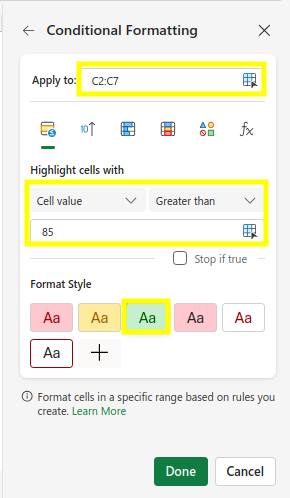
After selecting the options mentioned in the prompt, we get the following table:

After following all the instructions, the grades that are over 85 got highlighted in the table.
Analyzing Data with Pivot Tables
But what about the visuals? Sometimes information can be disseminated with ease using a visual medium, rather than a barrage of rows and columns. We’ll be testing ChatGPT’s capabilities when it comes to creating illustrations using the following prompt:
“Create a Pivot Table that shows the average grade per subject.”
ChatGPT Response:

Based on the response, select the entire table.

After going to Insert > PivotTable, we get a prompt.

After entering the values mentioned in the response, we get the following table:

We got the desired pivot table by following the instructions.
When ChatGPT Might Not Be the Best Fit for Excel Tasks
Even though ChatGPT is useful when working with Excel, it may not be the best at all sorts of tasks. Here are some of the limitations of using ChatGPT in Excel:
- Real-time Excel interactions: ChatGPT can’t directly manipulate or interact with live Excel files.
- Complex VBA scripting: It can assist with basic macros but struggles with highly advanced, custom VBA code.
- Third-party integrations: ChatGPT cannot handle complex add-ins (like Power BI) or external API integrations in real time. External plugins are ill-advised due to security reasons.
- Large datasets: It can’t troubleshoot performance issues caused by massive data volumes or optimize Excel for high performance.
- Advanced statistical models: ChatGPT can’t fully handle deep statistical analysis or machine learning models beyond Excel’s basic functions.
Conclusion
By now, you’ve learned how ChatGPT can help you create formulas, fix errors, enhance your workflow with pivot tables, and much more. Whether you’re managing grades, financial data, or any other set of information, ChatGPT’s assistance can make Excel a lot easier and faster.
ChatGPT makes Excel feel more like a conversation partner than a spreadsheet tool. So, next time you run into an Excel challenge, remember: ChatGPT is just a question away from helping you solve it.
If you need help with Excel, refer to this resource list.
Frequently Asked Questions
Q1. Can ChatGPT help me write Excel formulas?
A. Yes! Just tell ChatGPT what you want to do, and it’ll give you the right formula.
Q2. My Excel formula isn’t working; can ChatGPT fix it?
A. Yep, just share the formula or error, and ChatGPT will help you troubleshoot.
Q3. How do I highlight cells with different values in Excel?
A. ChatGPT can walk you through setting up conditional formatting to highlight those cells.
Q4. Can ChatGPT help me create a Pivot Table in Excel?
A. Definitely! ChatGPT can guide you step-by-step on how to create and use a Pivot Table.
Q5. What can’t ChatGPT do in Excel?
A. It’s great for most tasks, but it can’t interact with your live Excel files or handle super complex VBA scripting.
Studying, evaluating, and explaining AI systems for over 6 years.
“𝘖𝘯𝘤𝘦 𝘮𝘦𝘯 𝘵𝘶𝘳𝘯𝘦𝘥 𝘵𝘩𝘦𝘪𝘳 𝘵𝘩𝘪𝘯𝘬𝘪𝘯𝘨 𝘰𝘷𝘦𝘳 𝘵𝘰 𝘮𝘢𝘤𝘩𝘪𝘯𝘦𝘴 𝘪𝘯 𝘵𝘩𝘦 𝘩𝘰𝘱𝘦 𝘵𝘩𝘢𝘵 𝘵𝘩𝘪𝘴 𝘸𝘰𝘶𝘭𝘥 𝘴𝘦𝘵 𝘵𝘩𝘦𝘮 𝘧𝘳𝘦𝘦. 𝘉𝘶𝘵 𝘵𝘩𝘢𝘵 𝘰𝘯𝘭𝘺 𝘱𝘦𝘳𝘮𝘪𝘵𝘵𝘦𝘥 𝘰𝘵𝘩𝘦𝘳 𝘮𝘦𝘯 𝘸𝘪𝘵𝘩 𝘮𝘢𝘤𝘩𝘪𝘯𝘦𝘴 𝘵𝘰 𝘦𝘯𝘴𝘭𝘢𝘷𝘦 𝘵𝘩𝘦𝘮.” — 𝖥𝗋𝖺𝗇𝗄 𝖧𝖾𝗋𝖻𝖾𝗋𝗍, 𝖣𝗎𝗇𝖾